36
6 User Interface
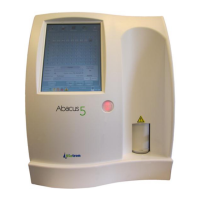
The user interface of the ‘Abacus 5’ analyzer is designed to be intuitive and easy to use, and provide access to all user
level functions. You can interact with the ‘Abacus 5’ by using only the touch screen and the virtual on-screen keypad,
or by using an external keyboard and mouse (PS2 or USB). The Start button is considered an important part of the
user interface, allowing one-hand, one-touch processing of sample tubes.
6.1 Using the Touch Screen
The touch screen is a pressure sensitive overlay on the screen of the ‘Abacus 5’. It allows selection of menu items and
pressing of buttons by gently pressing or tapping the surface over the selected item. This method is called ‘tapping’.
The touch-screen device used in the ‘Abacus 5’ analyzer is selected for reliability, endurance and compatibility with
the medical laboratory environment. Simple operations are supported, but multi-touch “gestures” or multiple
tapping are not supported.
The touchable items on the ‘Abacus 5’ user interface are designed to be large enough to tap with finger. The use of a
tapping tool may be useful if the operator has larger or thicker fingers, or when wearing oversize gloves. A tapping
tool can be pencil eraser or a specially designed stylus available at computer or consumer electronics stores.
Do not use sharp or heavy objects to operate the touch screen. The surface material is moderately resistant to
liquids. Avoid touching the screen with wet fingers, or allow liquids to come in contact with the screen or the
surrounding area.
If you find that the ‘Abacus 5’ touch screen responds in a different area than the one you are tapping, then please
perform a touch screen calibration procedure before calling for service or support. See chapter 17.5 for more details
on touch screen calibration and other maintenance procedures.
6.2 Using the ‘Start’ Button
The ‘Start’ button is a physical button on the front cover of the ‘Abacus 5’. It has the following functions:
Start a single tube, closed or open vial measurement using the sample rotor by pressing the Start button.
Provide color-coded feedback about the status of the measurement system.
Green means that the ‘Abacus 5’ is ready to start a new measurement.
Red means that the system is busy running a measurement or a procedure.
Orange color means that the analyzer is in standby mode.
6.3 Using an External Mouse
An external mouse can be used to perform the same functions as the touch screen. Navigate the mouse pointer over
the desired item and click the left mouse button instead of tapping the touch-screen to activate the function. This
procedure is referenced as clicking (click) an item. Touch screen operation continues to be available even if an
external mouse is connected to the ‘Abacus 5’ analyzer.
It is possible to move the mouse pointer to a place on the screen where it isn’t viewable. Move the mouse pointer up
or to the left to make it visible again.
6.4 Using an External Keyboard
An external keyboard provides the same data entry features as the on-screen virtual keypad presented by the touch
screen user interface with faster typing.


 To Next Page