5-11
Chapter 5
In a similar way, if a channel has a microphone as an input source and the microphone is always used by the same actor, it may be that
thingssuch as costume changes will require different settings for that channel during the course of the show. So a channel could be called
"Harry" in a number of cues but "Harry With Hat" in others.
The alias matching rule will ensure that, in Live Update, a change to the "Harry" channel will not update settings for cues where channel is
named "Harry With Hat".
Channel Aliases and Presets
The Aliases button in the input channel socket routing panel (touch the top of a channel on screen) allows you to store or recall a
complete channel setup.
An Alias is the name of a channel and a Preset can be associated with that name. If the source of a channel is changed from cue to cue
(eg Different actors use the same microphone in different cues) then the Cue List's Live Update function can be used to ensure that a
change to the settings of an alias in one cue will be written to the same alias in other cues.
A Channel Preset contains all the channel controls from the Input Gain to the Pan and Fader positions and group routing. Note that a
channel preset does NOT include any input socket routing information - this must be set specifically for each channel.
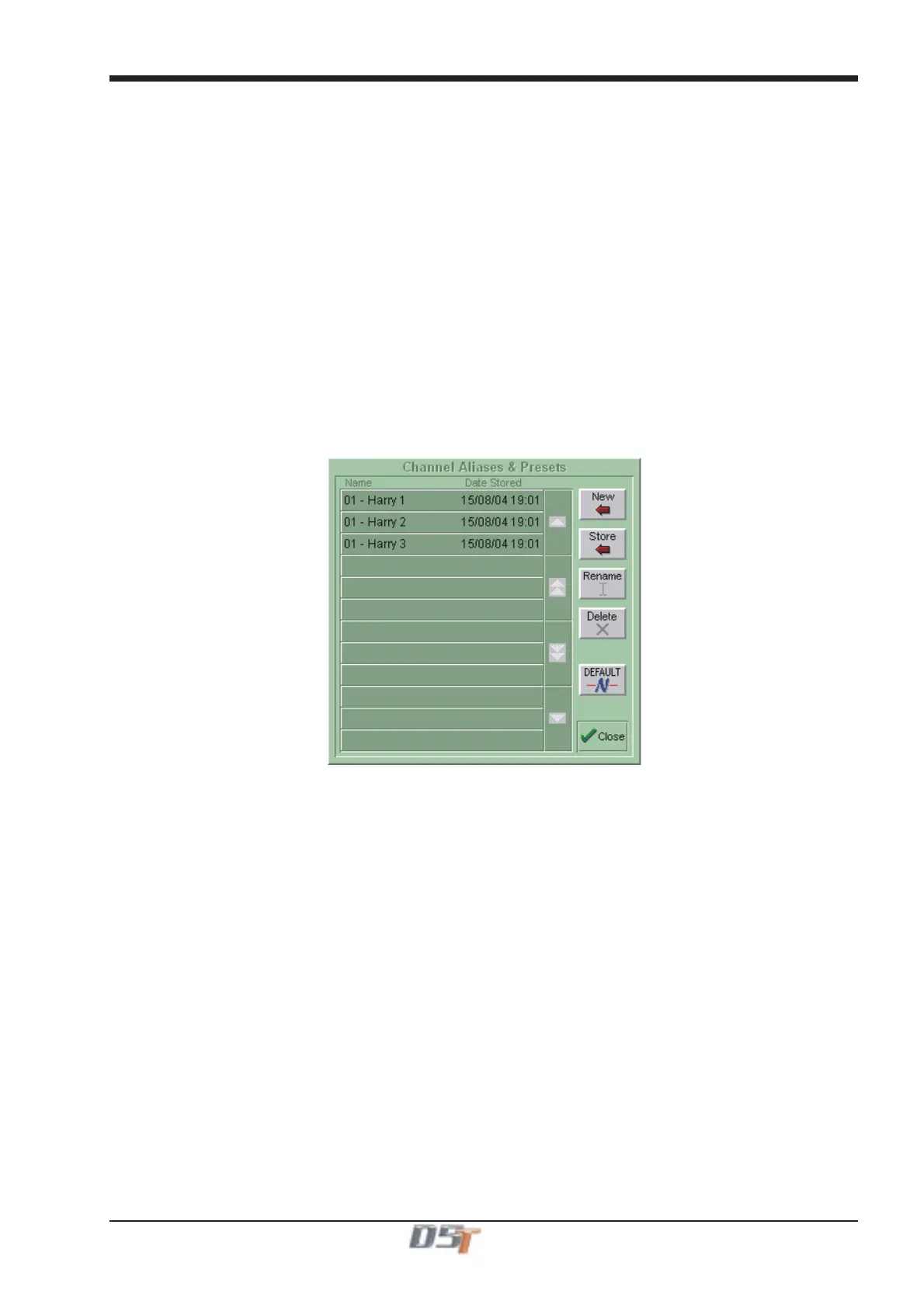
When you press the Aliases button, the screen displays a Preset Selector:
The number at the start of the name represents the channel that the Alias was created from and the name is a copy of the channel label.
There is no requirement to create Presets for each of the channel's aliases but if you intend to use the Live Update function it will probably
prove simpler to organise if you do so.
Note: If you create Aliases using the Cue Editor software then they will automatically appear in the Aliases/Presets panel and the settings
for each Alias can be stored by making the settings on the console worksurface and then using the Store button in the panel to update the
Alias.
The following image shows three different aliases for a character called Harry that have been created in channel 1 by making the appropri-
ate settings including the channel name and then pressing the New button in the panel.
To Recall an existing channel preset, simply touch the preset you want. If the preset is not visible, you can touch the vertical arrows to
scroll the list up or down. The preset settings are implemented in the channel as soon as you touch it.
To store the current channel settings as a New preset, touch the New button, then type a name for the new preset.
To Replace an existing preset with the current settings, touch the Store button, then touch the name of the preset you want to overwrite.
To Rename an existing preset without changing its settings, touch the Rename button, then touch the preset you want to rename, and
type the new name.
Note: If a preset is renamed, it can be given a different name from the channel label itself. It is the channel label that Live Update uses to
determine whether to update Aliases and therefore it is recommended that to avoid potential confusion, Presets that are used as Aliases
are not renamed and therefore retain the name of the channel label.
To Delete a preset, touch the Delete button, then touch the name of the preset you want to delete.
The Default button forces all controls on the channel to their default settings. This will normally mean flat EQ, inactive dynamics, central
pan, Aux sends at zero, and fader at 0dB.
The Close button removes the Preset Selector from the screen, but has no direct effect on the channel settings.
2) Type of Controller
There are different rules applied to faders, other dB controllers and non dB controllers/switches.
3) Value matching
For all controllers and switches with the exception of faders, cues are only updated if the control's value is the same as it is in the current
cue. For EQ, this rule is only applied if all of the settings in the adjusted band are the same.
4) The Option Button
The Option Button (the ALL button pressed briefly) dictates which cues are updated based on the type of control being changed.
With Option OFF most controls will be changed in all relevant cues that meet the other criteria. The exceptions to this rule are Mutes,
Channel Delay, Input and Output Routing and Bussing - these will only be changed in the current cue.
With Option ON most controls will only be changed in the current cue. The exceptions to this rule are Mutes, Channel Delay, Input and
Output Routing and Bussing - these will be changed in all relevant cues that meet the other criteria.



 To Next Page