Chapter 4
4-8
4.2.5 The Save As New File Button .............................................
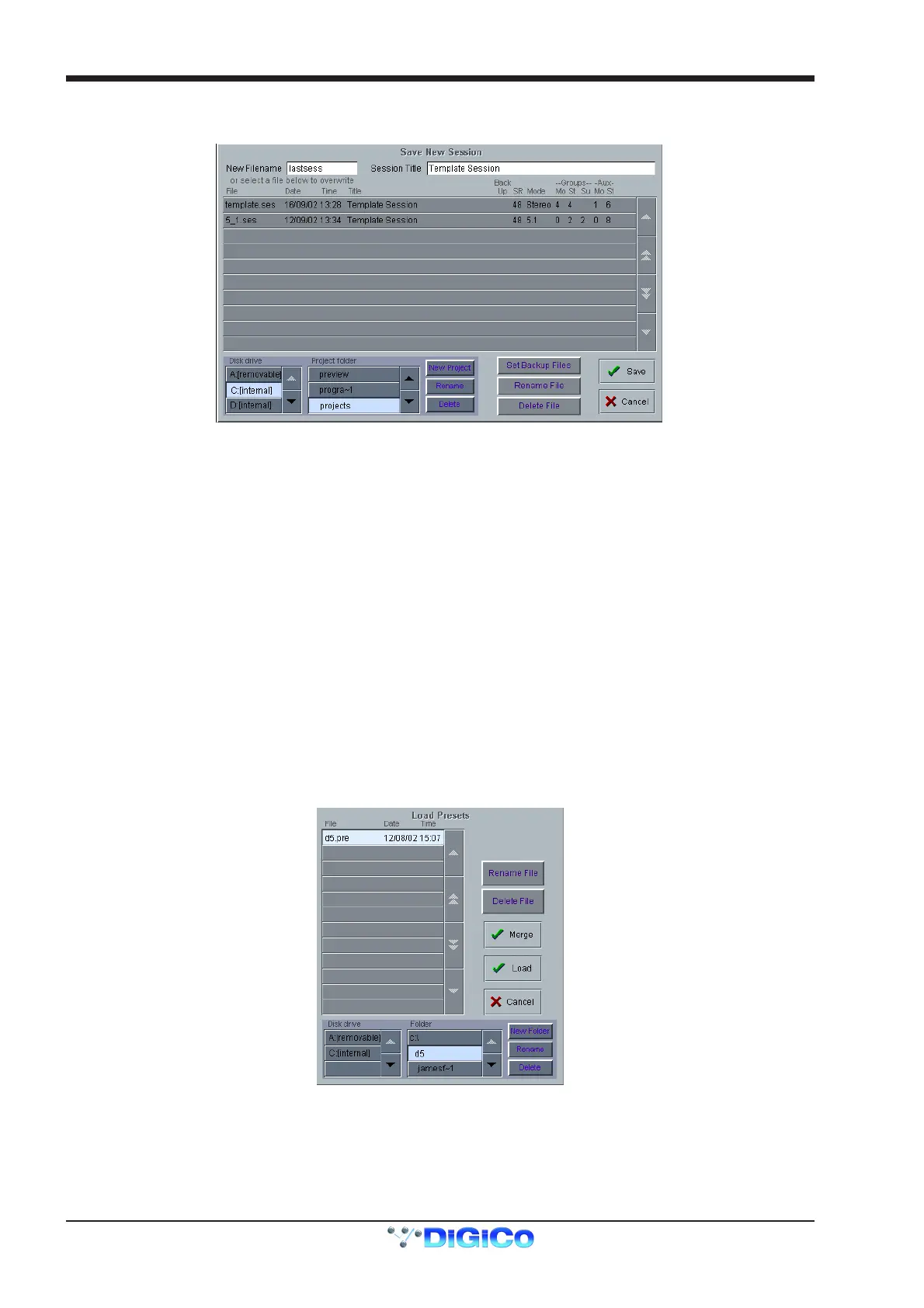
Touching this button will open the following panel.
This panel allows sessions to be saved as new files under new names. Select your drive and folder by touching in the boxes in the bottom
left corner, then touch and type a new file name (with a maximum of 8 letters and no punctuation) in the box on the top left. You may also
specify a session title which can be a different name to the file itself and may therefore be longer and more descriptive. Then touch the
Save button to complete the process.
NB: If you touch a session name on the existing list, this name will automatically be selected as the new file name and
touching Save will overwrite the old file.
4.2.6 The Save Session Button ....................................................
This button which is found above the Save As New File button will save the existing session in the same location and under the same file
name as it was previously saved or loaded from. It therefore serves as a "Quick Save" option to update an existing session.
Remember that this function will overwrite your last saved version.
If you wish to save the session under a new name use the Sessions menu button and select Save As New File (See above).
4.2.7 USB Data Port .......................................................................
The console ie equipped with a Data Port which is designed for use with a key-ring style data card. To use this facility, insert the card into
the USB Data Port and it will be recognised as an external drive. It will then appear in the Load and Save panels and can be used for
storage and retrieval of sessions and presets.
4.2.8 Managing Presets ................................................................
Each session file has an associated presets file with the same name and the file extension .PRE. When a session file is saved, the
presets file is automatically saved as well. You may, however, load and save presets files independently.
Presets (Channel, EQ, Dynamics and Matrix) can be loaded and saved in any file ending with .PRE.
Under the Sessions menu, touch the Load Presets button and the following panel will appear:
This panel shows the contents of your drives and folders, listing any saved presets.
Simply select the drive you require in the bottom left corner and then open a folder from the scrolling list next to it by touching it. You can
then touch a specific preset file to highlight it and touch the Load button.
If you wish to keep your existing presets and add the contents of a saved presets file to them, touch the Merge button.
Presets can also be renamed or deleted in this panel using the Rename File or Delete File buttons in the same way.
The smaller New Folder, Rename, and Delete buttons all refer to the folder listing and also appear in the Save Presets panel.
To save a Preset file touch the Save Presets button and the following panel will appear:



 To Next Page