Chapter 5
5-6
A change in any of the following settings can be copied to all selected cues in edit mode:
Snapshottable controllers
Routing
Relay outputs
Selection of MIDI Patches
Crossfade times
Control Group members
Gang members
All Channels and Exclude buttons in Channel Scope
NOTE: Banks (Layout) settings are excluded from the Edit operation, since it is likely that scrolling, etc. may be needed to access
channels which need to be changed without wanting to change the stored layout.
Changing Banks can only be done with the Replace command on one cue at a time. If you recall the cue before changing the layout, all
other settings stored in the cue will remain unchanged.
Touching faders to add or remove channels to or from the scope is also copied to all cues selected for Editing, but note that the choice
between add or remove depends on the currently displayed list.
5.1.7 Moving a Cue ........................................................................
If you wish the cue list to appear in a specific order, you may change the order of the list by moving the entries. Touch the Move button
and then touch the cue that you wish to move. You then touch the point in the list where the cue should be moved to.
Note: If a Relative cue is moved above its own Master cue in the list it will become Relative to the previous Master cue, but
only when it is fired. Therefore the list can be rearranged in any way without changing the data in the cues.
5.1.8 Renaming a Cue ...................................................................
To rename a cue, touch the Rename button, then the name that you wish to change and enter a new name using the keyboard.
5.1.9 Renumbering Cues ..............................................................
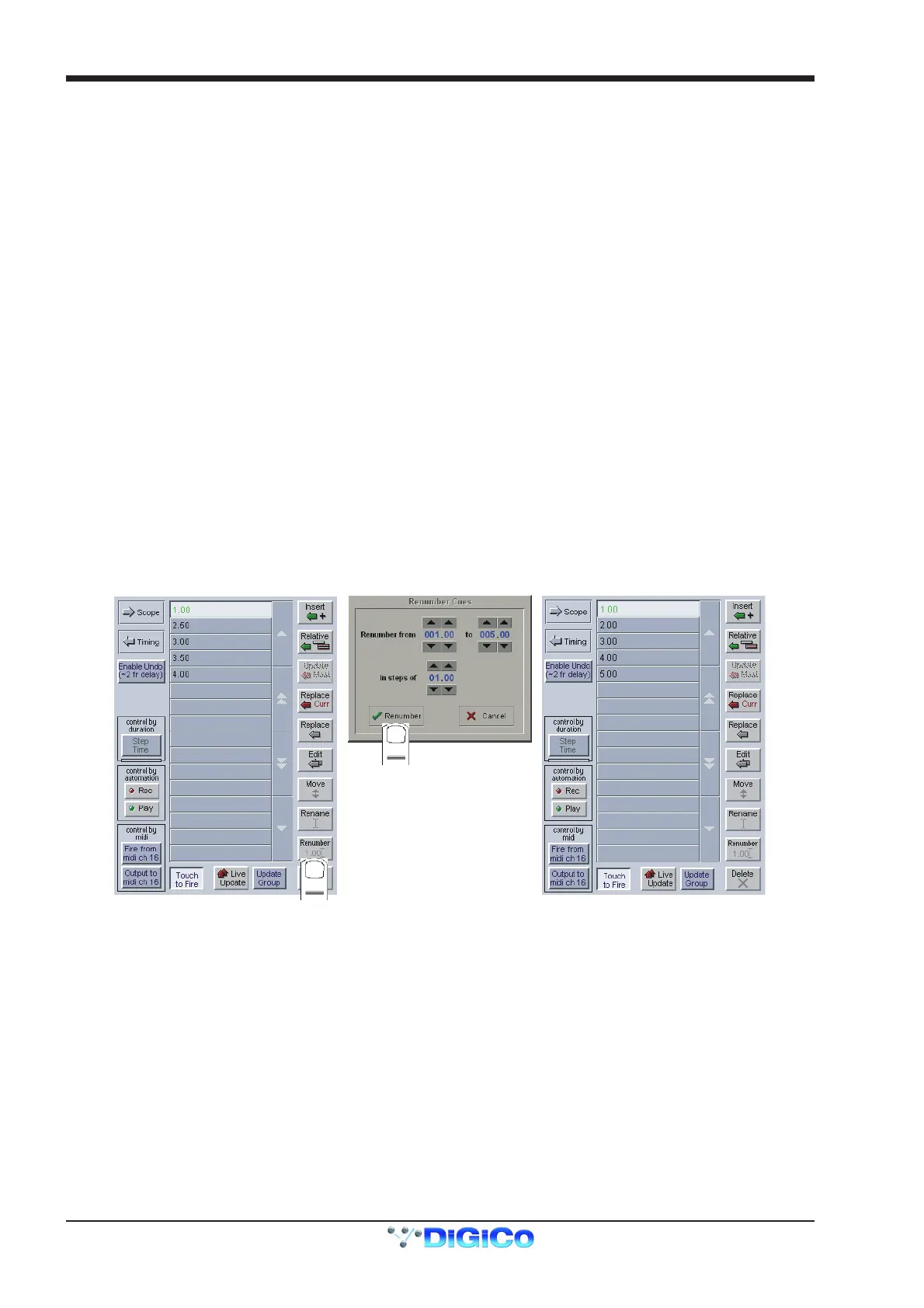
As cues can be inserted at any point in the list you may find that you wish to renumber part or all of the list.
Press the Renumber button at the bottom of the cues panel and a new panel will open as seen below. Enter the range that you wish to
renumber using the up/down arrows or by touching the entry and typing and then enter the steps to renumber to (1.00 in the example
below). Then press the Renumber button and the list will be adjusted accordingly.
1
2
5.1.10 Deleting a Cue ....................................................................
To delete a cue, touch the Delete button and then the cue or range of cues that you wish to delete. You will then be required to confirm the
deletion.
Note: You cannot delete the first Cue in the list.
5.1.11 Cue Undo ............................................................................
If the button labelled Enable Undo is pressed, an undo button will appear and the worksurface undo button will be enabled.
When a cue is fired, a separate hidden cue of the complete console is stored before the fired cue has its effect.
If the Undo button is pressed, the hidden cue is fired using the same scope as the previously fired cue to undo its effect.
This sampling before firing can take up to two frames to store depending on console configuration and should therefore be switched off in
situations where timing is important (eg when synchronising cues to MIDI)
The Undo remains possible throughout any subsequent operation - changes to controllers will be undone along with the last fired cue if the
Undo button is pressed, unless it is switched off or the console structure changes.
Note: For the fastest possible reponse when a cue is fired, disable the Undo function.



 To Next Page