Chapter 1
1-13
1.3.6 Matrix Inputs .........................................................................
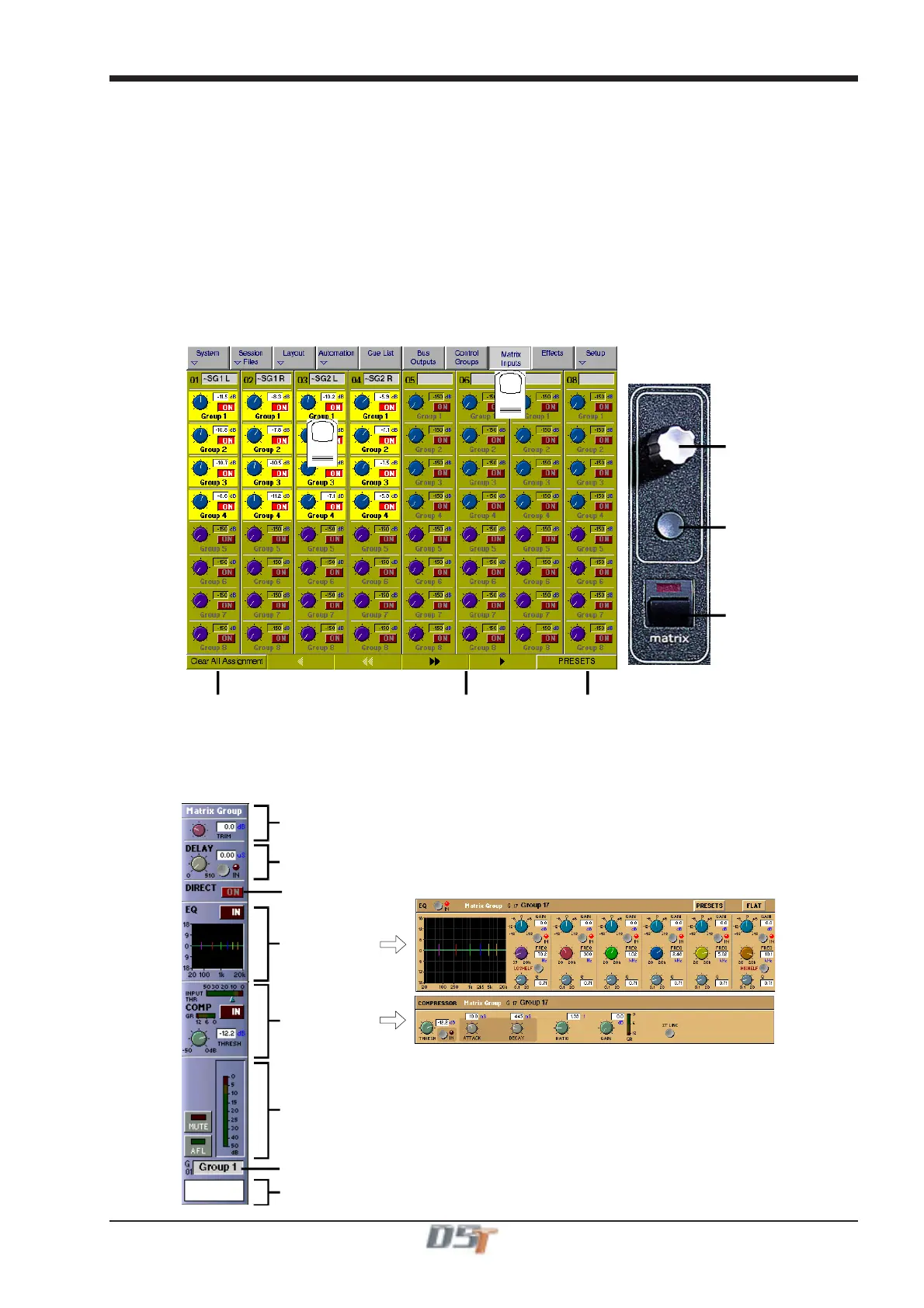
The 32x32 way matrix is accessed by touching the Matrix Inputs button on the master screen or the Matrix button on the far right of the
worksurface master section.
Inputs are selected in the same way as the input channels (See Section 1.3.1).
To route a Sub Group into the Matrix:
1) Touch the Matrix Inputs button on the master screen to open the panel.
2) Touch the top of the input screen to open the input panel.
2) Touch the Stereo Buss or Mono Buss button to view the names of the Sub Groups.
3) Touch the name of the signal to assign it to the channel eg.SubGrp1L
4) Touch the top of the input screen again to return to the standard view.
Touch the on screen matrix send controls to select which ones you wish to adjust and they will become highlighted.
Use the worksurface Matrix Send control and On/Off switch to adjust the settings for all highlighted sends.
At the bottom of the panel there are buttons to Clear All Assignment, Load and Save Presets and Scroll buttons to view the other
inputs and outputs.
Matrix Send
Send On/Of
Open Matrix
Matrix PresetsClear All Selections Scroll Inputs
1
2
1.3.7 Matrix Processing ................................................................
Each of the 32 Matrix groups is controlled on its own channel in the input banks labelled matGrp1 to matGrp4.
Press the required input bank button to show the following panel and touch the relevant on screen area to expand the views.
Routing Module
EQ Module
Dynamics Module
Meter / Mute / AFL
Input Trim
Delay Controls
Label
Switch Direct
Output On/Off
EQ controllled by 3 rows of rotaries/switches below the input screen
Compressor controllled by first row of rotaries/switches below the input scree



 To Next Page