4-7
Chapter 4
4.2.3 Clearing Settings .................................................................
When you start a new session all current settings will be inherited by default but the Mix Automation and Cue List will be cleared.
The buttons at the bottom of the New Session panel allow you to clear settings according to your own requirements. When the buttons
are pressed, the relevant settings will be cleared. If you are simply adjusting the buss configuration of an existing console you are unlikely
to wish to clear all of your current settings.
You may also choose to Set all Input Direct Sends to Pre-Mute/Pre-Fader, Post-Mute/Pre-Fader or Post-Mute/Post-Fader for the new
session. Remember that when all settings are cleared, any labelling or routing which you have done will be lost.
4.2.4 The Load Session Button ...................................................
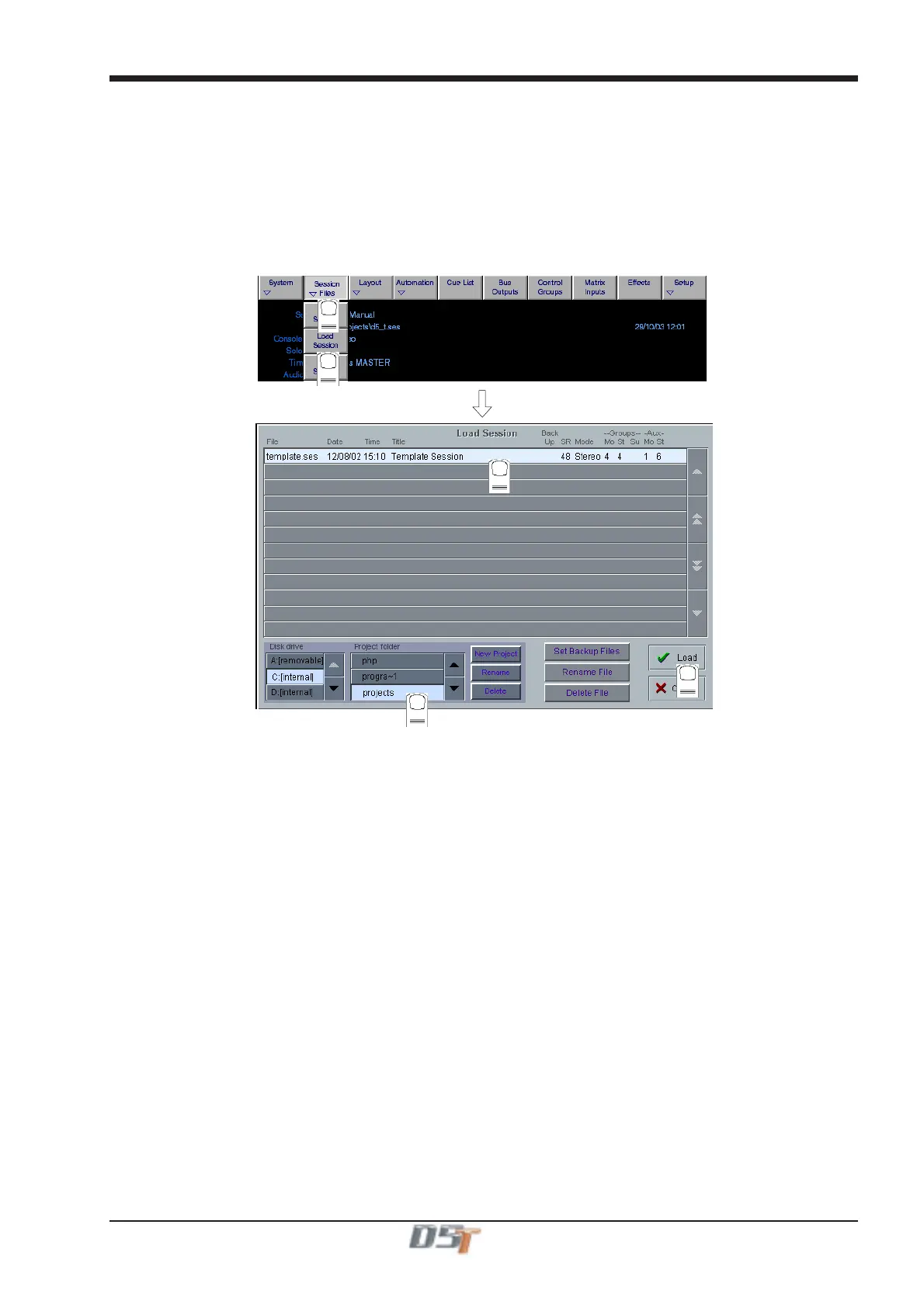
Touching this button will open the following panel.
1
2
3
4
5
This panel shows the contents of your drives and folders, listing any saved sessions with a note of the console configurations on the right
hand side of the screen. These include the removable drive that can be plugged into the USB Data Port on the meter bridge.
Simply select the drive you require in the bottom left corner and then open a folder from the scrolling list next to it by touching it. You can
then touch a specific session file to highlight it and touch the Load button to open the session.
Sessions can also be renamed or deleted in this panel using the Rename File or Delete File buttons in the same way.
The smaller New Project, Rename, and Delete buttons all refer to the folder listing and also appear in the Save As New File Panel
The Set Backup Files button is only relevant if your system is connected to a NetTracs server which is used in multiple console environ-
ments to store and backup files.
New Project
Creates a new folder with the default name Proj001. You can then rename this as required.
Rename
Touch this button and then touch the folder name that you wish to change. This will then be highlighted and you may type a new name.
Delete
Touch this button and then touch the folder name that you wish to delete. You will then be asked to confirm the deletion request.



 To Next Page