5-17
Chapter 5
5.3.5 Cue Notes .............................................................................
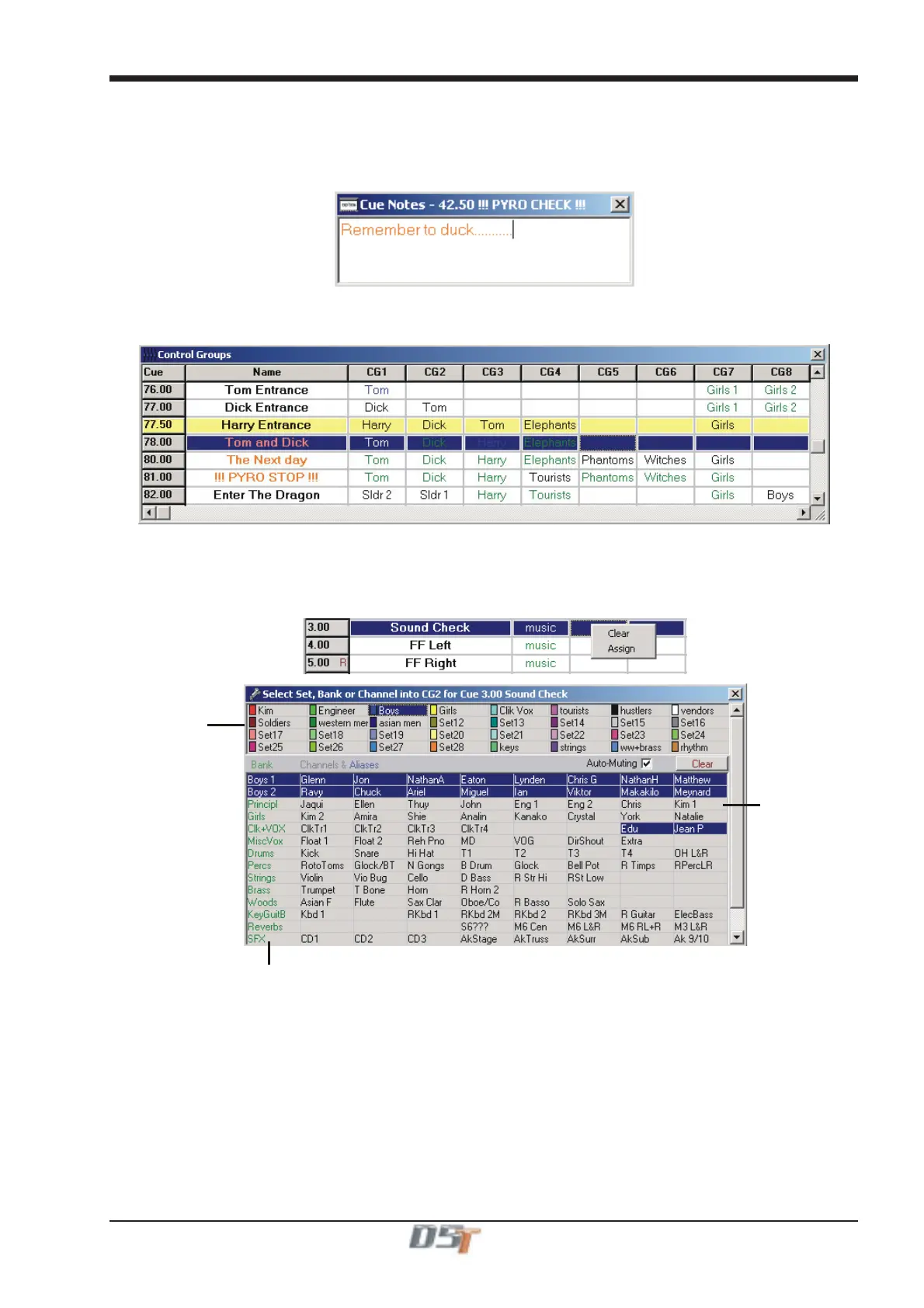
The icon labelled Notes will open the Cue Notes window and then you can type directly into the text box.
Once the window is open, the selection of a cue from the list will automatically display the relevant notes.
Right clicking in this window will show the standard options for Undo/Cut/Copy/Paste/Delete and Select All.
Text and Background colours can be changed in the Cue List options (see above).
5.3.6 Control Groups ....................................................................
The icon showing a small set of blue faders represents the Control Groups.
In this window, Control Groups can be named and their members for each cue can be programmed or cleared. You can easily assign
single channels, banks of channels or sets to a group by right clicking in the grid for the required Control Group and cue and selecting
from the lists.
Right clicking in the in the CG column shows a menu allowing the Control Group for the relevant cue to be cleared
or to have members assigned to it
Click Here
To Assign
A Set
Click Green Labels
To Assign
A
h
nn
l B
nk
Hold keyboard SHIFT key and click to add or remove individual channels
Assign
Individual
Channels
Click Her
To
When the assignment window is open, left clicking on any of the Control Groups in a cue will show the members of that groupd and these
can then be edited by selecting a new set, bank or channel or by adding/ removing banks or channels from the existing selections.
Adding or removing items can be done by holding the keyboard SHIFT key and clicking on the relevant bank or channel in the grid.



 To Next Page