A-5
Appendix A
A.4 Sync Session ..........................................................................
The Main console and TC must have the same Sockets File, Presets File and Session File and this can be achieved by using the Sync
Session Functions. Assuming that a session has already been created on the Main console and its Sockets file is as required then
proceed as follows:
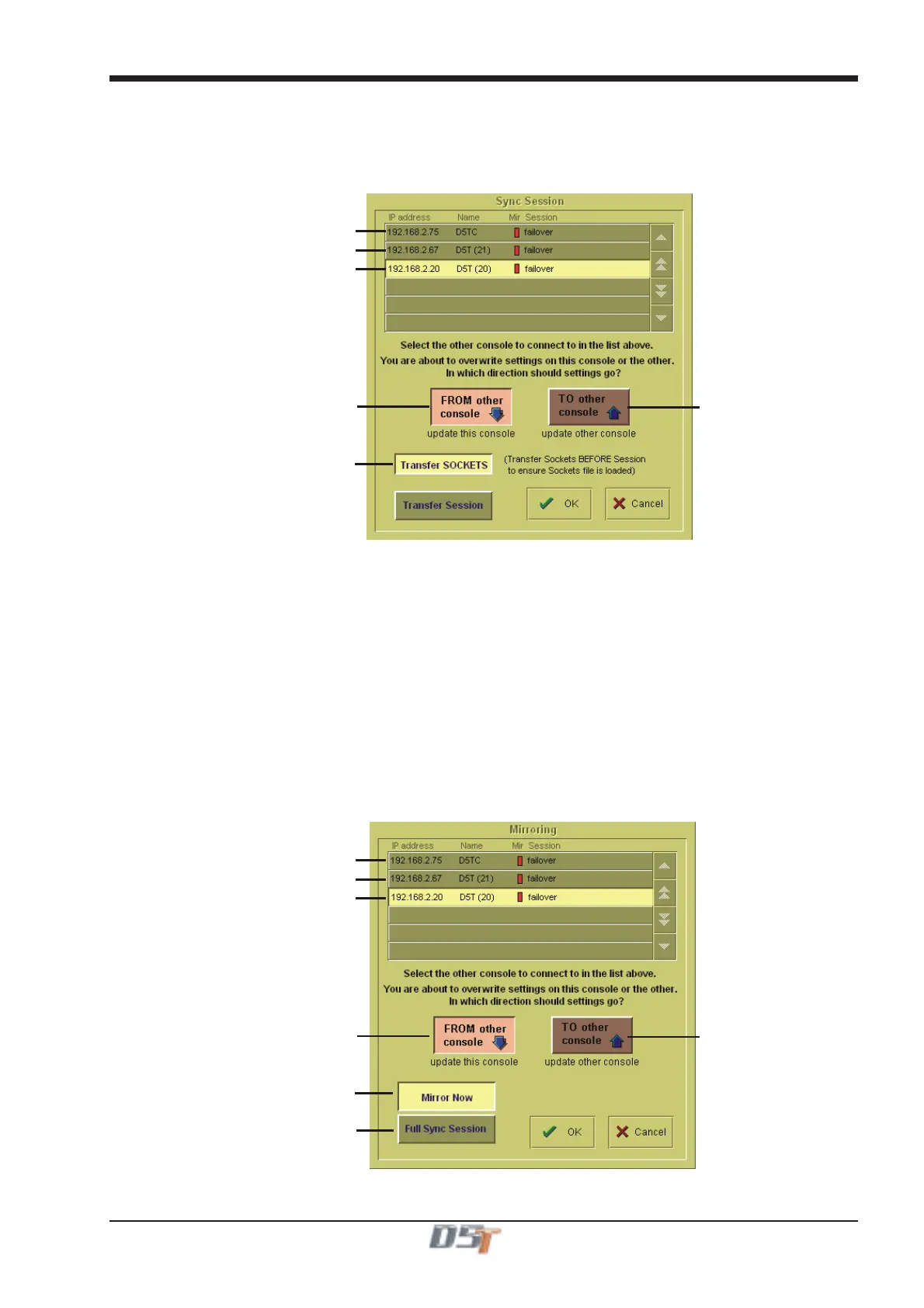
Working on the TC (used to remote control and mirror the main console), press the Sync Session button and this panel will open:
D5TC
D5T Redundant Engine - Optocore Id21
D5T - Optocore Id20
Select here to update this console
Select here to update the sockets file
Select here to update
another console
This shows a list of the devices that are connected on the network and in this example there is a D5T, its Redundant Engine and the
Theatre Masters Controller (D5TC).
1) Select the device from the list that you wish to transfer from (the D5T in this example).
2) Press the Transfer Sockets button and the FROM other console button.
3) Press OK - This will transfer the Sockets File to the TC and the Consoles and Racks panel will reopen.
4) Press the Sync Session button again.
5) Select Transfer Session
6) Press OK - This will transfer the Session File to the TC, the Consoles and Racks panel will reopen and the Sync Session button will
be highlighted in orange.
A session can be synced in either direction; the default setting is from the current audio master.
NOTE: If you have already transferred the Sockets fileyou can sync the sessions by pressing the MIRRORED button, selecting
Full Sync Session and pressing OK. This will automatically activate Mirroring after syncing the sessions.
A.5 Mirroring ..................................................................................
When the Sessions have been synced, Mirroring can be activated by pressing the Mirrored button on the TC and the following panel will
open:
D5TC
D5T Redundant Engine - Optocore Id21
D5T - Optocore Id20
Select here to update this console
Select here to activate mirroring
Select here to update thesession file
Select here to update
another console



 To Next Page