7-3
Chapter 7
7.1 Configure Effects
If The Effects module is not active, touch Setup / Service / Configure Hardware button to open the DiGiConfig program, select the
console that you want to configure by pressing the relevant This button, then tick the relevant boxes at the top of the panel and press OK.
The optional effects section provides up to 6 different effects modules.
FX1 is always a stereo reverb unit
FX2, 3 and 4 can be configured as reverbs or any of a selection of other effects.
FX5 and 6 can function as effects modules but can also provide Output Processing on stereo, LCRS or 5.1 output busses or Graphic EQ.
7.1.1 Selecting Effects ..................................................................
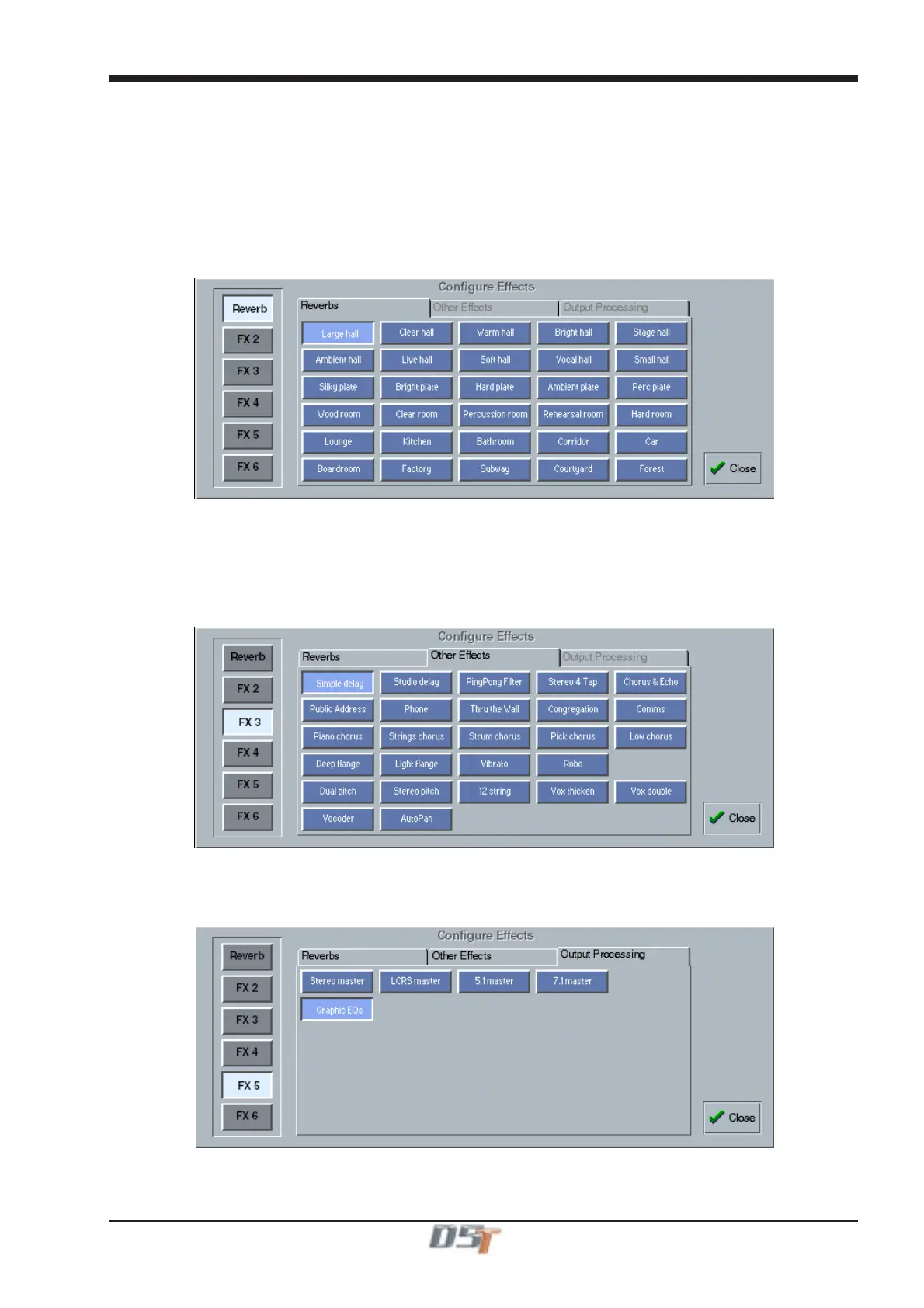
Touching the Configure Effects button in the Setup menu on the Master Screen opens the following panel:
Touch one of the buttons on the left to select an effects module and assign an effect to it by selecting from the grid of buttons labelled with
the effect names.
Reverb (FX1)
Selection of an effect for the first module labelled Reverb can only be made from the first page of 30 reverb effects.
Other Effects (FX2, FX3 and FX4)
Selection for modules 2, 3 and 4 can be made from a similar list of reverb effects but by selecting the tab labelled Other Effects there are
further choices including delay, chorus flange and pitch shifters.
Output Processing and Graphic EQ (FX5 and FX6)
Selection for modules 5 or 6 can be from the Reverb or Other Effect lists but the Output Processing tab also becomes available and you
may choose the type of signal that you wish to process or apply mono or stereo Graphic EQ.
The processing options are Stereo, LCRS, 5.1 or 7.1 or up to 12 mono Graphic EQs.
Output Processing consists of input and output gain, 3 band compression and limiting and 4 band EQ for each channel.
Graphic EQ consists of 12 independent 28 band EQ's.



 To Next Page