Chapter 4
4-4
4.1.2 The Menu Buttons ...............................................................
System Menu
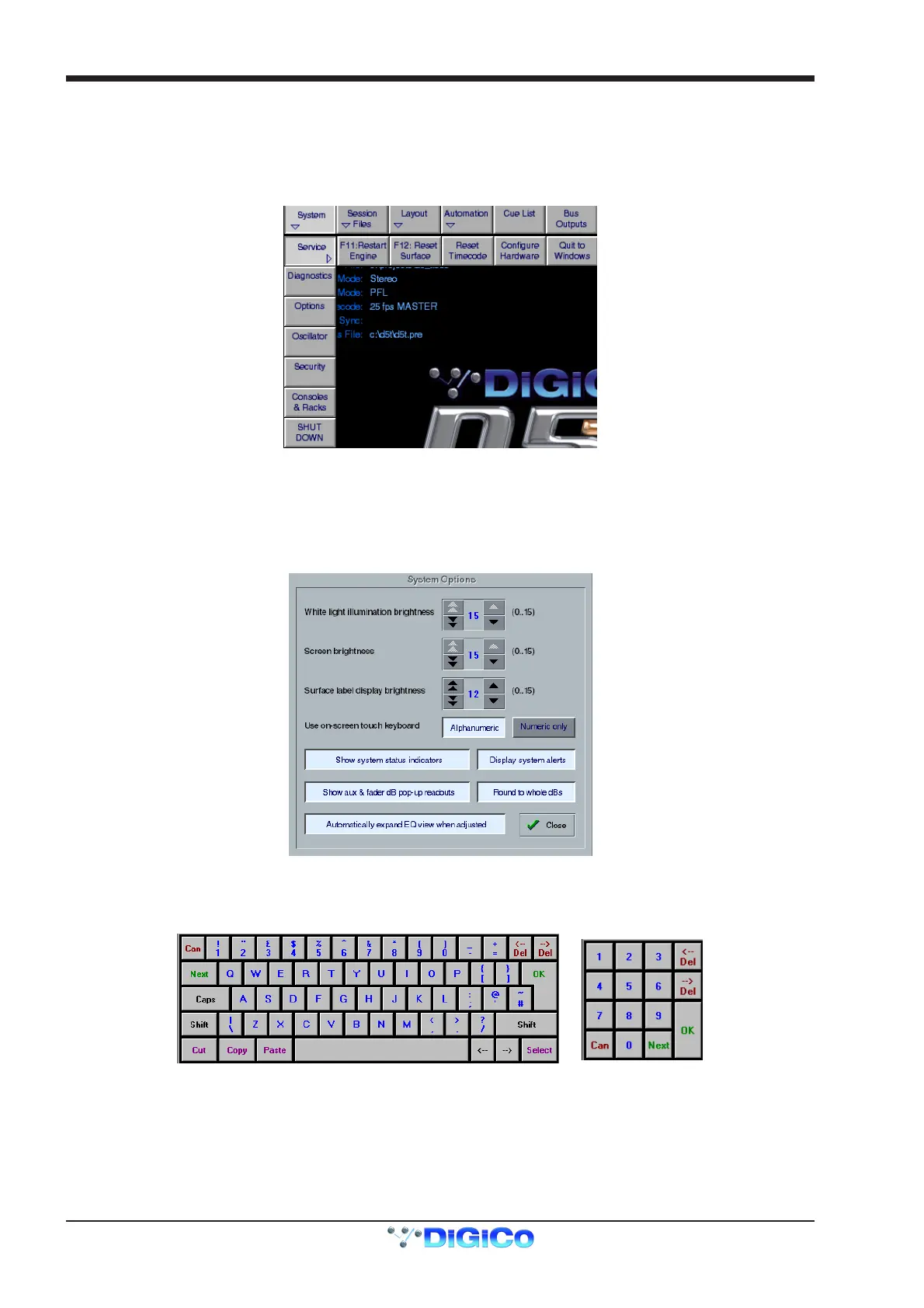
This menu, displayed by touching the System button, contains additional buttons which display system information.
System Shut Down Button
This command should be used to shut down the console in normal operation.
Quit To Windows Command
In the Service menu, this button will close the D5T program but will remain in a Windows environment. It is unlikely that the user will need
this option in normal operation.
System Options
To adjust the level of lighting on the console use the up down arrows next to the value boxes for White Light Illumination Brightness,
Screen Brightness or Surface Label Display Brightness
Use On Screen Touch Keyboard activates a touch sensitive keyboard which will automatically appear on screen when any label button
(Channel, name, control group etc) is pressed.
While editing numeric-only data such as timecode, a small numeric keypad will appear.
This is intended as an alternative to using the computer keyboard itself.
Show System Status Indicators activates on screen information concerning the system. This will appear in the bottom right hand corner
of the Master Screen.
Show aux and fader dB Pop-up Readouts activates yellow boxes which pop up showing the Auxiliary send and fader dB displays.
Display System Alerts activates on screen information to warn the user of any potential problem with the system.
Round to whole dBs switches any dB readouts to whole dB measurements instead of decimal places.



 To Next Page