Chapter 6
6-5
If the Only Plays button is pressed the offset will only be applied to controls which are in play mode.
If the Exclude Safes button is pressed the offset will not apply to controls which have been made safe in the Automation Editor.
Note: If events are moved backwards past time zero they are deleted.
6.1.8 Edit Block .............................................................................
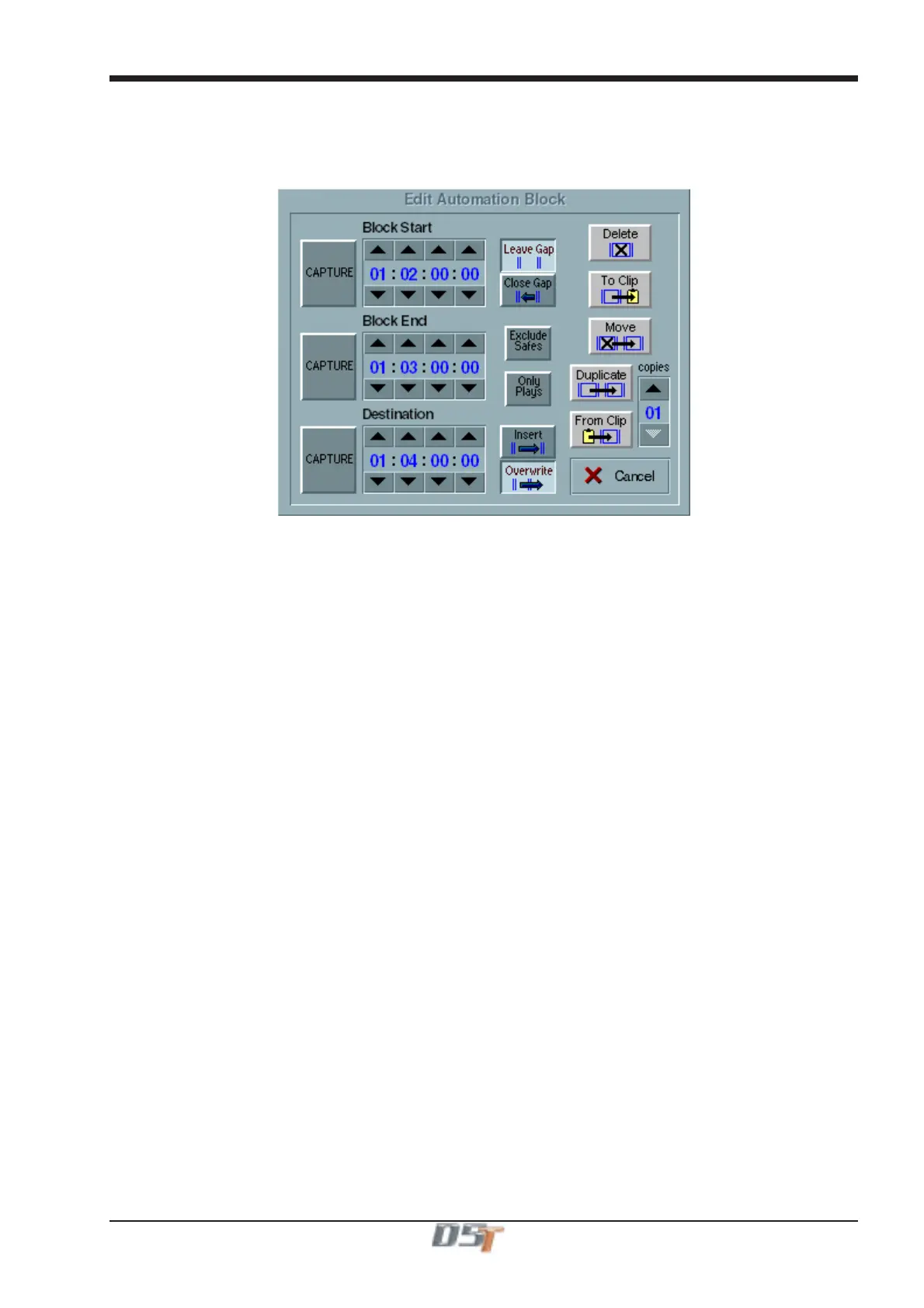
Touching the Edit Block button in the Automation menu opens the Edit Automation Block panel which allows blocks of events to be
deleted, moved or copied by defining start, end and destination times.
Edits will include all the mix information in the block unless the Exclude Safes or Only Plays options are selected. These functions are
the same as in the Offset panel on the previous page.
Touching the Cancel button will close the panel.
Entering Times
To enter times you can either:
1) Touch the number boxes and type.
2) Use the up and down arrows to increase and decrease values.
3) Capture a timecode position by running the code and touching the Capture button at the required point or
locating the point and then touching the Capture button.
To Delete a section of the mix:
Enter a Start and End time for the block which is to be deleted.
Select Leave Gap to leave a space in the mix when the block is deleted or Close Gap if all subsequent events are to be slipped back in
time by the size of the deleted block
Touch the Delete button.
To Move a section of the mix:
Enter a Start and End time for the block which is to be moved and a Destination point to move it to.
Select Insert or Overwrite as appropriate. This will determine whether the block is inserted by slipping all subsequent events forward in
time by the size of the block or by overwriting existing information.
Select Leave Gap or Close Gap as appropriate.
Touch the Move button.
To Duplicate a section of the mix
Enter a Start and End time for the block which is to be duplicated and a Destination point to duplicate it to.
Select Insert or Overwrite as appropriate.
Select a number of Copies which will be repeated end to end at the destination point.
Touch the Duplicate button.
To Copy a section of the mix to the clipboard
If this method is used the copied block can be pasted into a different session if required.
Enter a Start and End time for the block which is to be copied.
Select Leave Gap or Close Gap as appropriate.
Touch the To Clip button
To Paste a copied block into the same or another session
Enter a Destination time for the pasted block to start at.
Select Insert or Overwrite as appropriate.
Select a number of Copies which will be repeated end to end at the destination point.
Touch the From Clip button.



 To Next Page