6-6
Chapter 6
6.1.9 Trim Block ............................................................................
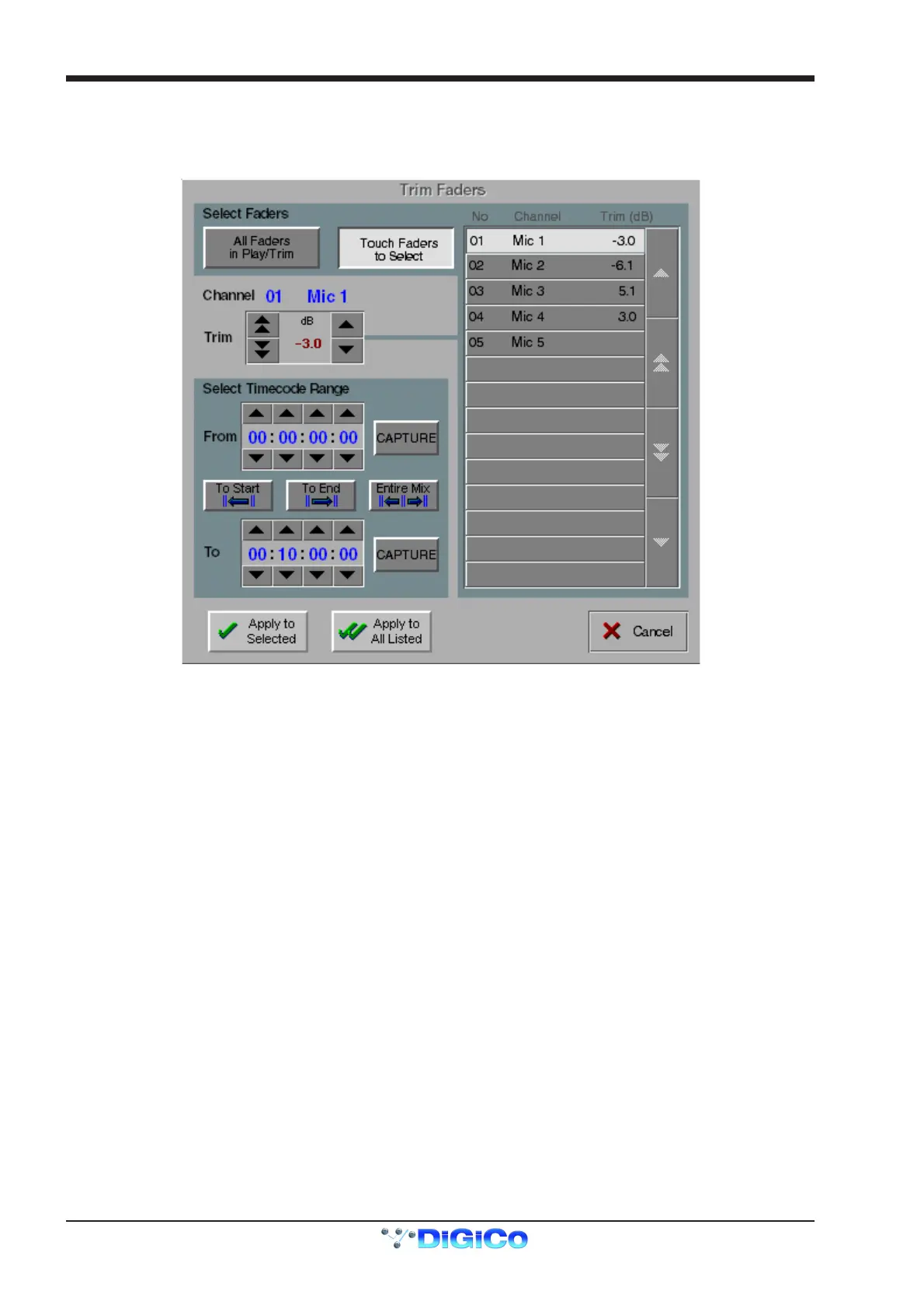
Pressing the Trim Block button in the Automation menu opens the following panel. This allows a trim offset to be applied to any or all
automated faders without changing the automation data. The trim can be auditioned and refined as long as the panel remains open, and
then applied to the automation data for a single channel or all selected channels by timecode range to make it permanent.
While the Trim panel is open:
The faders behave in Relative Trim mode irrespective of Automation Options.
Autonulling and Nulling on Release are both switched off. Trim information can be previewed but is not recorded unless the Apply
buttons are pressed.
Touch Record is not altered, therefore if it is not switched on in Automation Options then each channel’s mode must be switched manually
either before or during the use of the Trim panel.
Faders which are to be trimmed can be selected by pressing the Touch Faders to Select button and touching to add them to the list.
Once a fader is on the list, an amount of trim can be entered by moving the fader itself or selecting the list entry and entering a
value in the Trim box. The value will also appear in the Trim(dB) column on the fader list.
These changes can then be auditioned by playing the mix with the Trim Panel still open and further adjustments made.
If you wish to make the changes permanent, select From and To timecode positions by entering values into the relevant boxes or pressing
the appropriate Capture button.
Positions may also be set with the Entire Mix button or by entering a value in the From box and then pressing either the To Start or To
End buttons.
Then the trim can be recorded to either the selected fader on the list with the Apply to Selected button or to all the faders on the list with
the Apply To All Listed button.
Pressing the All Faders button selects all faders whose automation mode is Play, Trim, or Trim Ready. Then all the selected faders can
be trimmed by adjusting any one of them. However, no trim can be applied unless the fader is in Trim or Ready mode.
If the fader is in Play mode, it will only switch automatically to Trim or Ready mode if Touch Record is enabled.
In other words, all faders must be in Trim or Ready mode for the All Faders option to be effective.



 To Next Page