Chapter 1
1-16
1.3.9 Save As New File ..................................................................
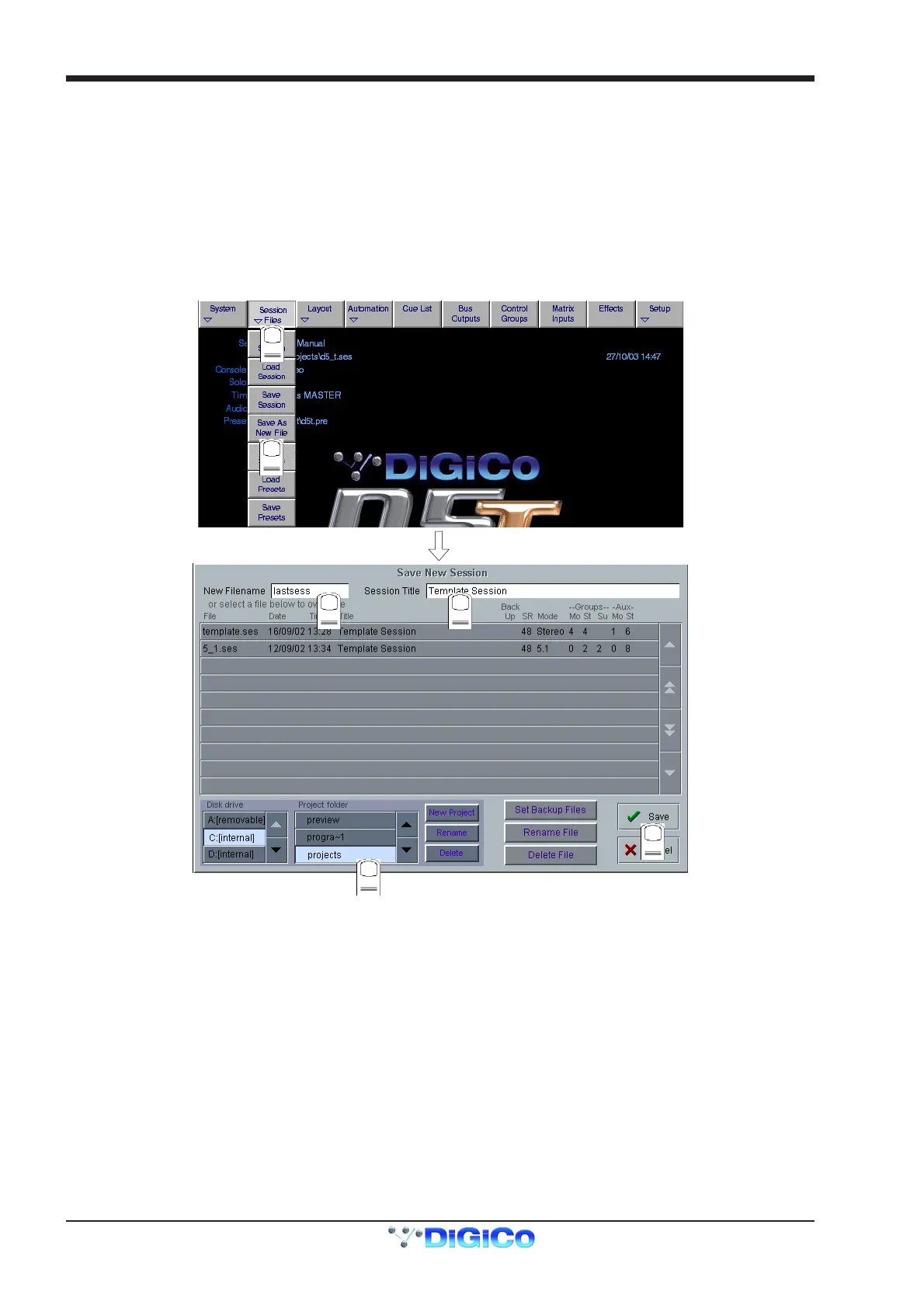
When you change the configuration of the session you may save it to the console's flash drive under a new filename or simply overwrite
the current file. To save under a new filename:
1) Touch the Session Files button at the top of the Master Screen to view the menu.
2) Touch the Save as New File button in the Sessions menu to open the panel.
3) Touch the C:\Projects folder button at the bottom of the panel to select the file destination.
4) Touch the New Filename box and type the chosen name (with a maximum of 8 letters and no spaces or punctuation).
5) Touch the Session Title box and type a description of the session if required.
6) Touch the Save button in the bottom right of the panel to save the session file.
Note: If you touch a session name on the existing list, this name will automatically be selected as the new file name and
touching Save will overwrite the old file.
1
2
3
4
5
6
1.3.10 Save Session ......................................................................
This button which is found above the Save As New File button will save the existing session in the same location and under the same file
name as it was previously saved or loaded from. It therefore serves as a "Quick Save" option to update an existing session.
Remember that this function will overwrite your last saved version.
If you wish to save the session under a new name use the Session Files menu button and select Save As New File (See above).



 To Next Page