Chapter 3
3-5
3.2.1 Label ......................................................................................
The Label operates in the same way as an Input Channel label - to change it, just touch the on-screen label, then type a new name on the
computer keyboard or the On Screen Touch Keyboard.
When a buss is labelled its name will appear in the input channel routing display.
3.2.2 Buss Control Button ............................................................
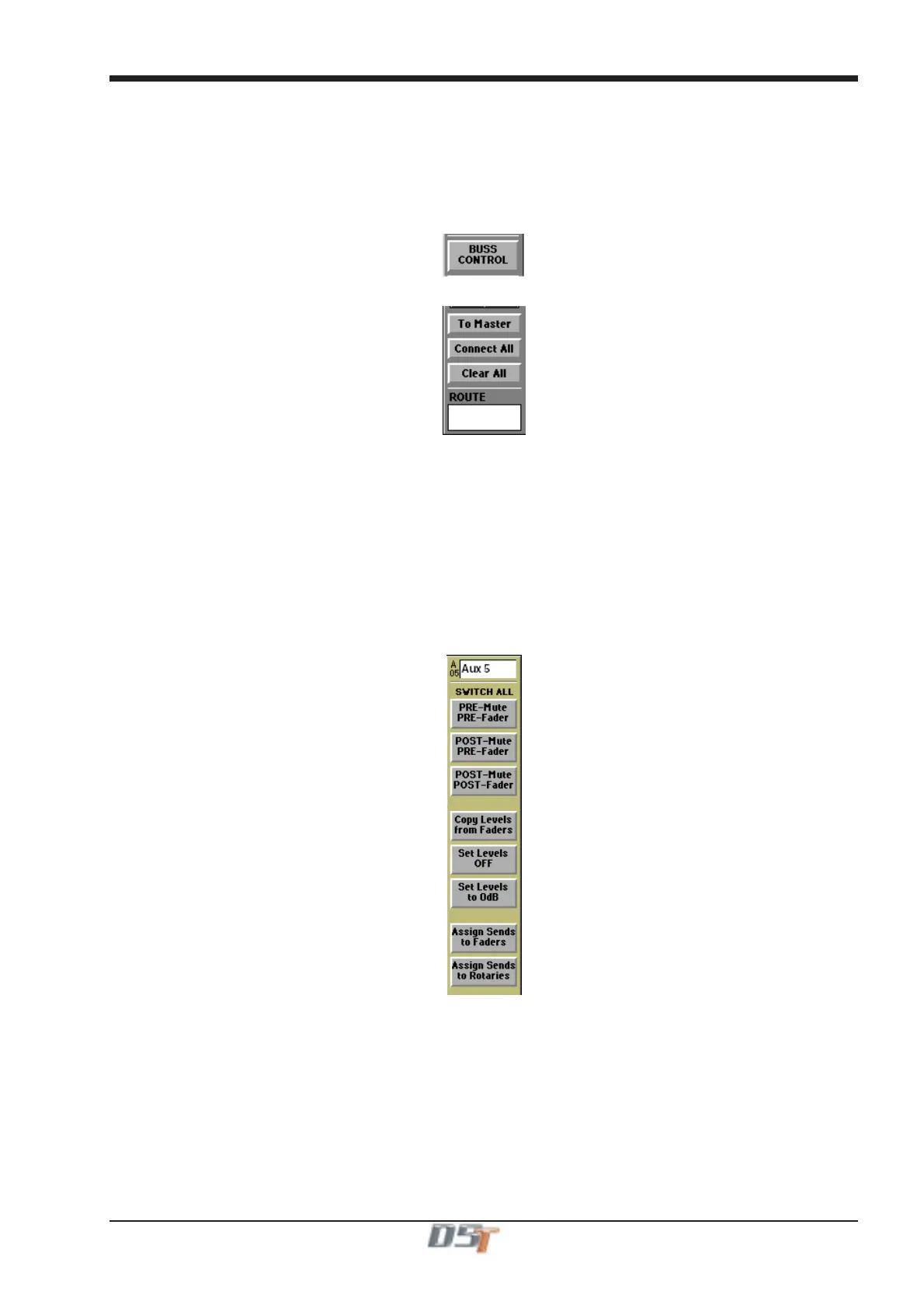
Touching the Buss Control button displays a screen showing which channels are currently routed to the buss and offers different options
according to the type of buss it is.
Group Buss Control
Connect All routes all input channels to the buss.
Any fader which is being touched will be omitted from the connection process to facilitate the set up of a mix-minus feed.
Clear All clears the routing of all input channels from the buss.
Any fader which is being touched will be omitted from the clearing process and remain connected to the buss.
To Master allows the sub group to be routed onto the Master Buss. Only sub groups whose width is the same as the Master Buss can be
routed in this way (ie. stereo groups on a stereo console; surround stems only in surround modes).
When a buss is routed to the Master Mix, audio processing resources are taken from the highest numbered available input channels. If
insufficient channels are available a message is displayed quoting the number required.
If any of the input channels routed to thesub group are also routed to the Master Mix, a warning is displayed.
Note: The To Master button is not included in cues.
Auxiliary Buss Control
Switch All Pre-Mute/Pre-Fader makes the auxiliary sends for this particular buss pre-mute and pre-fader on all channels.
Switch All Post-Mute/Pre-Fader makes the auxiliary sends for this particular buss post-mute and pre-fader on all channels.
Switch All Post-Mute/Post-Fader makes the auxiliary sends for this particular buss post-mute and post-fader on all channels.
Copy Levels from Faders makes the auxiliary send levels for this particular buss the same as the fader levels on each different channel.
Set Levels OFF turns off all the auxiliary sends for this particular buss on all channels.
Set Levels to 0dB makes the auxiliary send levels for this particular buss 0dB on all channels.
Assign Sends To Faders transfers auxiliary send control to the channel faders for the relevant auxiliary.
Assign Sends To Rotaries scrolls the input channel view to the relevant auxiliary and allows immediate rotary control of the send.
Note: To activate Assign Sends to Faders/Rotaries using Solo Press see Section 4.5 - Master LCD Function Buttons.



 To Next Page