A-6
Appendix A
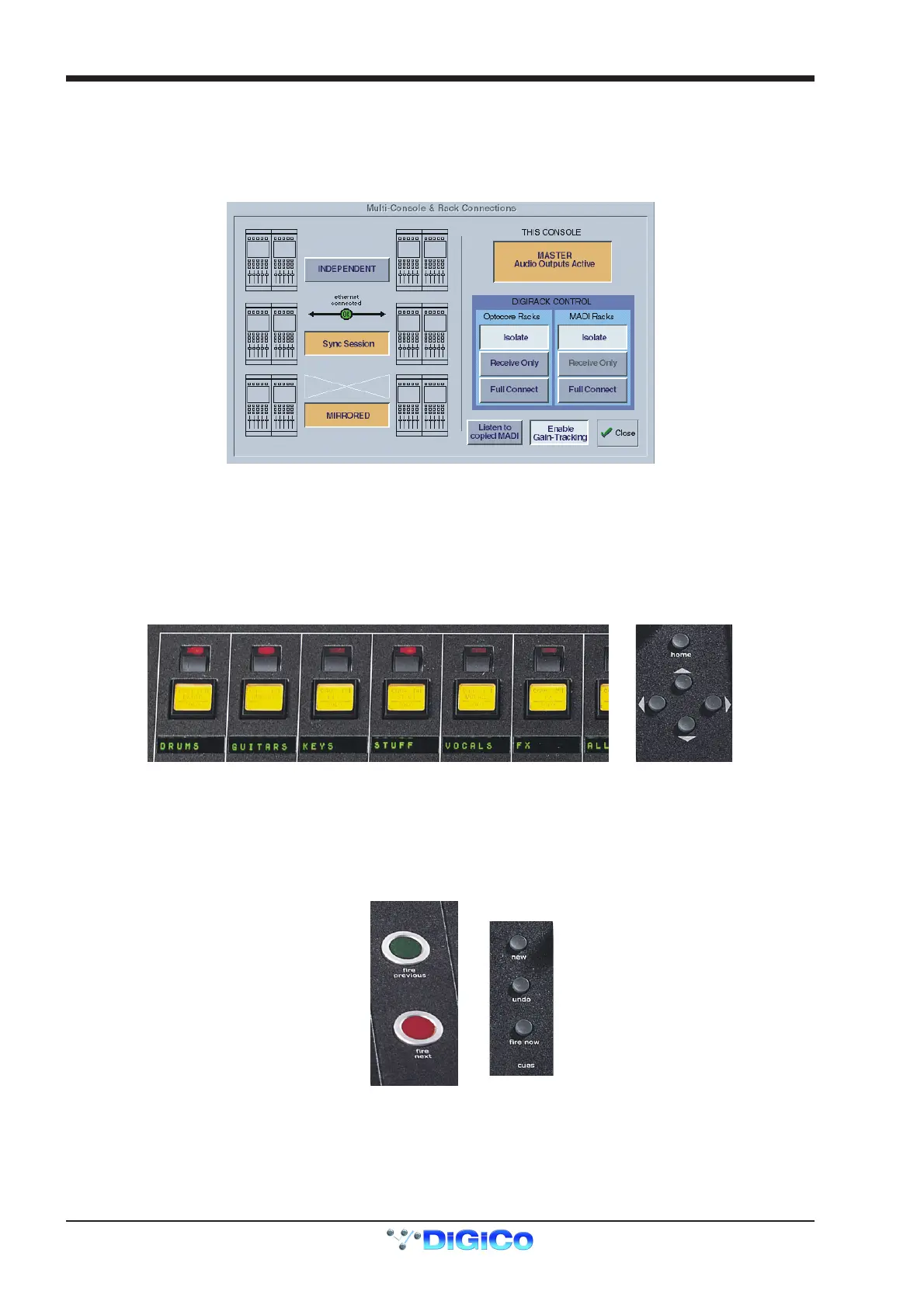
1) Select the device from the list that you wish to Mirror from (the D5T in this example).
2) Select FROM other console and Mirror Now and then press OK.
When the process is complete, the MIRRORED Button will be highlighted in orange as seen below. There will also be a pop up message
to confirm that mirroring has taken place.
If you have other devices in your system such as a Redundant Engine then this process should be repeated on each device, always
transferring sockets, syncing sessions and mirroring From the main console.
As previosly mentioned, the D5TC has all the functionality of the D5T's Master Screen panels and information on this can be found in the
master Section chapter of this manual.
In addition it has some useful controls of its own which are as follows:
A.6 Masters ....................................................................................
The D5TC has 16 faders which can be assigned to any of the D5T's Control Groups, Sub Group or Auxiliary Masters.
The LCD Buttons provide a Solo function and there is a Mute button above each of these.
Use the left and right scroll buttons to move through all of these Master faders.
The Home Button can be pressed at any time to reassign the faders to the first 16 Control Groups.
A.7 Cue Control .............................................................................
The worksurface Fire Previous and Fire Next buttons duplicate the D5T main worksurface Previous and Next buttons.
The New button duplicates the Insert button in the Cue List screen panel and inserts a new cue into the existing list below the currently
assigned (Green) cue.
The Undo button will undo the action of the last cue fired but only if the Enable Undo button is active in the on screen cue list.
The Fire Now button duplicates the Fire button on the D5T main worksurface - You can select a cue to fire by scrolling through the list of
cues using the Up/Down Scroll buttons on the TC worksurface pictured above.



 To Next Page