B-11
Appendix B
1) Select the device from the list that you wish to Mirror from (the D5T in this example).
2) Select FROM other console and Mirror Now and then press OK.
When the process is complete, the MIRRORED Button will be highlighted in orange as seen below. There will also be a pop up message
to confirm that mirroring has taken place.
If you have other devices in your system such as a Remote Controller or Theatre Masters Controller (D5TC) then this process should be
repeated on each device, always transferring sockets, syncing sessions and mirroring From the main console.
B.2.7 DiGiRack Control .................................................................
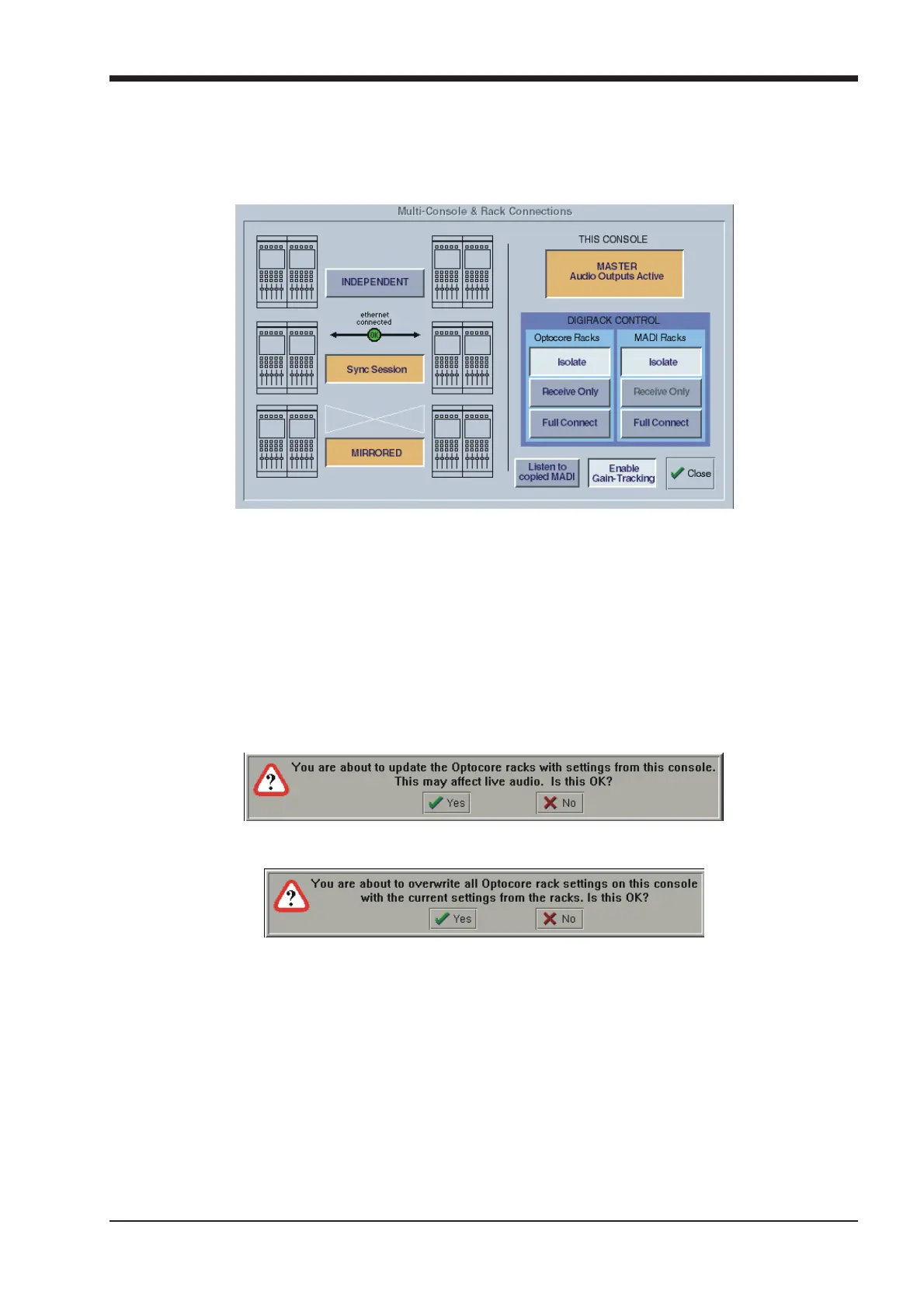
When the Main console and the Redundant Engine have been mirrored, the communication with the DiGiRacks should be activated.
In a system where there is only a single console and a Redundant Engine, on the Main console, press the Full Connect buttons for the
Optocore and MADI racks. You will then be required to confirm the action, the session settings will be sent to the racks and the console
will have full control over them.
If you have a system where more than one console is sharing the racks you may wish to use the Receive Only mode where the console
will receive the rack’s existing settings but will not be able to control the gain on the racks.
Options are:
Isolate where the console will not communicate with the racks and therefore any adjustment of input gain or +48V switch will have no
effect on the rack settings.
Receive Only where the console will receive the rack’s existing settings but will not be able to control the gain etc on the racks.
Full Connect where the console will send its settings to the racks and change them accordingly.
Receive Only
Full Connect



 To Next Page