B-15
Appendix B
B.3.1 PC Remote Control ..............................................................
If D5T software is run on a standalone PC or laptop, sessions may be prepared off line or the PC can be used to remote control a console.
Input channel windows are run in separate moveable windows for easier access on smaller screens. The Overview Screen and a Bank
Switches window are also displayed. Channel and Master LCD buttons appear at the bottom of each screen.
A PC can also be used as a Remote Control device for the console and this is set up in a similar way to a Mirror console. In this situation
the PC can be running D5T software or the Cue Editor software.
B.3.2 Remote PC Setup ................................................................
DiGiCo recommend that the Remote PC is running under Windows ME or XP and that the operator has sufficient knowledge of the
operating system to change IP addresses and set up a standard network connection.
Note: With Windows XP the built in Firewall should be disabled as this may cause operational problems.
1) An Ethernet Crossover cable (not a standard CAT5 cable) should be connected between the Main console and the Remote PC or
both devices should be connected to an Ethernet switch if there is a third device in the system eg. a Mirror console or Redundant Engine.
2) Set the Remote PC's IP address to 192.168.2.xxx (where xxx is a number between 0 and 255 that is unique within the system).
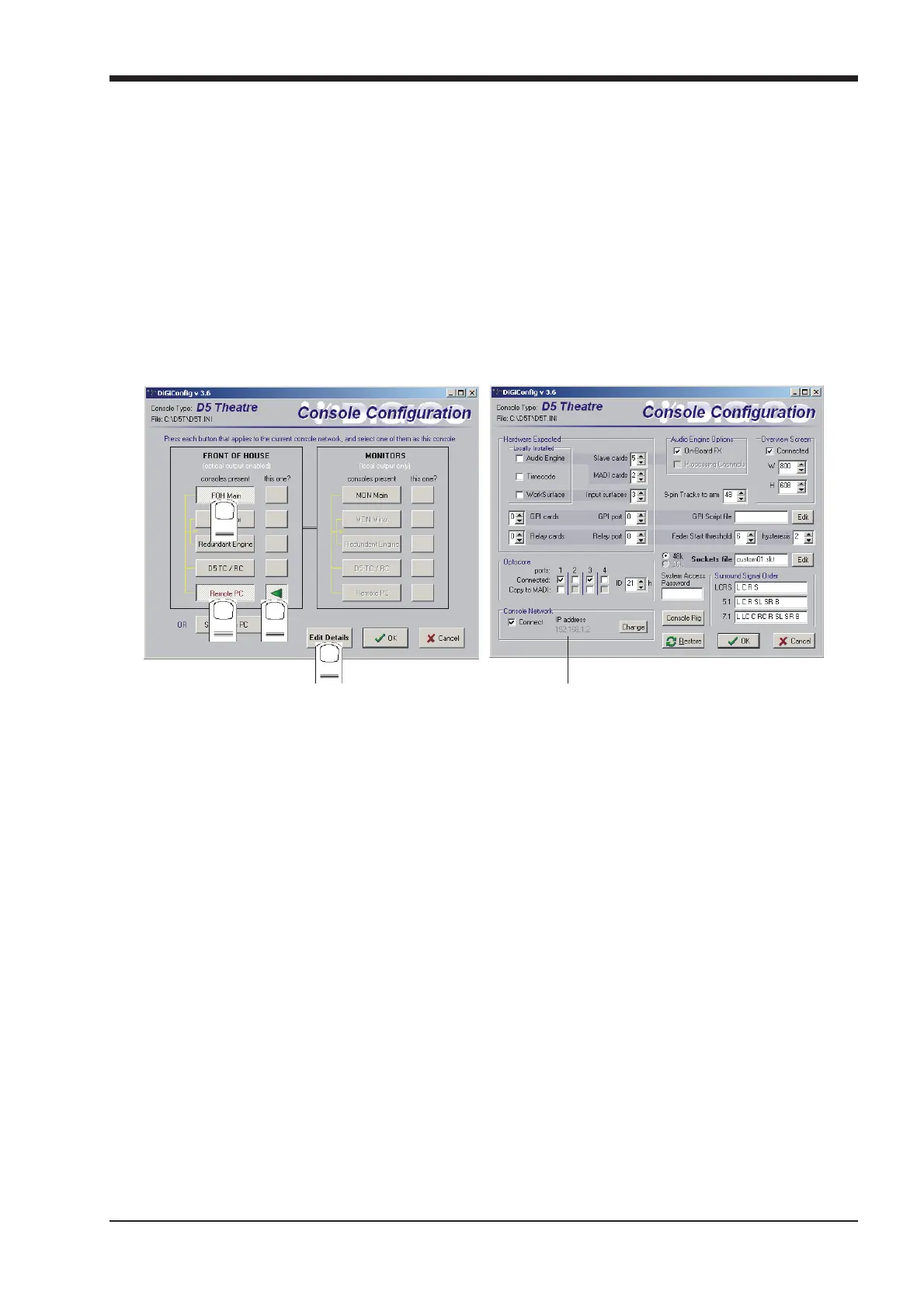
The IP address can be checked by opening the System/Service/Configure Hardware panel, pressing all the buttons for the devices
that are present in the system (eg FOH Main and Remote PC) and then selecting the This One button for the device that you are working
on. Then press Edit Details and the IP address can be seen in the bottom left of the panel.
1
2
3
4
IP A
r
f
r “Thi
n
”
3) Repeat his process for the other device(s) and start the D5T application on all of them.
As the system has been defined as consisting of more than one device, the Consoles & Racks panels should open automatically and the
Ethernet Connected line should show a green OK light and not a red cross.
4) Proceed with Syncing the Sockets and Session files and then Mirroring as described in the previous sections on Mirror consoles
(B.2.5 and B.2.6).
B.3.3 Remote PC Operation .........................................................
Note: There is a separate Appendix concerning the operation of the Cue Editor software.
To use the D5T software with a mouse and keyboard the following functions are necessary:
Left mouse click on a non active window makes it active.
Right mouse click on a window functions as a screen touch.
Double click in the grey area around the LCD buttons to change their function.
Left mouse click on a switch to turn it on or off.
Hold down left mouse button and drag to adjust rotaries and faders.
Ctrl 1 to 6 = bank buttons 1 to 6 on the upper master.
Shift 1 to 6 = bank buttons 1 to 6 on input surface 1.
Up/Down (arrows) = scroll rotary assignment on all input screens.
Page Up/Down acts as the screen scroll button in the Master section.
The Shift key acts as the All button for all surfaces.
Running on a laptop or desktop PC, a single knob and button device can be connected to the RS232 COM port and used to alter control-
lers on the PC screen under the mouse cursor. A new entry in the D1.ini file is required for this:
COMport = n, where n = 1 or 2 for COM1 or COM2, or the default of 0 for off (don’t open COM port in case something else is connected).



 To Next Page