Chapter 2
2-22
2.4.2 Overview Setup ....................................................................
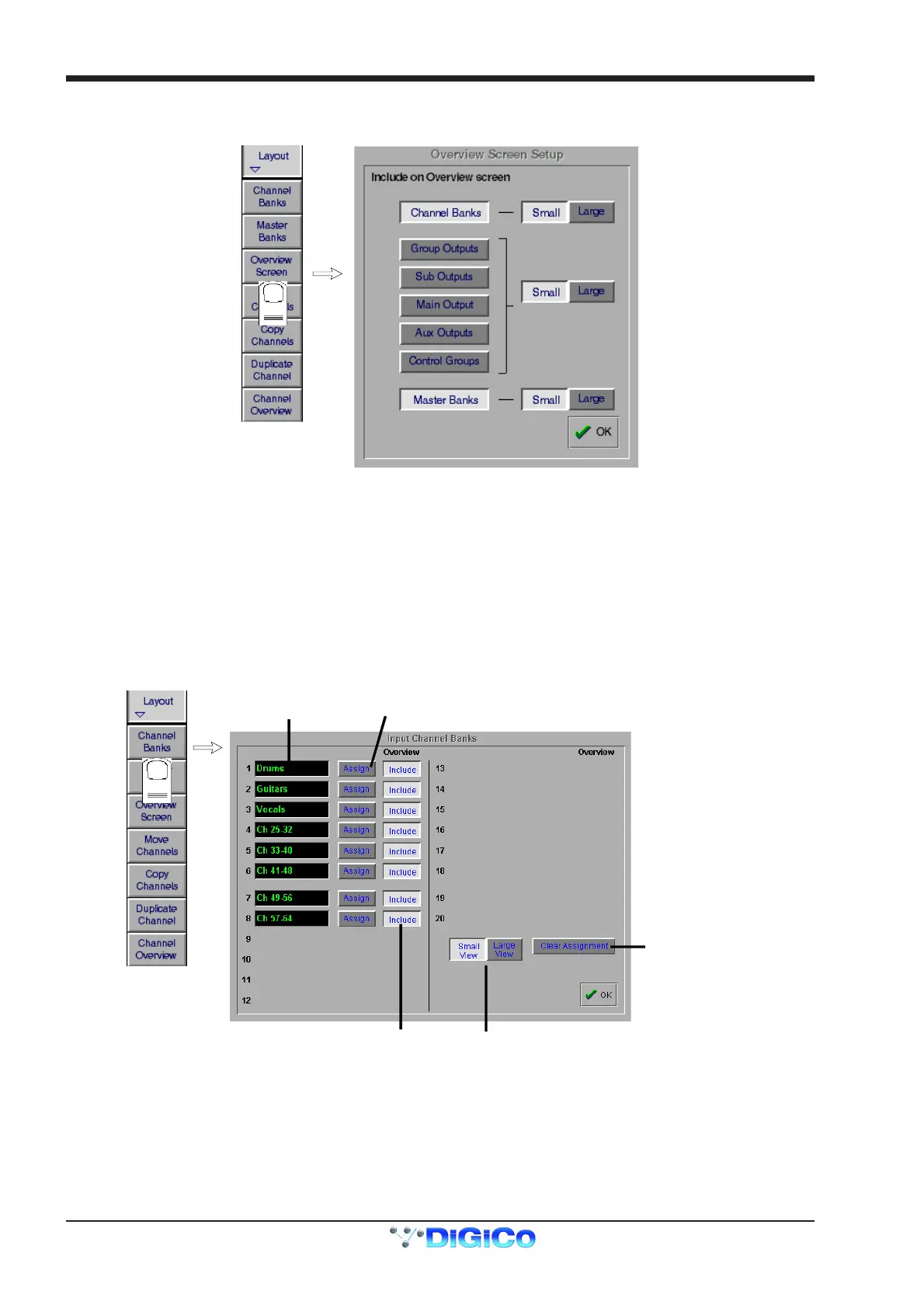
To change the appearance of the Overview screen touch the Layout button on the Master Screen and touch the Overview Setup button.
This panel allows you to select which banks appear on the screen and whether they are Large or Small format. The default view shows
Channel Banks and Master Banks in small format.
To show your choice of Output Banks, touch the relevant buttons in the left hand column and then touch the related Small or Large
buttons on the right.
2.4.3 Channel Banks .....................................................................
The naming and assignment of the worksurface Fader Banks is controlled from the Channel Banks panel in the Layout menu on the
Master Screen.
To Name a Channel Bank, touch the existing name eg Ch 1-8 and type a new one.
To include the Channel Bank on the Overview Screen touch the Include button next to the relevant Bank name.
To change the appearance of the Channel Banks on the Overview Screen touch the Small or Large View buttons at the bottom of the
panel.
Touch here and type to
name Channel Bank
Include channel
in
v
rvi
w
r
n
Assign Bank to
Worksurface
Clear Bank fro
Worksurface
Overview Screen
iz



 To Next Page