Chapter 1
1-8
1.3.1 The New Session Panel .......................................................
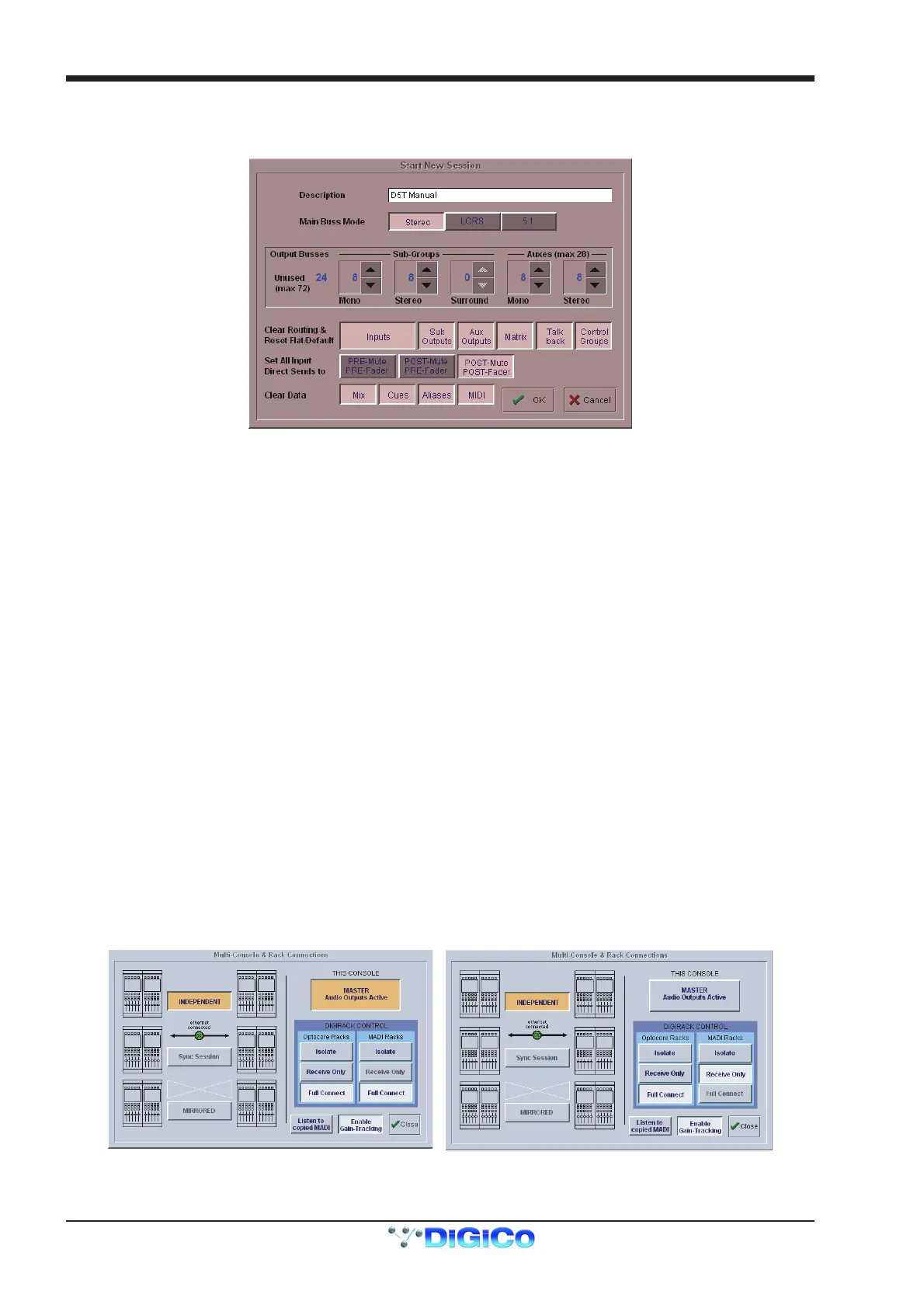
To create a new session, touch the Session Files button on the master screen and then touch the New Session button. The following
panel will appear:
The Main Buss Mode defines the format of the Main buss as Stereo, LCRS Surround or 5.1 Surround. This also affects the options for
selecting the Sub Group and Aux buss formats: if the Main buss is stereo, the other busses cannot use the Surround formats, and if the
main buss is Surround format, the other busses cannot use a different Surround format (although they can be stereo).
The Sub Groups and Auxes settings allow you to define the format and number of the Aux and Sub Group busses.
The total amount of busses cannot exceed 72.
Note: The total number of busses available will affect the choice of solo mode selected in the Setup Menu / Monitoring panel.
For example, if you wish to use AFL within a 5.1 Surround console configuration, an extra 6 busses will have to be reserved for that
purpose.
Clearing Settings
When you start a new session all current settings will be inherited by default but the Mix Automation and Cue List will be cleared.
The buttons at the bottom of the New Session panel allow you to clear settings according to your own requirements. When the buttons
are pressed, the relevant settings will be cleared. If you are simply adjusting the buss configuration of an existing console you are unlikely
to wish to clear all of your current settings.
You may also choose to Set all Input Direct Sends to Pre-Mute/Pre-Fader, Post-Mute/Pre-Fader or Post-Mute/Post-Fader for the new
session. Remember that when all settings are cleared, any labelling or routing which you have done will be lost.
1.3.2 Consoles and Racks ............................................................
If the console is the only one in the system, the Consoles & Racks panel will not open automatically and the console will be fully
connected to the racks with its Master Audio Outputs Active by default. This panel can also be opened from the System menu.
If the system has been defined as consisting of more than one device, the Consoles & Racks panel will automatically open on boot up or
load session.
If the Ethernet crossover cable or Ethernet switch has been connected, then the Ethernet Connected line should show a green OK light
and not a red cross.
The initial state will have no connection between the devices (Independent) or the racks (Isolated) and the panel appears in order to
prompt the operator to make the necessary connections.
In this state, any gain adjustments made on the console will have no effect as the racks will not be receiving any data.
The console’s MASTER Audio Outputs Active button will normally be highlighted in orange to show that it is the master responsible for
audio processing at this time.
The same button on the other mirrored or remote devices in the system should not be highlighted at all.
The MADI Rack’s connect states Receive Only and Full Connect are enabled/disabled and set according to the Audio Master active state
– an inactive engine cannot output to a MADI rack.
Main Console Redundant Engine, Mirror Console or Remote
To enable control of the DiGiRacks, press the Full Connect buttons for the Optocore and MADI racks. You will then be required to confirm
the action, the session settings will be sent to the racks and the console will have full control over them.



 To Next Page