Chapter 5
5-14
5.3 Cue Editor Software
The D5T Cue Editor which is bundled with the standard application software provides additional control over the Cue List.
It can make many of the Cue List functions much easier to program by providing a "grid" based interface to many of the functions.
It requires a Windows PC running Windows 98 (or later) software or a Mac running Windows emulation software.
The program can be run as a standalone application or it can be mirrored to the D5T to make changes to the Cue List in real time.
To run the program launch D5CueEditor.exe from the C:\d5t directory.
The Cue Editor cannot create new sessions itself but existing sessions can be transferred via the USB key or loaded from the console
using a network connection and a crossed ethernet cable.
For details on how to setup a Remote PC connection see Multiple Console Setups in Appendix B.
5.3.1 The Toolbar ..........................................................................
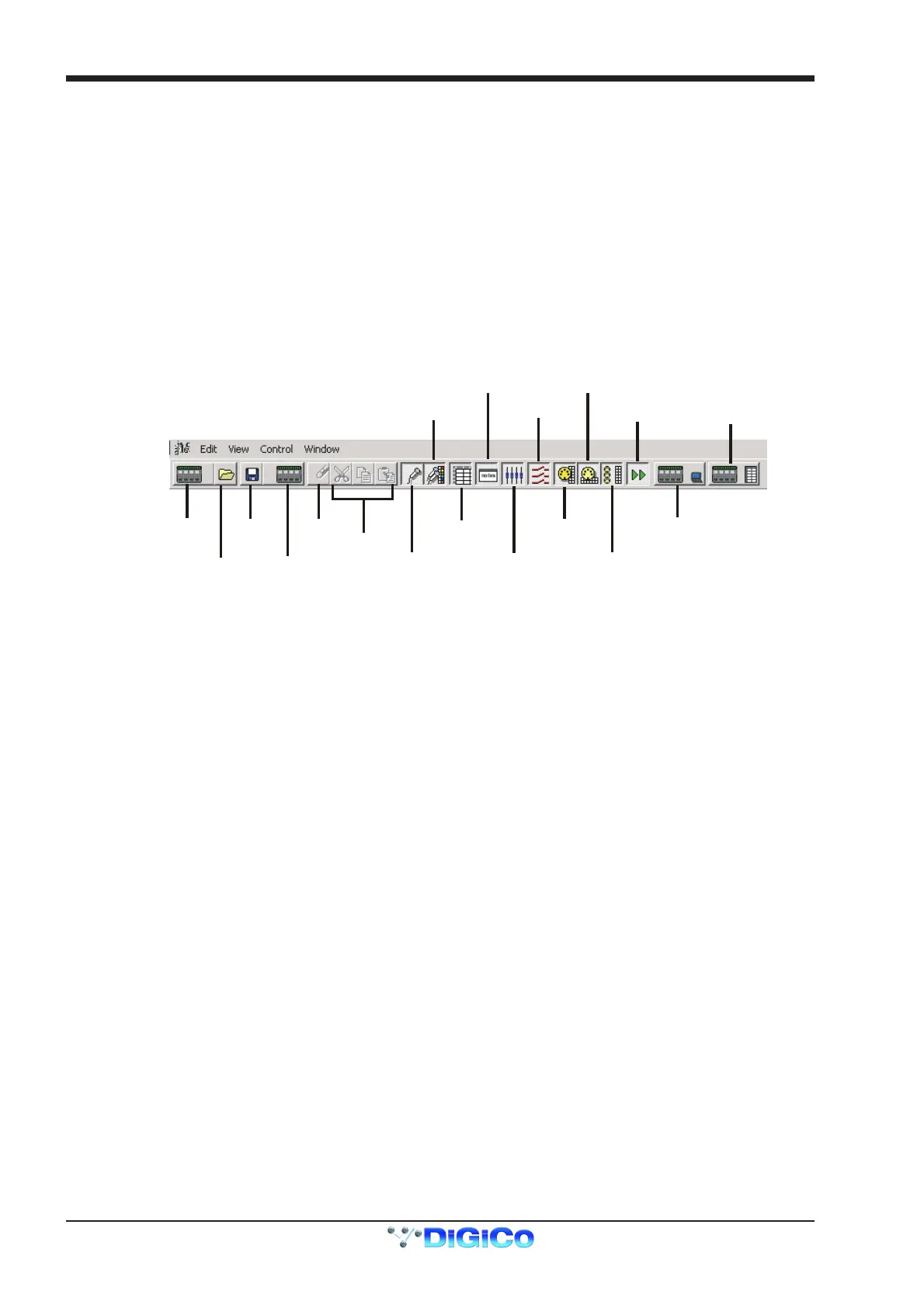
When the application is first loaded the screen is likely to appear blank with a series of icons along the top which represent different
elements of the program. When clicked, some of these icons open additional windows and others are simply shortcuts to perform certain
functions.
Load Session
From Console
Send Session
To Console
Open
Session
Save
Session
Undo
Input
Channels
Control
Groups
MIDI
Channel
Cue
List
MIDI
Controllers
Console
Mirroring
Channel
Sets
Relays
Machine
Control
Live
Update
Cue
Notes
MIDI
Program
Changes
Cut/Copy
Paste
5.3.2 Session Management ..........................................................
As the Cue Editor cannot create new sessions itself, the first step is to load an existing session from the PC or USB key using the Open
Session button or to load a session from the console using the button on the extreme left of the toolbar. (The latter will only work if there is
a network connection in place and functioning).
The Load Session From Console button is the Cue Editor's equivalent of Sync Session From console in the Console's & Racks
panel on the D5T. Pressing this button will transfer the session and presets files from the D5T and a progress bar will indicate when the
process is complete.
The Send Session To Console button performs the same process in reverse and should be used if you have prepared elements of the
Cue List offline and wish to transfer these changes to the D5T itself.
Important Note: Please remember that the Cue Editor can only control some elements of the session and if you are working offline while
the console itself is being programmed there will inevitably be a problem when the information is transferred. Either the console session
will overwrite the Cue Editor changes or vice versa.
Therefore it is recommended that programming only occurs on one device at a time or the two devices are mirrored to ensure that one is
always updating the other in real time.
To mirror the Cue Editor to the D5T, first Sync the Sessions either by loading the session from the console or sending it to the console
and then click the Console Mirroring button at the right end of the toolbar.



 To Next Page