Chapter 6
6-9
Channel Status Indicators
To the right of any channel or section name are three status indicators, indicating the automation mode in which that channel is currently
operating. These are also buttons, and you can press them to set the relevant mode.
The third button is used to select Safe Mode - see Safe Mode, section 6.1.6.
Channel Control Drop-Down Buttons
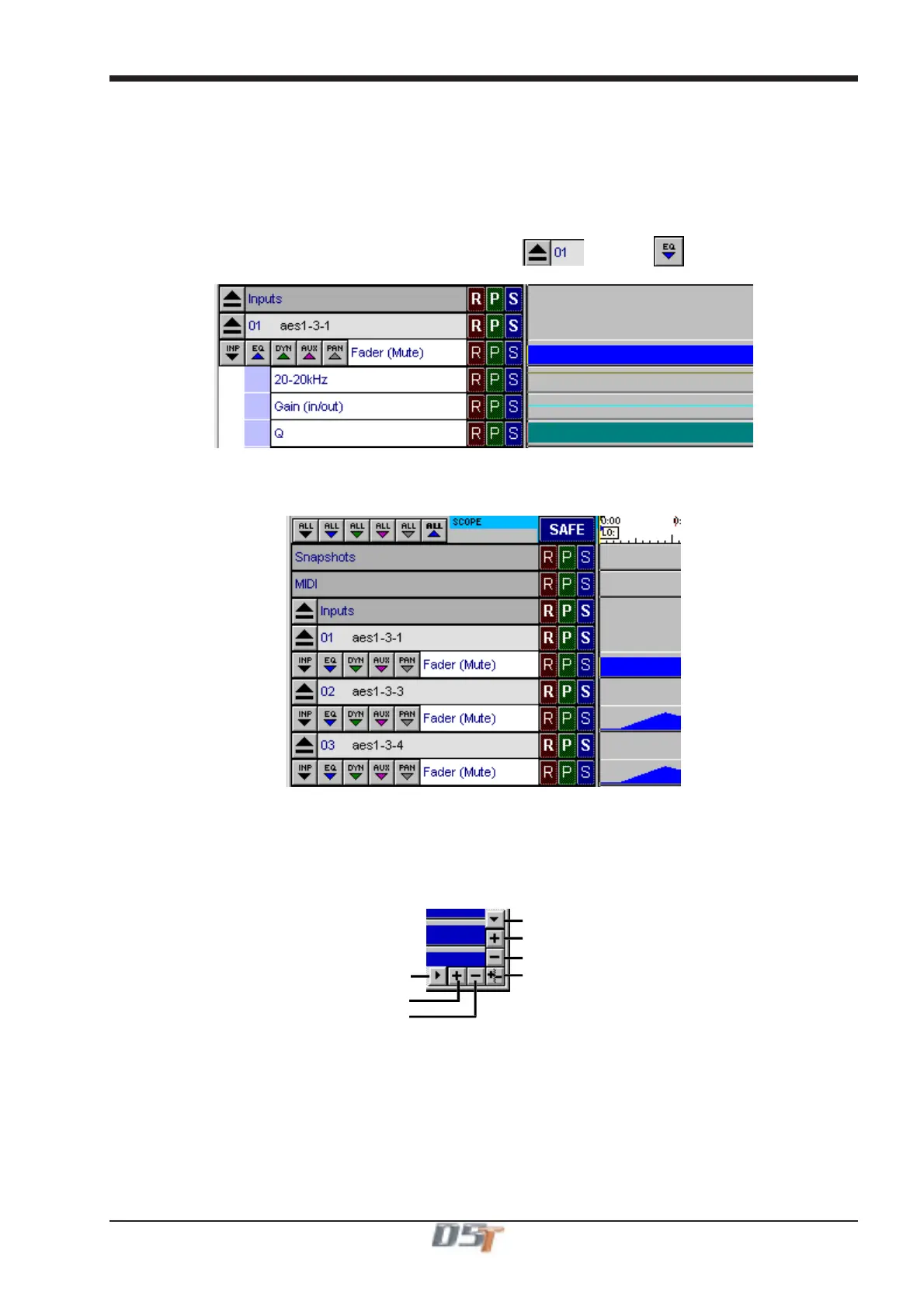
The display beside the channel label shows the channel's fader movement, but you can also automate and edit the other channel controls.
The drop-down buttons beside the channel label allow you to see any combination of the parameters for any channel - each channel has
buttons for displaying Pan, Aux, EQ and Dynamics controls.
For example, to see the EQ automation for the channel labelled 01, click the and then the drop-down buttons:
View All Buttons
In the top left corner of the editor panel there is a row of six View All buttons. When pressed, the sixth button will expand all visible
channel views into fader and mute views as shown below.
The other buttons perform the same function on the other sections but their effect will not be visible unless the channel's fader and mute
view is already open. The effect of the button will, however, be visible if the channel view is expanded subsequently.
6.2.2 Scaling the Automation Editor Display..............................
The Event Display of the Automation section can be shown at a wide range of scales, so that you can choose to see an overall picture of
the automation data, or a very small amount of the data in great detail. You can scale the horizontal (time) display, and the vertical
(channel) display independently, by clicking the buttons at the bottom right of the section:
Vertical Scroll Down
Expand Vertical (Zoom In on Channels)
Contract Vertical (Zoom Out on Channels)
Expand/Contract Vertical and Horizontal
(Right Button=Zoom In Left Button=Zoom Out
Horizontal Scroll Right
Expand Horizontal (Zoom In on Time)
Contract Horizontal (Zoom Out on Time)



 To Next Page