4-11
Chapter 4
Monitor Mute
Touch the Mute button to cut the monitor signal.
Solo Clear
Pressing the Solo Clear button will ensure that there are no solos engaged anywhere on the console.
Solo Trim Level
The Solo Level may be adjusted by altering the dB value in the Trim Level box. If the worksurface "Solo Trim" control is adjusted, this
panel will automatically appear and the Trim Level value will change to reflect any adjustment.
Solo Safe
Solo safe may be used in any solo mode.
If the Solo Safe button is pressed, channels that appear on the list will be soloed automatically whenever any other solo is pressed.
To add channels to the list, press the Touch Faders to Select button and touch the required faders. When the Solo Safe button is
switched off, the list is not affected and the Solo Safe function is disabled. The contents of the list are saved in the session files.
Note: If one of the channels on the list is soloed manually the other channels are not automatically soloed with it.
4.2.10 Master Section Meters .......................................................
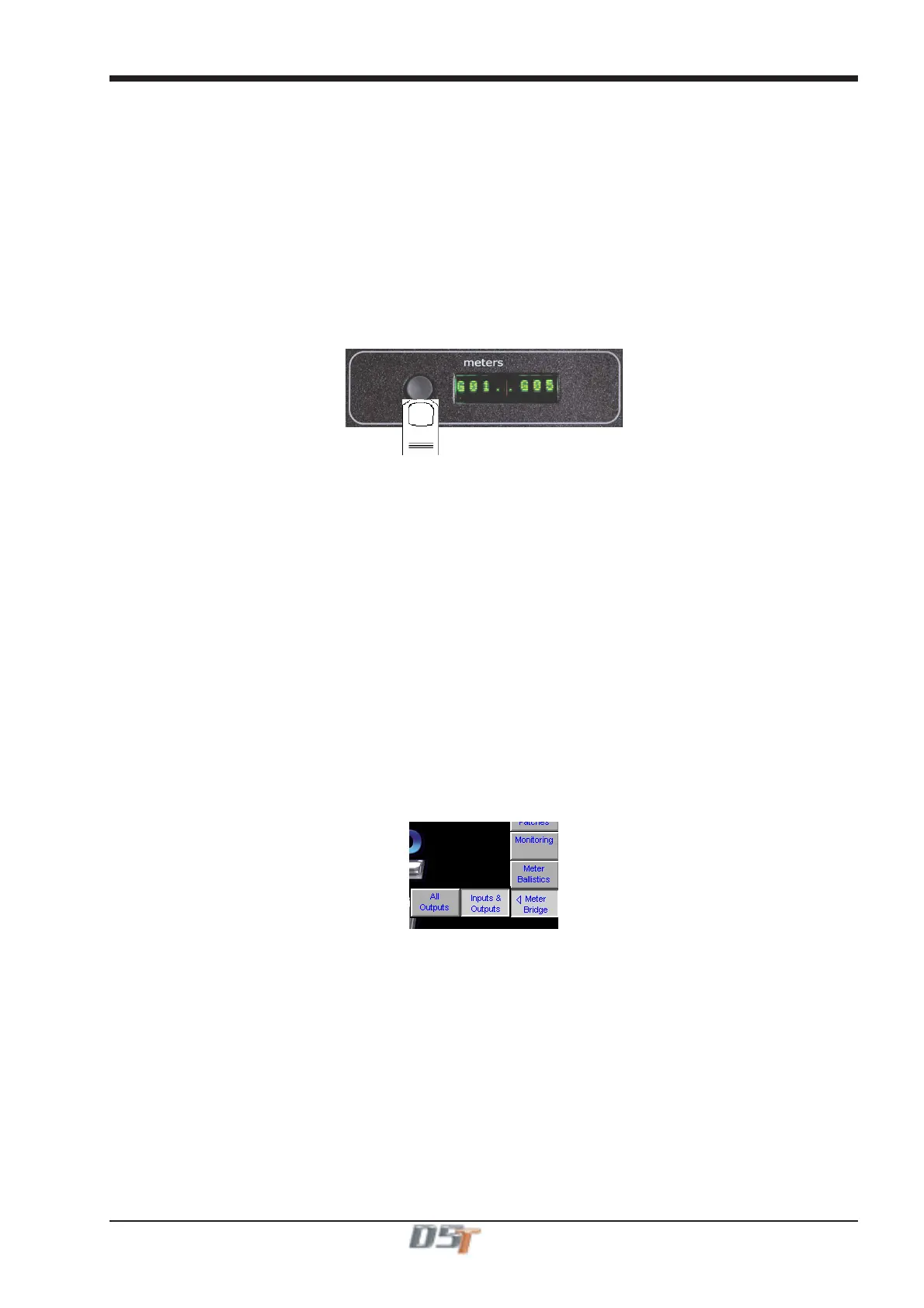
Successive presses of the Meter Button in the top right hand corner of the worksurface will toggle through three metering options, these
are:
Meter Master Buss (Default)
Meter Monitors
The meters will show the selected type of monitor signal. (Master buss or PFL/AFL/Destructive SIP)
Meter Selected Busses
The meters in the console's Master section can be assigned to any console buss.
To assign Group or Aux busses to the Master meters, press and hold down the Meter Button in the top right hand corner of the
worksurface and touch up to eight buss displays on the Master screen one after the other. Release the button when all the required
busses are selected.
Upper Bank
The meters follow the currently assigned upper master fader bank. Unlike the other modes, the fourth displays stereo groups on one meter
with twin peaks, just like input channels. Surround groups only meter left & right signals in this mode.
Note: If input channels have been assigned to master banks, the metered signal is pre-fader.
4.2.11 Meter Bridge Options ........................................................
Touching the Meter Bridge button in the Setup menu allows you to choose between two options:
The default setting is Inputs & Outputs where the Input Section meters show the corresponding Input Channel signal and the Master
Section Meters show the outputs.
The other option is All Outputs where the output signals are shown consecutively across the entire Meter Bridge.
In this mode, holding the Meter Button and touching a row of on-screen outputs will determine which outputs are assigned to the meters
on the first Input Section.



 To Next Page