Chapter 1
1-17
1.3.11 EQ ........................................................................................
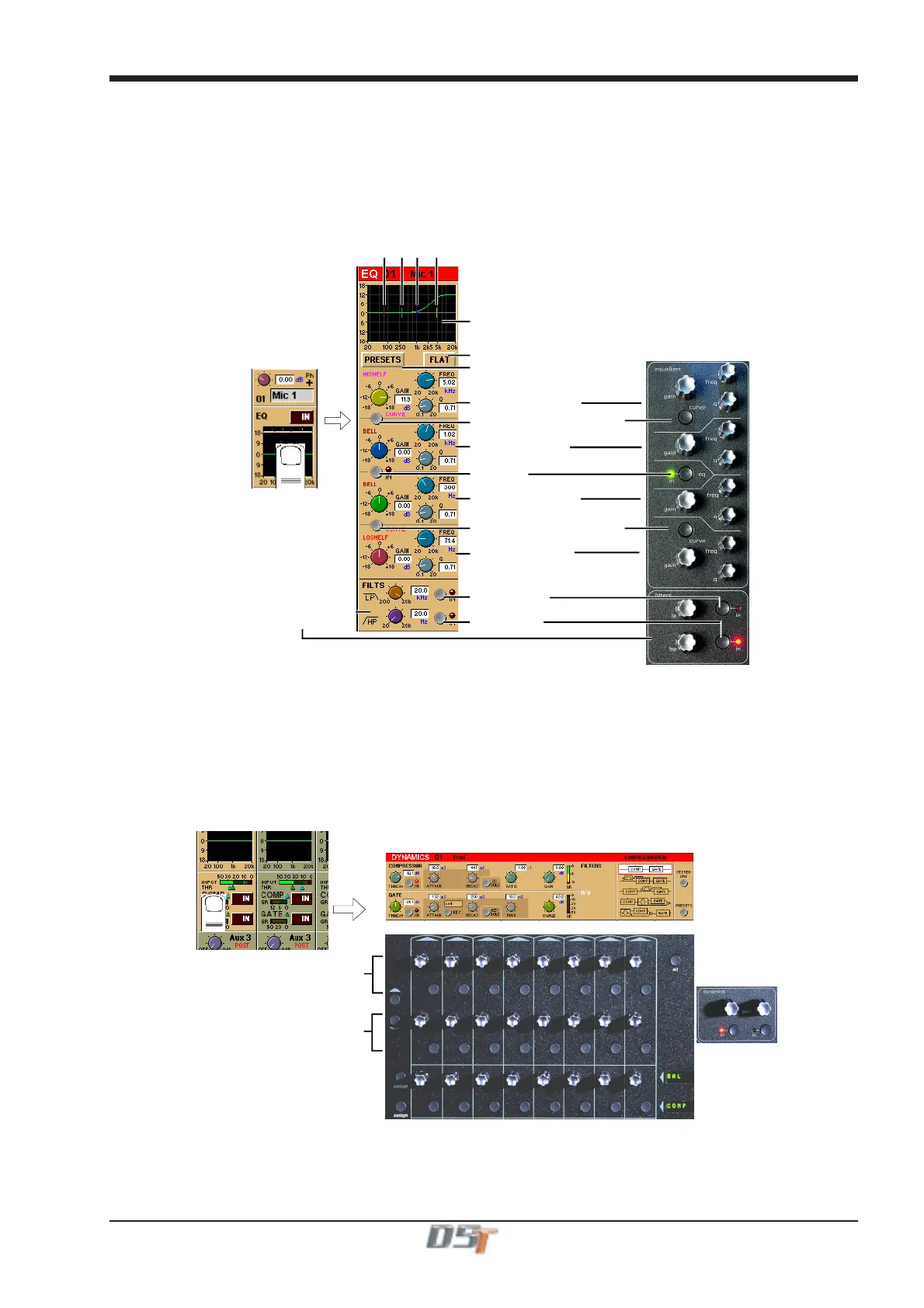
The EQ section comprises four user-configurable parametric filters and a pair of swept High-pass and Low-pass filters.
The EQ is accessed by touching the on screen display to Assign the channel (the colour changes to orange) and then using the
controls on the right hand side of the input module.
When a control is adjusted the expanded view seen below appears in the input screen but this view can be seen at any time by touching
the EQ response graph on the screen.
NOTE: If the expanded view does not appear when a control is adjusted open the System / Options panel and press the Automatically
expand EQ view when adjusted button.
Response Graph
Filter Centre Frequencies
Preset Selector
Parametric 1 (Yellow)
Curve Select for Parametric 1
Curve Select for Parametric 4
EQ In/Out
Parametric 2 (Blue)
Parametric 3 (Green)
Parametric 4 (Red)
Hipass / Lopass Filters
Reset EQ
Lopass In/Out
Hipass In/Out
Note: The four band EQ and each of the filters have their own in/out switches.
The type of filter used by bands one and four can be changed by successive presses of the Curve Select button for that band. There are
three possible settings for each band.
1.3.12 Dynamics ............................................................................
The dynamics are accessed by touching the words Comp or Gate just below the EQ graph on screen to open the dynamics panel.
The worksurface controls beneath the screen control the various parameters. Touching the panel again will close it.
Dedicated Threshold controls and In/Out switches can be found on the right hand side of the input section worksurface. These can
control the Assigned channel's dynamics whether the on screen dynamics panel is open or not.
Gate Controls
Compressor Controls
The third row of buttons in the input section can be assigned to any of the dynamics on/off switches. Hold the Assign Switch button on
the left of the input section and touch the dynamics section on the screen. The selected control is shown by the Status Display.
Note: These switches can also be assigned to other functions - See section 2.1.3



 To Next Page