6-12
Chapter 6
EQ Events
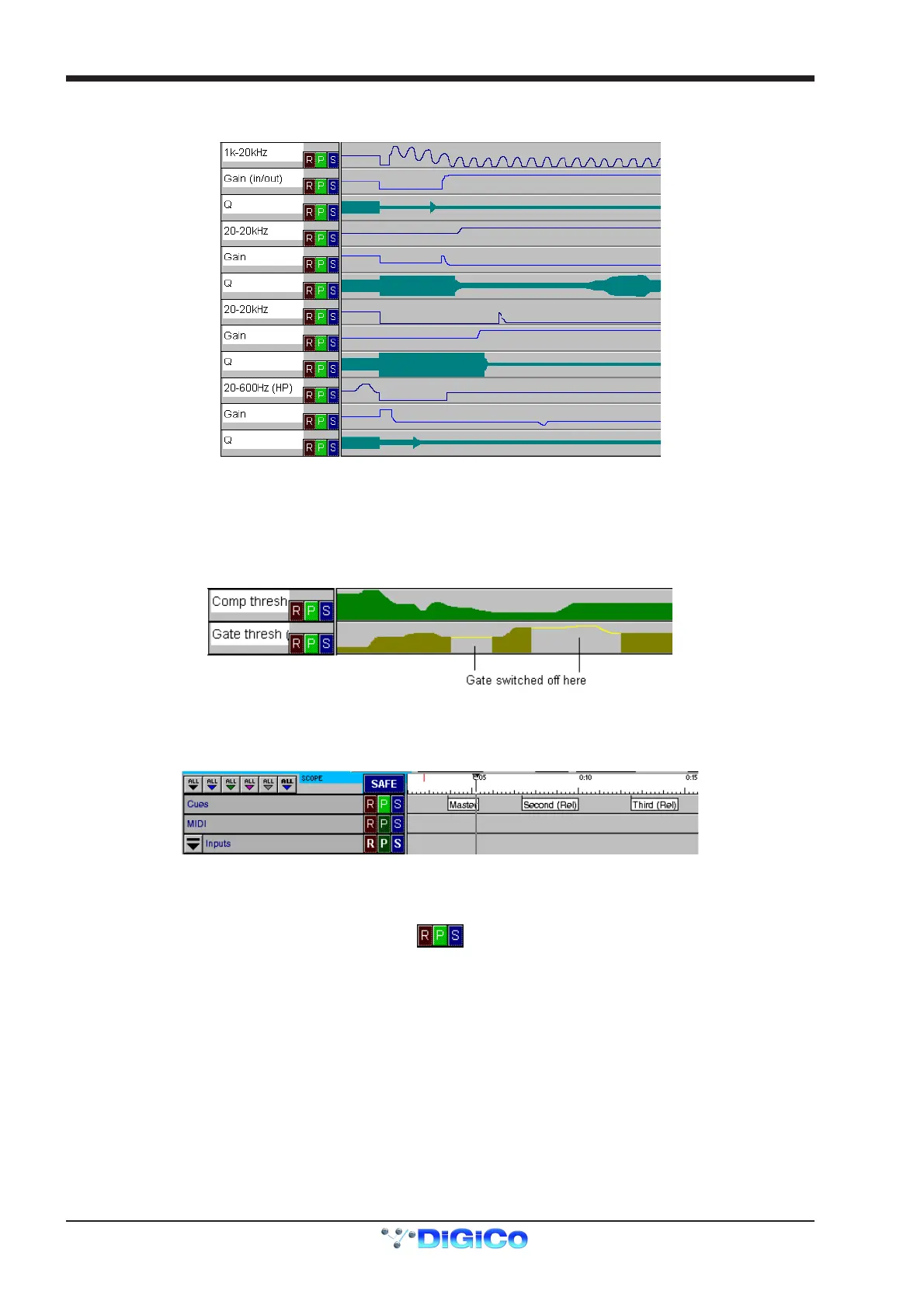
The three parameters for all 4 bands of the EQ are shown under this drop-down display, with the HF at the top:
The frequency range of each band is indicated. The Gain of the HF is followed by the words in/out. This line indicates the automation of
the entire EQ circuit being switched in and out. Note that for some filter curve types, the gain and Q data lines will have no effect. They are
stored nevertheless, in case the band is switched back to parametric operation. The switching of the curve types cannot be dynamically
automated.
Note: The frequency and IN/OUT status of the High and Low Pass Filters appear in the Dynamics display.
Dynamic Threshold Events
Only the threshold and on/off events for the compressor and gates are automatable.
In this case, the on/off switching for each effect is shown by the area under the line not being filled in.
Cue Events
Cues have their own line in the editor. This allows you to see them in the order they play back and perform the same edits on them as with
other events. Here is a sample Cue timeline:
These events must be selected for editing at the left hand edge of the label. This also indicates the exact time at which they will trigger.
6.2.5 Automation Mode Buttons ..................................................
Each control, channel and section in the Event editor has a set of Record, Play and Safe buttons which light to show their status.
You can press these buttons with the pointer. They allow you to individually affect the status of a single control which is not possible with
the channel buttons. They also allow you to set the status for a group of channels in a section. The S button makes a control safe from
overwriting. This means that you cannot accidentally place the control into Record and also that you cannot edit their events in the timeline
event editor.
Safe Mode ......................................................................................
Any channel or control can be made Safe. Clicking on the Safe button in the Event Editor is the only way to set Safe mode. Safe controls
and channels are shown by being greyed-out in the display.
You can use this facility when editing. If you need to affect a group of channels except one or two, place them in Safe mode and use the
drag-select tools to select everything around them.
Safe mode is also useful when you are combining dynamic automation of some controls with cue automation. For more information about
using Safe mode with dynamic automation and with cues, see section 6.1.5.
Safe Scope
Below the toolbar in the top left hand corner of the screen are eight scope buttons determining which controllers the global safe functions
will affect. Safe buttons on expanded strips for individual controllers are not affected by the scope.



 To Next Page