Chapter 5
5-16
5.3.4 Cue List .................................................................................
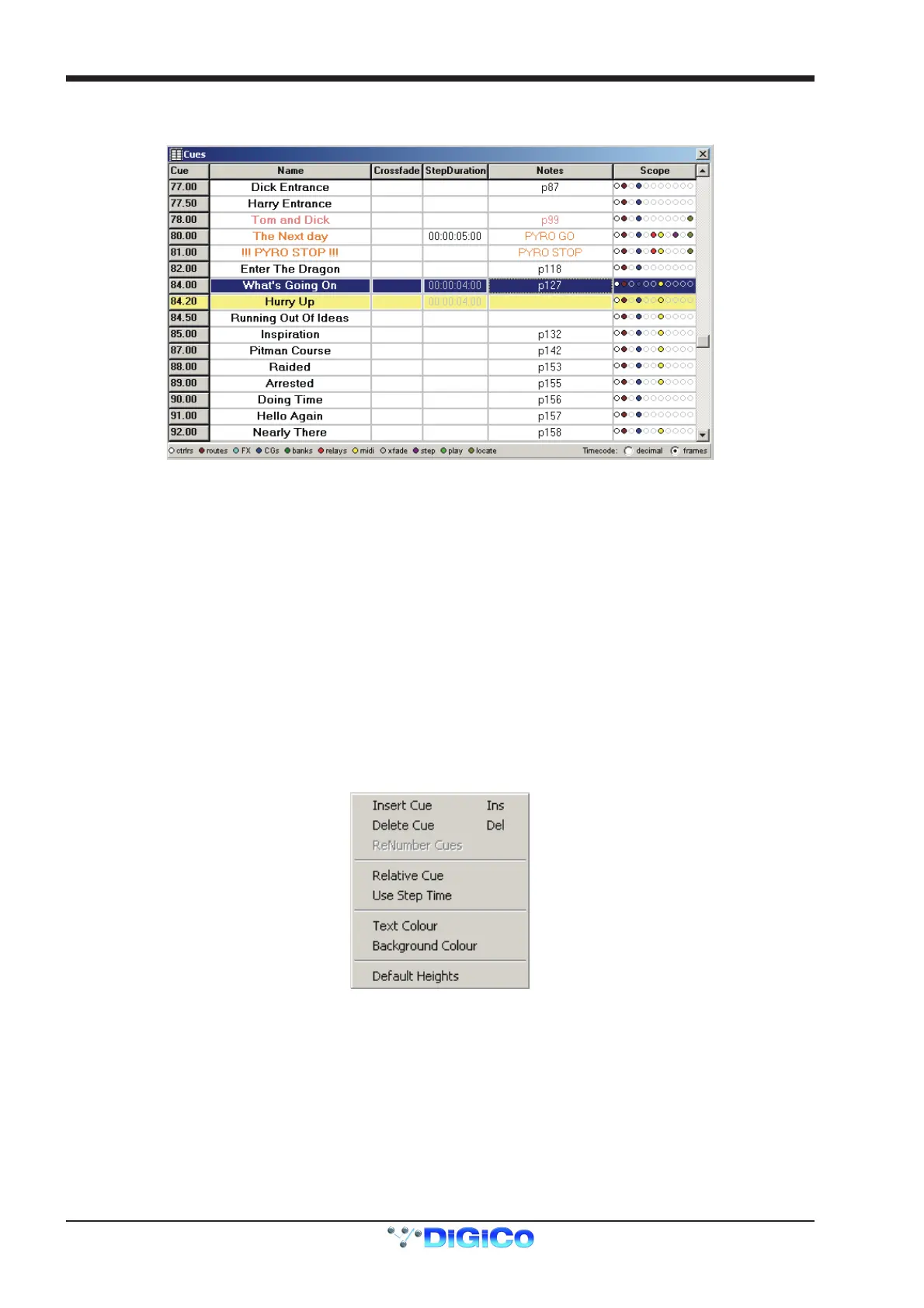
The icon which shows a small list represents the Cue List itself.
With this window open, the current cue can be seen as the highlighted colour and the cue that is selected can be seen in dark blue.
The current cue highlight colour can be selected using the View Menu/Current Cue Colour option and the selected cue can be changed
using the Up/Down arrows on the computer keyboard.
The Control Menu shows other keyboard shortcuts:
Fire Selected Cue = F3
Fire Previous Cue = PgUp
Fire Next Cue = PgDn
Move a Cue = Hold the keyboard SHIFT key and drag the cue number.
Right clicking anywhere in the Cue List will show the following menu with options to:
Insert or Delete the selected cue (keyboard shortcuts Ins and Del).
Renumber cues by selecting a range with the keboard SHIFT key held down.
Change the type of cue to Relative - Relative cues have the letter "R" next to their number.
Use Step Time where a time of 00:00:00:00 will be entered into the StepDuration column and this can then edited by typing.
Change the Text Colour of the cue and change the Background Colour of the cue to help with the identification of certain types of cue.
Note: The background colour appears in the Cue Notes window which can be opened by clicking the Notes icon on the toolbar, clicking in
the Notes column in the Cue List window or opening the Layout/Cue Notes panel on the D5T itself.
The heights of the rows for each cue can be adjusted by dragging the dividing line above or below the cue number and the Default
Heights menu option will return all heights to their original size.
In the Cue List window you can also edit the Name of the cue, its Crossfade time and its Step Duration by typing directly into the
relevant column.
Although the Cue Notes and Scope are shown in this window, they cannot be edited here.
Scope can only be seen as a colour coded dots with a key at the bottom of the window and must be edited on the D5T, D5TC or a remote
computer running D5T software.



 To Next Page