7-6
Chapter 7
7.2 Effects Control
7.2.1 Effects Parameters ...............................................................
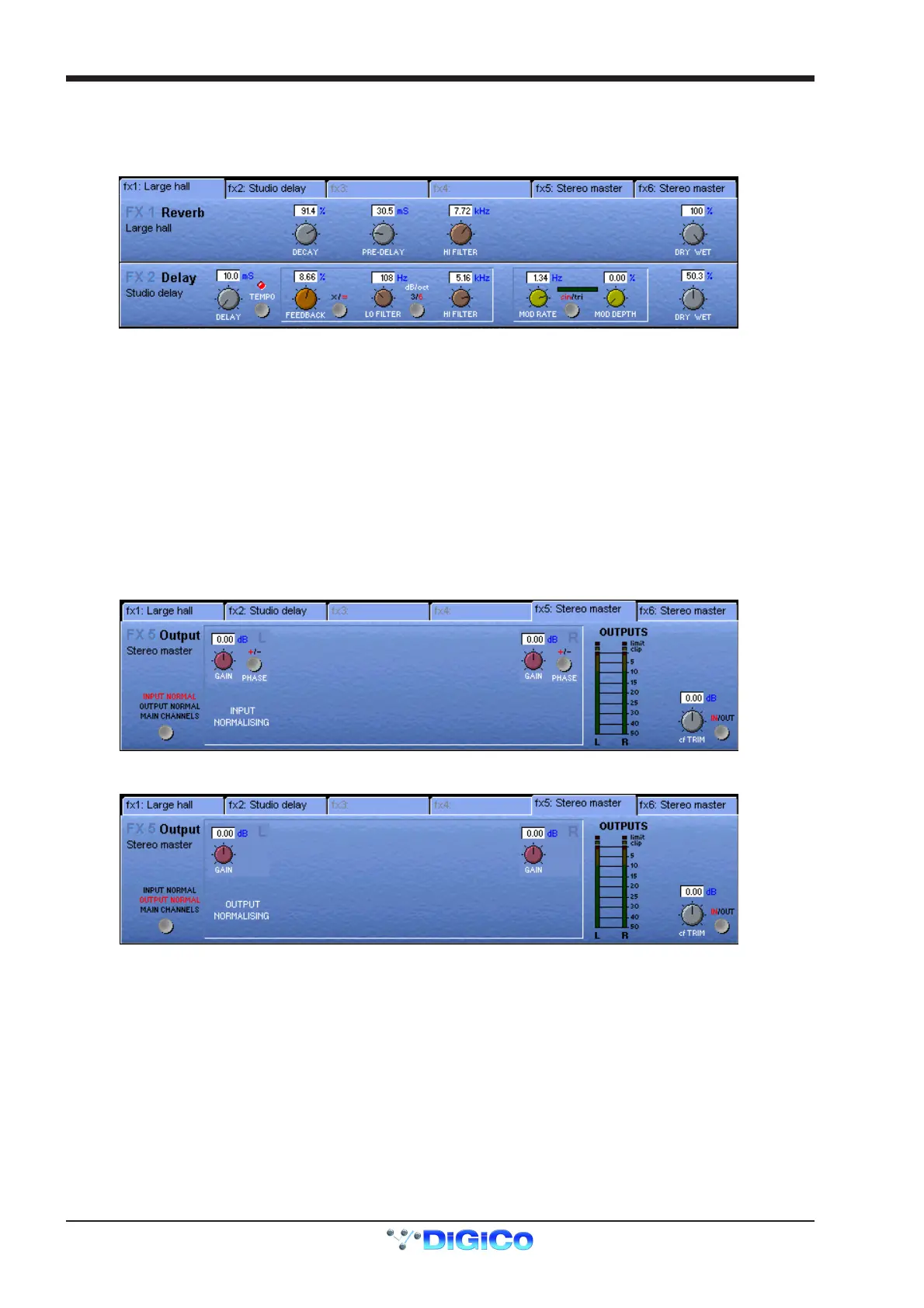
Touching the Effects button in the Master Screen opens the following panel:
Touch the tabs at the top of the panel to select the effect that you wish to adjust. Normally, two effects modules are shown in the panel
but the output processing module uses the whole panel on its own.
If the name on the tab is greyed out, an effect type has not yet been assigned (See 5.1.1 - Selecting effects).
The effects parameters available will differ according to the type of effect chosen.
To adjust a parameter touch the on screen control that you wish to change and use the Matrix rotary and switch on the right of the
master worksurface.
They can also be adjusted by moving the trackball horizontally whilst holding down the left button.
7.2.2 Output Processing Parameters ..........................................
If you are using FX5 or FX6 as output processing modules the appearance of the Effects Control panel will depend on the size of the
master that you have selected eg. Stereo, LCRS or 5.1
Stereo Master
Successive presses of the button in the lower left corner shows each of 3 sets of controls but the Trim and In/Out controls are global
and appear on all of the panels.
Input Normalising
Provides Input Gain and Phase controls for the left and right signals.
Output Normalising
Provides Output Gain and Phase controls for the left and right signals.



 To Next Page