Chapter 2
2-24
2.4.5 Move Channels .....................................................................
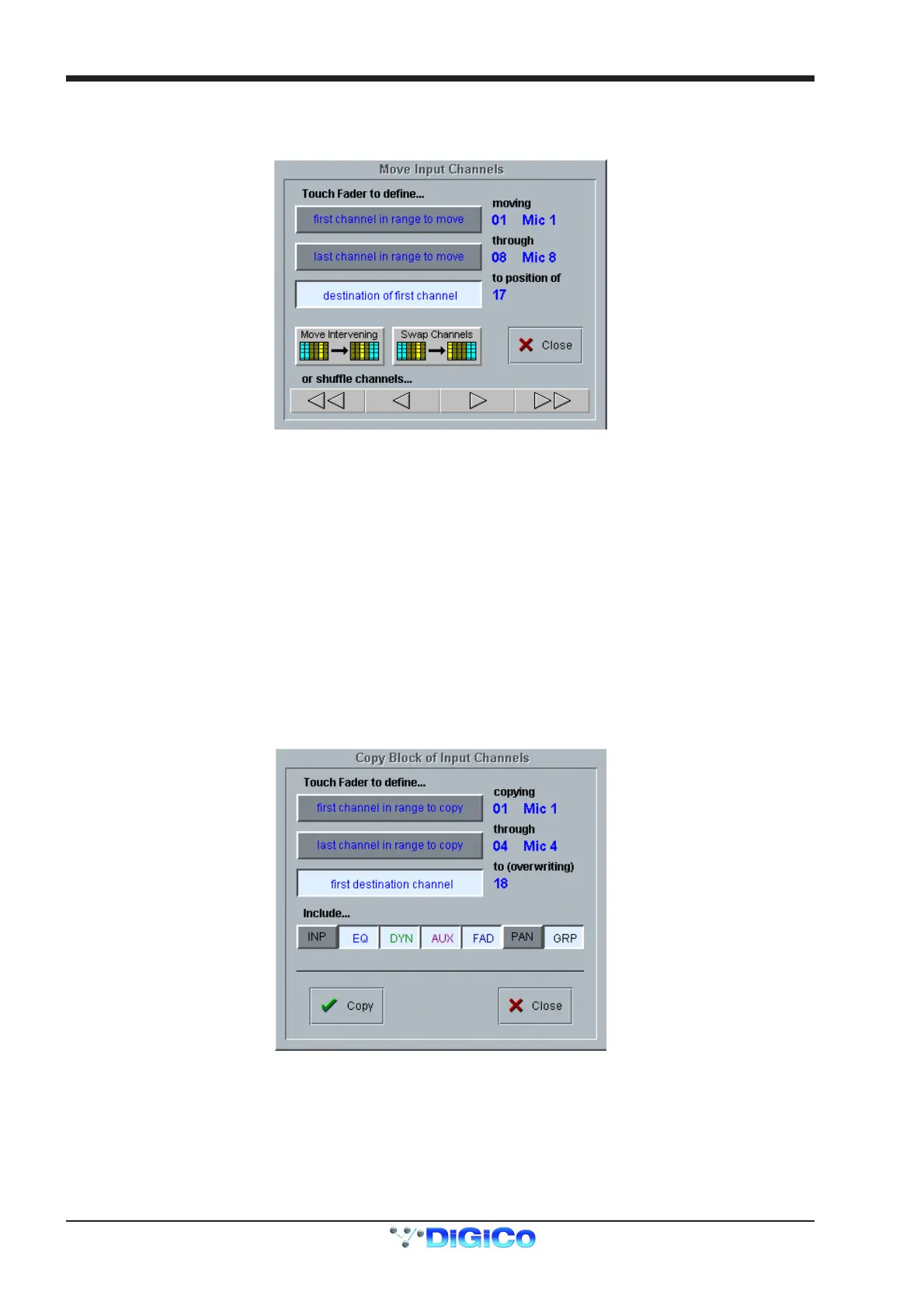
Touching the Move Channels button in the Layout menu opens the Move Input Channels panel which allows a single channel or a range
of channels to be moved.
Touching a single channel allows it to be shuffled left or right with the arrows at the bottom of the panel. Both halves of a stereo linked pair
are automatically selected together. Shuffling will automatically skip past stereo-linked pairs when moving the selected channels to their
new positions.
Touching two channels or a gang defines a range to be moved. The shuffle arrows now operate on this range of channels, and the double
arrows move by the number of channels in the range.
Touching a third channel defines the left of the destination range and enables the Move Intervening and Swap Channels buttons. A
move or a swap cannot take place if a stereo pair would be split as a result; a warning message is displayed instead.
Move Intervening means move the source range to the destination position and shuffle all channels between the source and the
destination (including all channels in the destination range) to fill the gap left by the source range.
Swap Channels swaps the source and destination ranges leaving intervening channels alone. Move and Swap have the same effect if
the source and destination ranges overlap.
After a Move or a Swap the selections are cleared but the panel remains visible tor a new selection. The shuffle buttons do not clear any
selections and remain enabled as long as at least one source channel is selected.
Single channels may be moved or swapped simply by touching the source channel twice when the top selection button is pressed. Any of
the three selections can be changed by pressing the relevant button and touching a fader.
2.4.6 Copy Channels .....................................................................
Touching the Copy Channels button in the Layout menu opens the Copy Input Channels panel which allows different elements of
channel settings to be copied.
Touch faders to define the start and end of the range to be copied and then touch a third fader to define the destination for the left hand
side of the group. The selected group will be highlighted in yellow in the input screen.
The destination channels will be overwritten and their previous settings will be deleted
Scope
Which controller values are copied depends on the scope buttons beneath the word Include.
INP = all input routing controls, including gain and signal source
EQ = all EQ controls, plus HP and LP filters
DYN = all Gate and Compressor controls plus gate key route, and HP / LP filters in dynamics
AUX = all aux send controls



 To Next Page