Chapter 2
2-5
2.1.5 Assigning a Channel ...........................................................
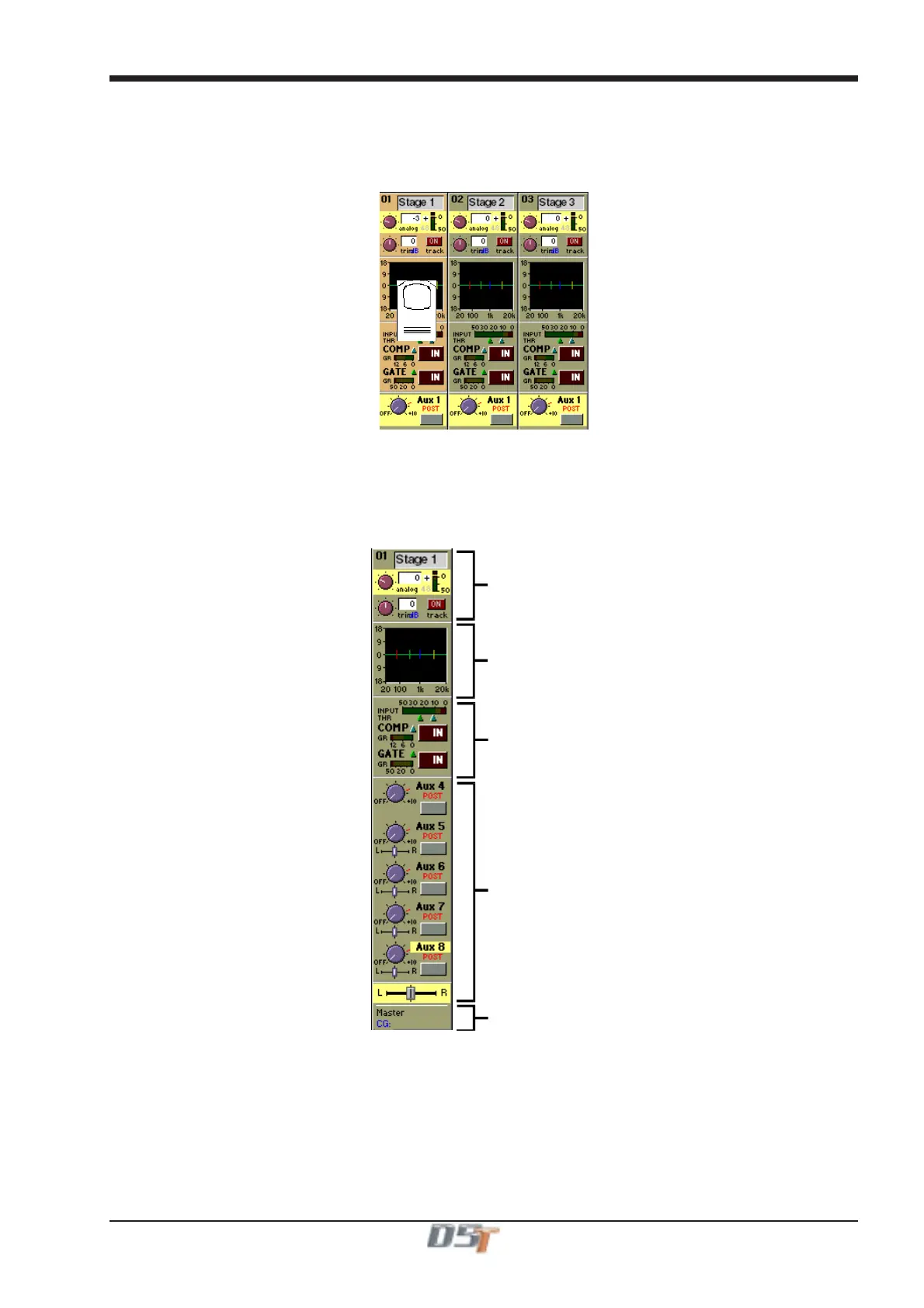
To assign one of the on-screen channels so that you can adjust the EQ or Dynamics settings or use the Joystick, touch the on-screen
display of the channel anywhere in the EQ or Dynamics area. (Not on the In / Out switches)
The background colour of the channel changes to show that it is selected.
Touching the IN /OUT buttons will switch the relevant processing module ON or OFF.
There is also an option to assign a channel by either touching its fader or pressing its solo button. See Section 2.2.8 Channel LCD
Function Buttons.
2.2 Expanding a Processing Module
Once you have selected a channel, you can choose to view any of the processing Modules in more detail by touching the abbreviated
display of the section. There are five areas of the channel you can touch to see the module in more detail:
Input Module
Analogue Gain
Digital Trim
Routing Module
EQ Module
Dynamics Modul
Aux / Pan Module



 To Next Page