Chapter 2
2-7
Processing for the right signal is taken from the highest numbered channel available which has no input route or insert return route
selected. The channel which is used will no longer be available for normal operation. This is indicated by a white channel number.
Stereo channels show all signal meters as pairs. Gain reduction meters in dynamics are also shown as pairs, but with the dynamics
stereo link switched on, only the larger gain reduction of the pair is used for both sides of the stereo channel. The meter bridge shows two
peaks for stereo inputs.
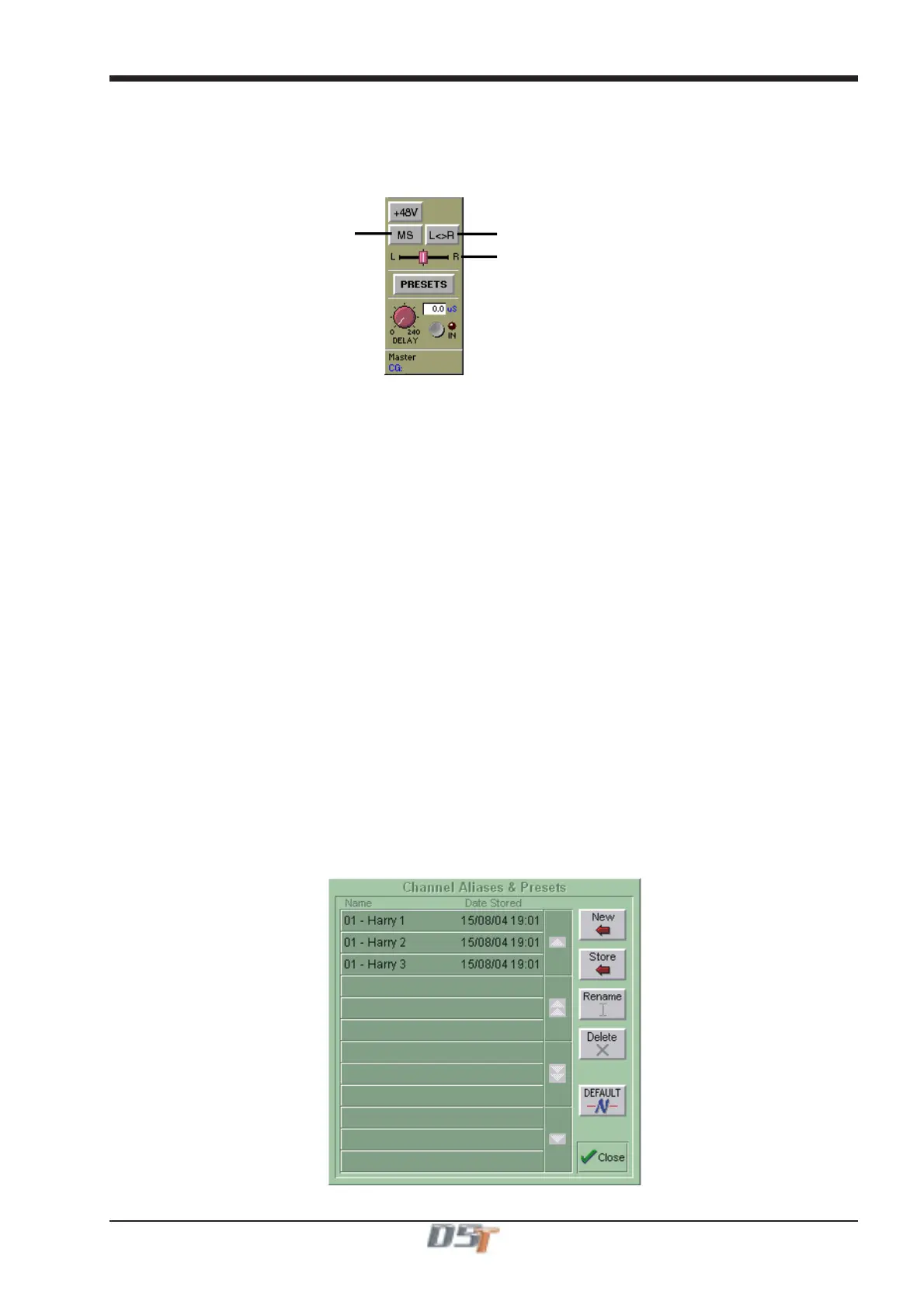
The stereo channel display will change in the following way:
MS Decode
Swap Left and Right Signals
Input Balance
The following additional functions are made available:
MS Decode
This button will activate MS Decoding for the stereo signal
Swap (Reverse) Left and Right Signals
This button will reverse the left and right signals or the Middle and Side signals if MS Decoding is active.
Input Balance
Controls the relative levels of left and right signals in the stereo pair.
NOTE: Most of the channel settings are preserved when switching from Mono to Stereo or vice versa. Pans are reset and
stereo routing may not be correct if the relevant output sockets are unavailable
Phantom Power only appears if the channel's source signal is a microphone.
When you connect to a Microphone input, a Phantom Power switch appears in the Input Routing Module. Phantom Power operates at
+48V. The default setting of this button can be controlled in the "Sockets File".
Channel Aliases and Presets
The Aliases button allows you to store or recall a complete channel setup.
An Alias is the name of a channel and a Preset can be associated with that name. If the source of a channel is changed from cue to cue
(eg Different actors use the same microphone in different cues) then the Cue List's Live Update function can be used to ensure that a
change to the settings of an alias in one cue will be written to the same alias in other cues.
A Channel Preset contains all the channel controls from the Input Gain to the Pan and Fader positions and group routing. Note that a
channel preset does NOT include any input socket routing information - this must be set specifically for each channel.
When you press the Aliases button, the screen displays a Preset Selector:
The number at the start of the name represents the channel that the Alias was created from and the name is a copy of the channel label.
There is no requirement to create Presets for each of the channel's aliases but if you intend to use the Live Update function it will probably
prove simpler to organise if you do so.
Note: If you create Aliases using the Cue Editor software (See Cue List chapter of this manual) then they will automatically appear in the
Aliases/Presets panel and the settings for each Alias can be stored by making the settings on the console worksurface and then using the
Store button in the panel to update the Alias.
The following image shows three different aliases for a character called Harry that have been created in channel 1 by making the appropri-
ate settings including the channel name and then pressing the New button in the panel.



 To Next Page