Chapter 4
4-20
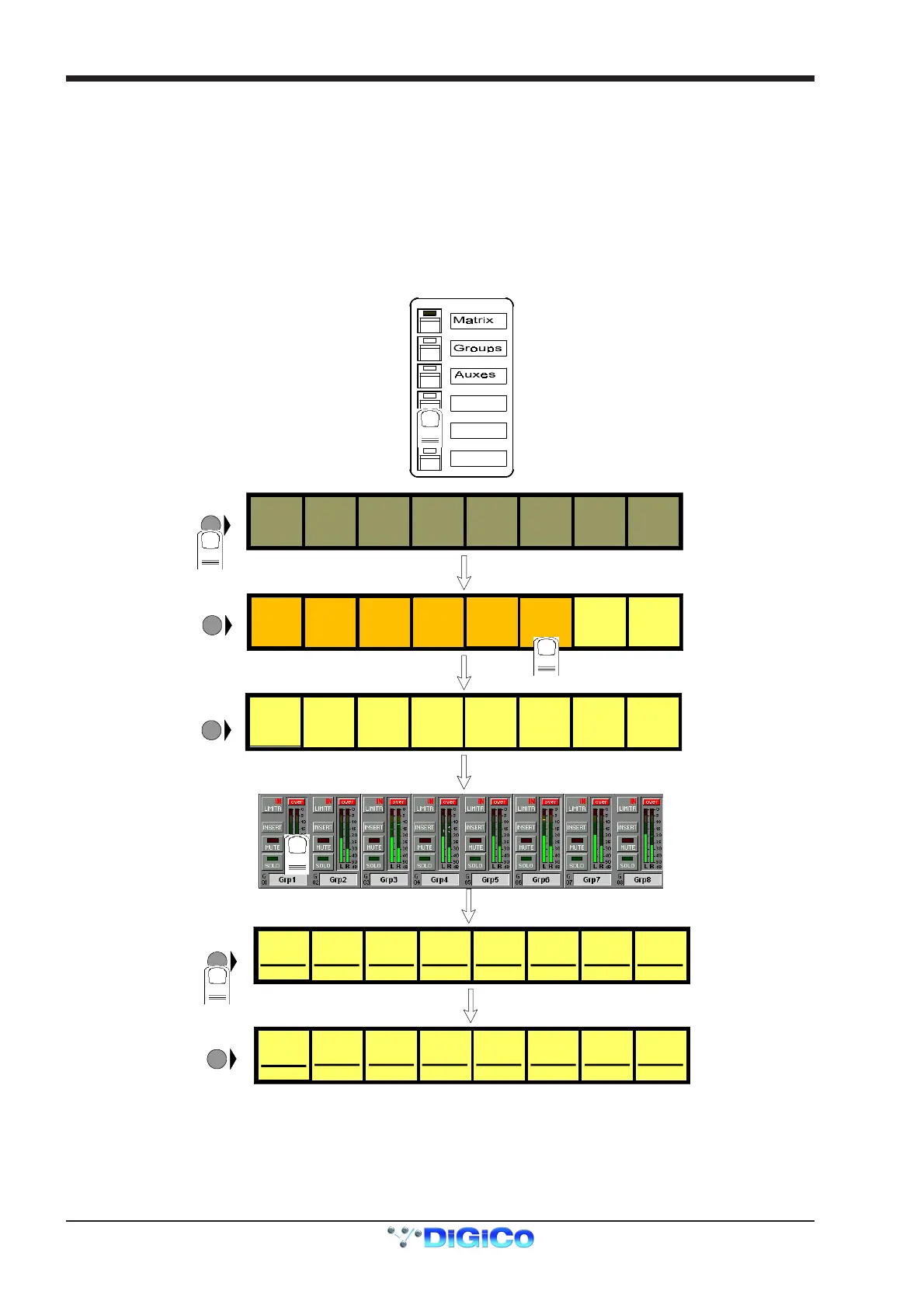
Master Fader Banks can also be built from scratch in the following way:
To Build A Bank
1) Press the Master Fader Bank button for the bank that you wish to build.
2) Press the Master LCD Function button for the relevant bank.
3) Press the Build Bank button.
4) Touch the on screen row, press a Bank button or touch an input screen for the Bank that you wish to Build. If a bank button is touched,
the entire bank is copied to the current Master bank including the Bank Label. If a screen is touched then eight input or output channels or
Control Groups will be assigned from left to right starting with the channel that you touched. On the master screen, output and Control
Group rows wrap to the next row down.
5) Press the Master LCD Function button to exit Build Bank mode.
6) Press the Solo function button to return to the standard view.
SOLO
Grp 01
G01 [0]
LCD
FUNCTION
SOLO SAFE
SOLO
Grp 02
G02 [0]
SO LO
Grp 03
G03 [0]
SO LO
Grp 04
G04 [0]
SOLO
Grp 05
G05 [0]
SOLO
Grp 06
G06 [0]
SO LO
Grp 07
G07 [0]
SOLO
Grp 08
G08 [0]
LCD
FUNCTION
2
3
ASSI GN ASSIGN
LCD
FUNCTION
Grp 01
G01 [0]
LCD
FUNCTION
Grp 02
G02 [0]
Grp 03
G03 [0]
Grp 04
G04 [0]
Grp 05
G05 [0]
Grp 06
G06 [0]
Grp 07
G07 [0]
Grp 08
G08 [0]
PRESS A BANK BUTTON O R TOUCH SCREEN TO CREATE BANK
LCD
FUNCTION
ASSI GN ASSI GN
Grp 02
G02 [0]
Grp 03
G03 [0]
Grp 04
G04 [0]
Grp 05
G05 [0]
Grp 06
G06 [0]
Grp 07
G07 [0]
Grp 08
G08 [0]
Grp 01
G01 [0]
5
4
master fader bank
1
AF L AFL AFL A FL AFL AFL AFL AFL
SOLO
ASSIGNS
AUX>FAD
BUILD
BANK
ASSIGN
FADERS
UNASSIGN
FADERS
SOLO
1OR2
SOLO
ASSIGNS
AUX>ROT
AFL AFL AFL AFL AF L AFL AFL AFL



 To Next Page