109
(6) In the [FILE-UPDATE] menu screen the pop-up status window appears showing the file
transfer progress.
(7) The lamp buttons on the panel will go dark after 30 seconds. (The data will start to be written
to the switcher flash ROM.)
(8) After about 1 minute, panel indications will return to normal. (Download / ROM write
complete.)
(9) Software upgrade will be applied after rebooting the switcher. (The switcher power OFF then
power ON.)
IMPORTANT
You can upgrade your HVS-30OU software by loading an upgrading file with OCB
extension in a same way as the HVS-300HS/RPS software upgrading procedure.
(Writing to flash ROM will take about 10 seconds.)
22-3. Loading Setting Data
All menu settings previously made for the switcher can be set again by loading the "data.all" file
from the CF card.
(1) Insert the USB flash memory, where the data is saved, into the USB port.
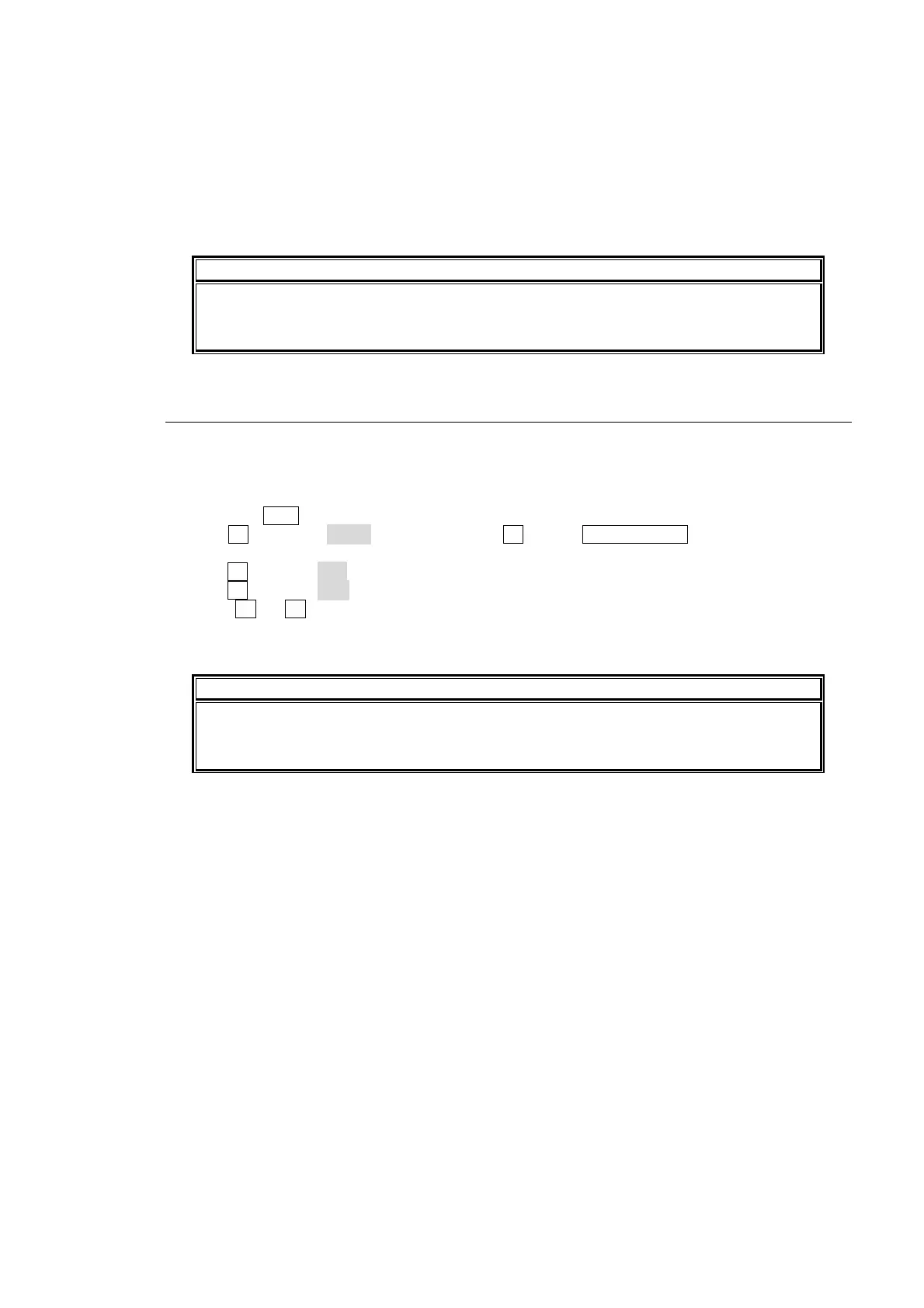
(2) Press the FILE button to display the top page of the FILE menu.
(3)Turn F1 to select LOAD, and then press F1 or the PAGE DOWN button to display the
[FILE-LOAD] menu.
(4) Turn F1 to select ALL to the EXT (File Extension) item.
(5) Turn F3 to select data. (The file name of the data must be "data.all", if it is not renamed.)
(6) Press F3 (or F2) to start loading the file.
(7) The data transfer will be complete within 30 minutes approx..
(8) After loading the data, reboot the switcher.
IMPORTANT
Once the saved system data is loading, you will have to restart the switcher. (The unit
power off then power ON.) The ARCNET ID is applied only after the switcher is
restarted.


 To Next Page