42
9-6. Background Transitions
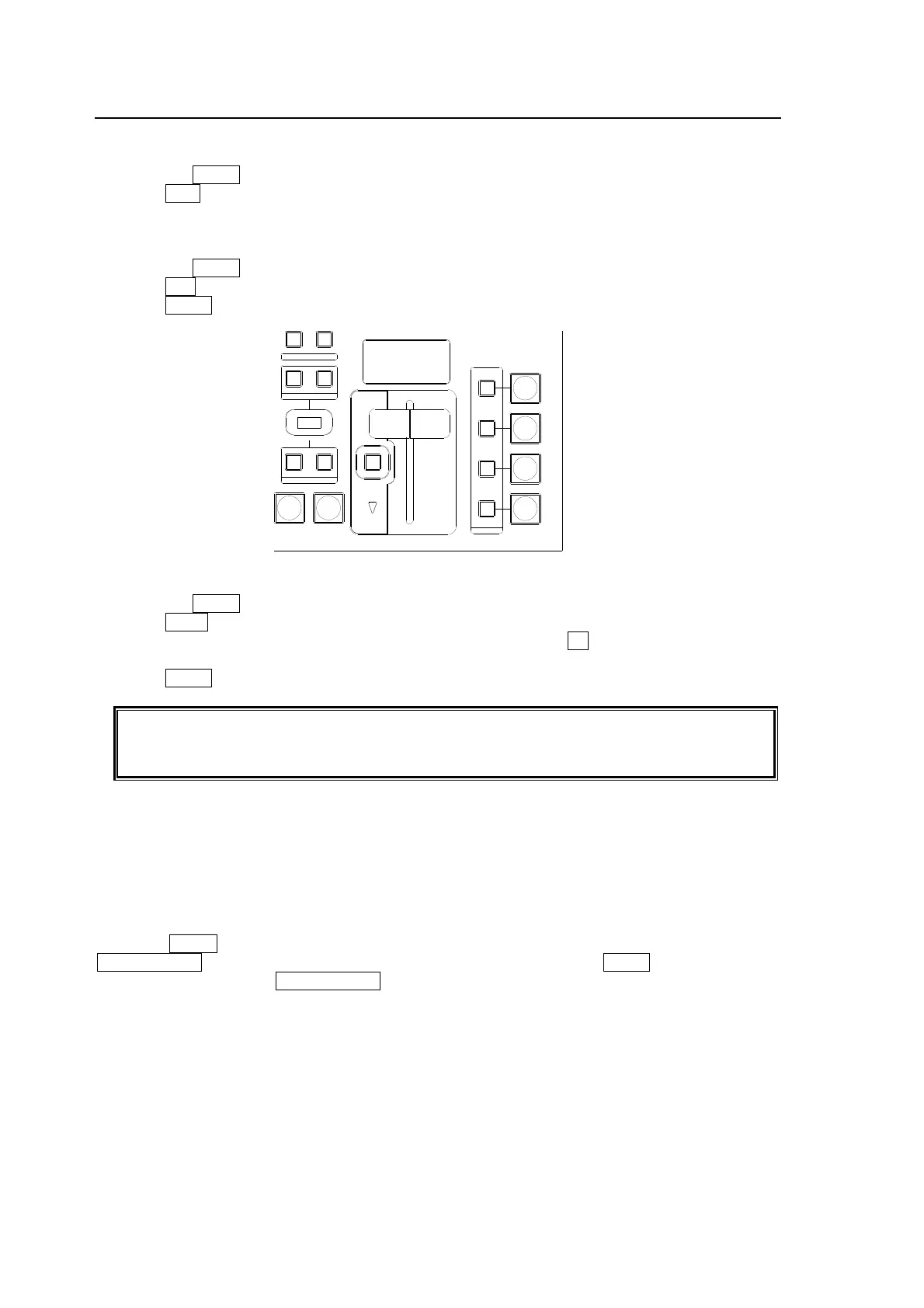
CUT Transition
(1) Select a video source in the PST bus block.
(2) Press the BKGD button in the NEXT TRANSITION block.
(3) Press CUT to perform the background CUT transition.
MIX Transition
(1) Select a video source in the PST bus block.
(2) Press the BKGD button in the NEXT TRANSITION block.
(3) Press MIX in the TRANSITION TYPE block.
(4) Press AUTO or move the fader lever to perform the background MIX transition.
WIPE Transition
(1) Select a video source in the PST bus block.
(2) Press the BKGD button in the NEXT TRANSITION block.
(3) Press WIPE in the TRANSITION TYPE block.
(4)The [TRANS - BKGD] menu appears in the menu display. Turn F3 to select a desired pattern.
(See section 9-9 "How to Select Patterns.")
(5) Press AUTO or move the fader lever to perform the background WIPE transition.
See section
9-7. "Pattern (WIPE) Transitions " for the WIPE transition details.
See section
9-8-2. " Transition Rate" for the transition rate.
See section
9-8-1. " Fader Limit" for the fader limit.
To Check Next Video:
To check the Preview video, assign the Preview video to an AUX bus to display the image. (See
section
7-2. "Preview Set Up.") To check the clean video, assign the Clean video to an AUX bus
to display the clear signal of program video. (See section
7-3. "Pattern (WIPE) Transitions.")
To Preview Next Background Transition:
Press the BKGD button on the NEXT TRANSITION block to turn it on. Press and hold down the
TRANS PREV button on the left next to the BUS SELECT block. Press AUTO or move the fader
lever while holding down TRANS PREV. The next background transition will be displayed on the
PREVIEW output. (See section 7-2. "Preview Set Up.")
AUTO CUT
DSK
KEYER
P IN P
1
2
P IN P
NOR/ REVREV
BKGD
WIPEMIX
KEYER
FADER LIMIT
ON AIR
DIRECTION
NEXT TRANSITION
PATT ERN/RATE
TRANSITION TYPE



 To Next Page