22
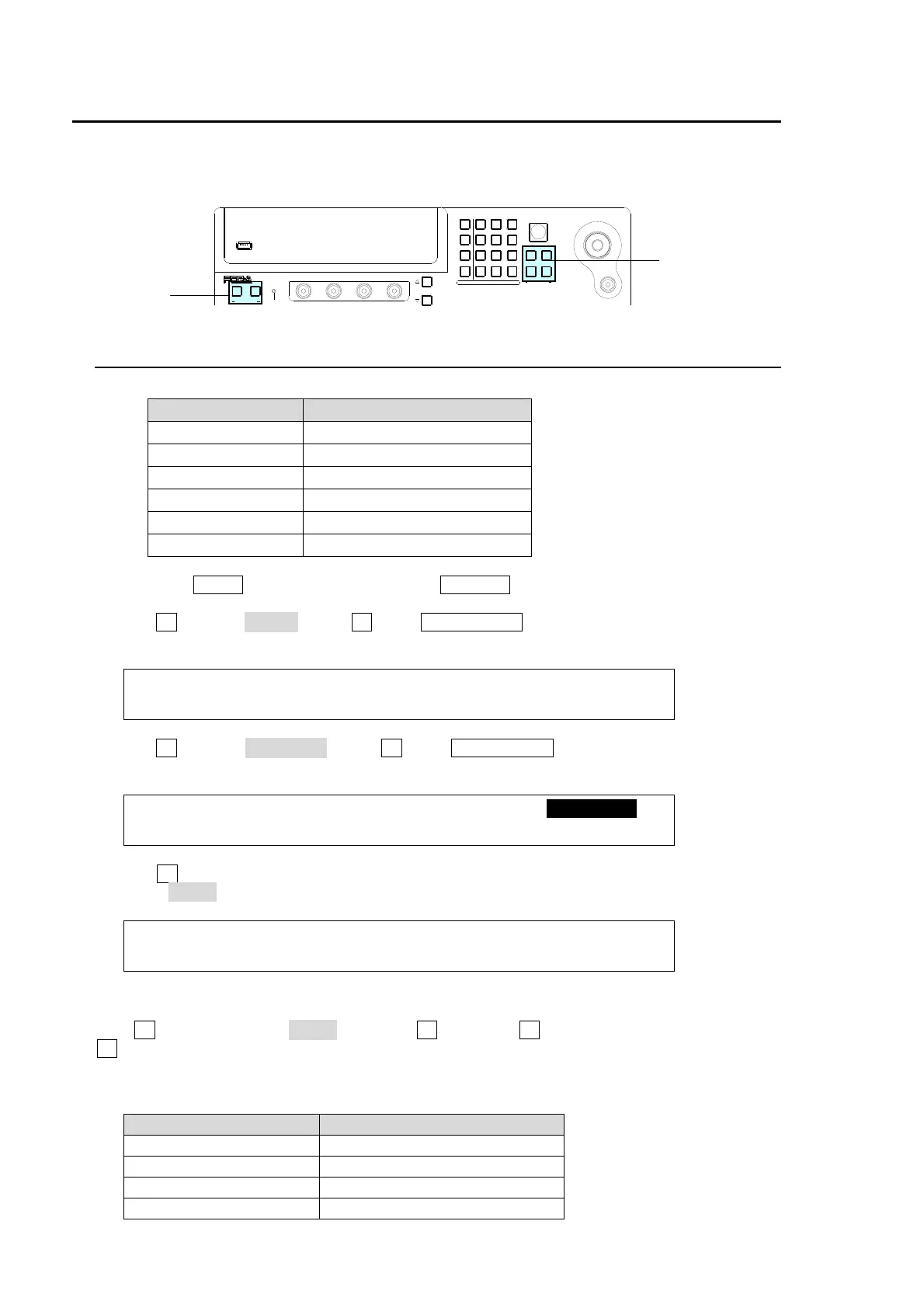
5. USER Button
User buttons can be assigned to specific menu pages and be used as shortcuts or specific
functions buttons. Follow the procedure below to assign the desired menu page or function to
buttons.
5-1. Setting USER Buttons
USER Button Default Assignments
Button Default Setting
OU1 GPI IN ENABLE
OU2 EDITOR ENABLE
OU3 NONE
OU4 NONE
OU5 NONE
OU6 NONE
(1) Press the MENU button and then press the 7/SETUP button to display the SETUP menu's
top page.
(2) Turn F1 to select PANEL. Press F1 or the PAGE DOWN button. The [SETUP-PANEL] menu
is displayed.
SETUP :>SYSTEM >INPUT >OUTPUT >PANEL
MENU :>EXT I/F >STATUS
(3) Turn F1 to select USER BTN. Press F1 or the PAGE DOWN button. The [SETUP - PANEL -
USER BTN] is displayed.
SETUP :>UTILITY >TRS CTRL>KEY CTRL>USER BTN
PANEL :
(4) Turn F1 to select a USER button for use. The selected USER button blinks.
(5) Select MENU or the function type in the TYPE item.
PANEL :SELECT : TYPE : FUNC (F3) : 1/1
USER BTN: = 1 : =NONE : = (NOT ASSIGN)
If Menu Shortcut is Set:
Turn F2 to select TYPE to MENU and press F2. Then turn F3 to select a menu page and press
F3. Once the menu shortcut is assigned to a User button, pressing the button opens the
assigned menu page.
Assignable Menu Page
Menu Setting (Accessed menu page)
FILE FILE-TOP
FILE FILE-LOAD
FILE FILE-SAVE
SET UP SYSTEM-FORMAT MENU
USB MEMORY
(PUSH to DEF)
43
65
SIZE
F4
F3F2
F1
PAGE
USER BUTTON
12
POSITION
MENU/DIRECT PATT/EVENT/KEY PAD
ALARMUSER BUTTON
HV S-300H S
DIGITAL VIDE O SW ITCHER
7/SET UP
4/WIPE
1
8/STILL
5/P in P
2/KEYER
9/FILE
6/MATT
3/DSK
BLA CK
TRANS
MENU
DIRECT PATT
±/EV ENT
CLR/TRANS RATE 0 /RECALL
. (DOT)
ENT/ ST ORE
User Buttons
OU1, OU2
User Buttons
OU3 to OU6



 To Next Page