84
17-3. Saving Data to USB Flash Memory
This section explains how to save the panel settings to the USB memory by using a "data.all" file
as an example.
(1) Insert the USB flash memory into the USB port.
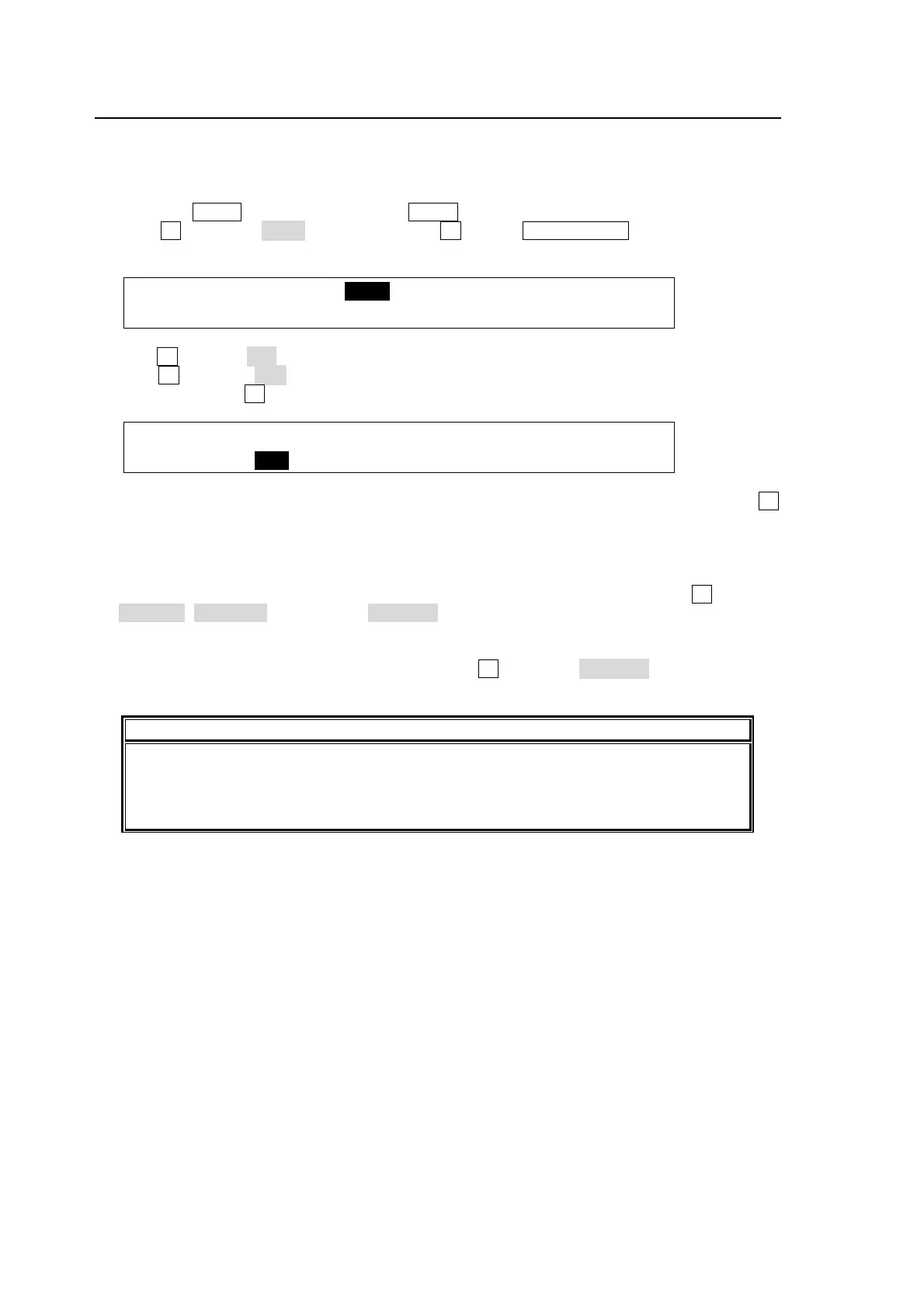
(2) Press the MENU button, then press the 9/FILE button to open the FILE top menu.
(3) Turn F1 to select SAVE, and then press F1 or the PAGE DOWN button to open the
[FILE-SAVE] menu.
FILE :>LOAD >SAVE >UPDATE
TOP : 101MB
(4) Turn F1 to select ALL to the EXT (File Extension) item.
(5) Turn F3 to select data. (See section 17-5 "Moving between Directories in the USB Flash
Memory.") Press F3 to save the data to the USB memory.
FILE : EXT : CTRL : <DIR>.. 1/1
SAVE : =ALL : =SAVE : data 101MB
(6) When the data is sent to the flash memory, the message “SAVE?” will appear. Press F3
again to store the data to the flash memory. A "beep" sound will be heard when the data is
saved.
If the same file exists in the USB flash memory:
A pop up window appears and asks you if you overwrite the existing file. Turn F3 to select
CANCEL, OVERWR(overwrite) or RENAME.
To Rename the File:
If you wish to rename the file to save it, turn F3 to select RENAME and refer to the
section 17-7. "Renaming Files in the USB Flash Memory" to give a new name to the file.
IMPORTANT
When pressing a control push-button, press it down lightly and release it within 1 sec.
Note that if you press and hold a control for more than 1 sec., related operation will be
cancelled. Do not remove the USB flash memory while the access lamp is flashing.
This could corrupt the stored data or damage the USB flash memory.



 To Next Page