60
11-5. Chroma Key
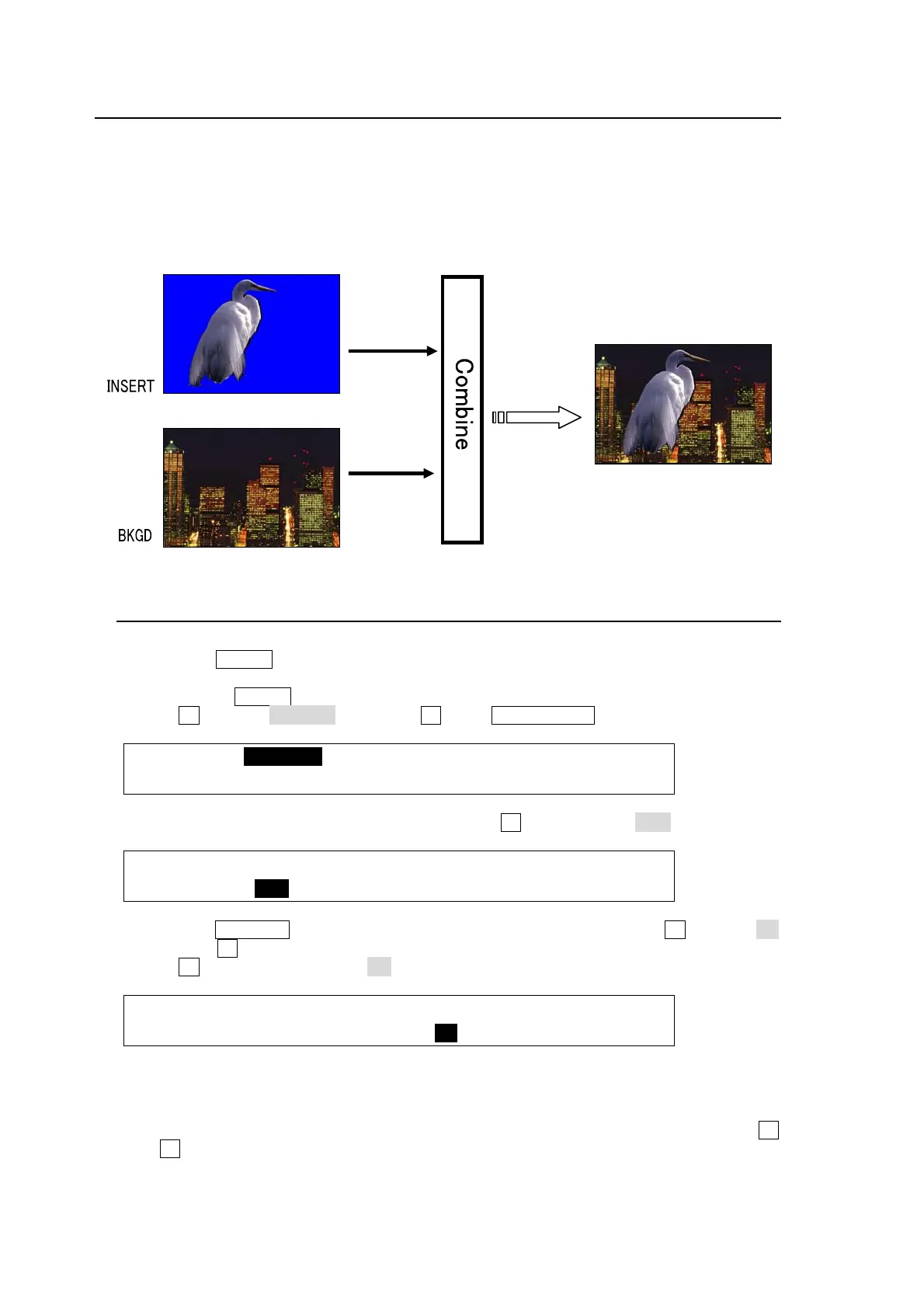
Chromakey is a method for creating a key signal using a chroma component instead of a
luminance component. It is mostly used for compositing moving subjects such a person in the
virtual background. For example, to place a person onto a background graphic, first film the
person standing in front of a background such as a blue screen. The blue part of filmed image is
detected and will be used to create the key signal.
11-5-1. Creating a Chroma Key
(1) Select a signal to be used as a background on the PGM bus.
(2) Press the KEYER button in BUS SELECT and select a chromakey signal the KEY/AUX
bus. (It can be selected in the INSERT item in the [KEYER - INS/SRC] menu.)
(3) Double-click KEYER in BUS SELECT to display the KEYER SETUP menu.
(4) Turn F1 to select INS/SRC, and press F1 or the PAGE DOWN button.
KEYER :>INS/SRC >EDGE >MASK >CK
SETUP :>POS/SIZ >BORDER >SUB EFF >INIT
(5) The [KEYER - INS/SRC] menu is displayed. Turn F1 to set TYPE to CHR.
KEYER : TYPE :INSERT :SOURCE :INVERT : 1/3
INS/SRC : =CHR : >IN01 : =IN01 : =OFF :
(6) Press the PAGE UP button to return to the KEYER SETUP menu. Turn F1 to select CK
and press F1 to display the [KEYER - AUTO-CK] menu.
(7) Turn F3 to change SELECT to ON to activate the auto chromakey.
KEYER : POSITION :SELECT :PGM OUT: 1/5
AUTO CK :X=0 Y=0 : =ON : =OFF :
(8) Moving the joystick displays the KEYER signal in the preview screen as well as a
crosshair cursor to specify the color to use for keying. The current coordinates are
displayed in POSITION X and Y in the [KEYER – AUTO-CK] menu. Move the joystick to
move the crosshair cursor onto the desired color. To precisely adjust the position, turn F1
or F2 to enter the values directly into POS X and POS Y in the menu. Selecting a darker
color makes adjustment easier.
Chromake



 To Next Page