21
4-3. How to Return Settings to Default
4-3-1. Returning Parameter to Default
Pressing and holding down Control Push-buttons
Press and hold the control push-button (F1 - F4) below each parameter to return their
settings to factory default.
Pressing and holding down the SIZE control
If you need to reset parameters controllable from the JOYSTICK block to factory default,
display parameters and then press and hold down the SIZE control. These parameters are
returned to factory default all together.
4-3-2. Returning Menu to Default
Using INIT parameter
Some menus have an INIT parameter in the menu. Selecting INIT and pressing the control
push-button returns all parameters in the menu to their default setting. Turn the related
push-button to select ALL or a category you want to return to default if INIT can be set, and
then press the push-button to reset the parameters.
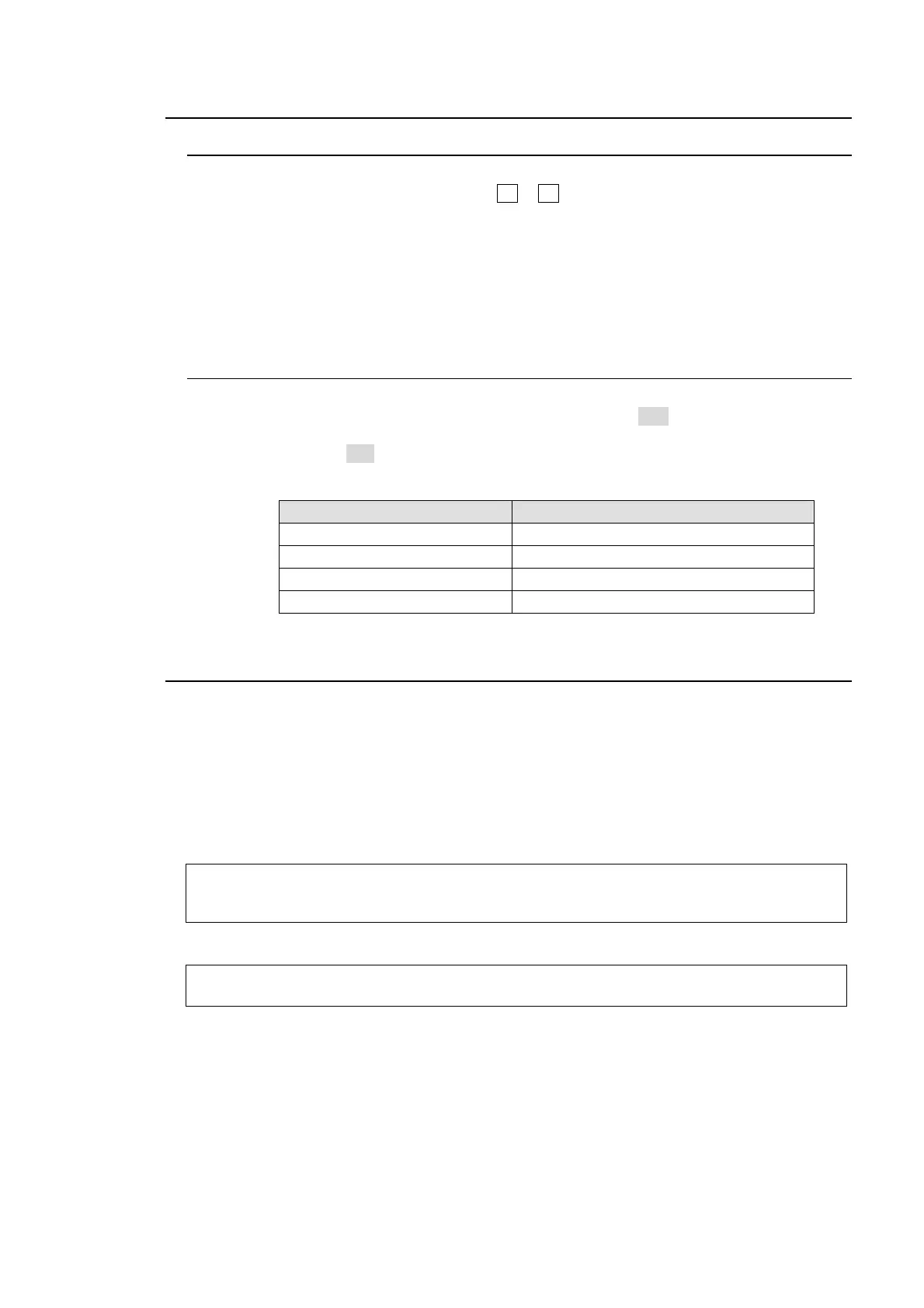
Menu where INIT included Menus to be returned to default settings
[SETUP-SYSTEM] menu All [SETUP-SYSTEM] menus
WIPE menu’s top page All WIPE menus
[KEYER-SETUP] menu All KEYER menus
[DSK-SETUP] menu All DSK menus
4-4. How to Back up Settings
One of the following three operations backs up panel settings and loads them automatically at
startup. It is recommended to do any one of these operations after changing menu settings.
Rebooting (Be sure to reboot the switcher instead of turning the power off then on. See
section
19-1. "Rebooting System.")
Moving to the top page in the SETUP menu.
Saving / loading an event.
Backed up settings
All settings in the SETUP menu
All settings in the STILL menu
USER TRANS and ADV CTL settings in the TRANS menu
Not backed up settings
Other menu settings not listed above including [TRANS BKGD], MATT, PinP, KEYER and
DSK menu settings.
If you want to load panel settings automatically at startup including KEYER, DSK and PinP
settings, save the panel settings that you want to load to the event memory and specify the
event number to load at startup in the menu. See section
16-5. "Loading Event at Start-up" for
details.



 To Next Page