64
11-7. Key Edge
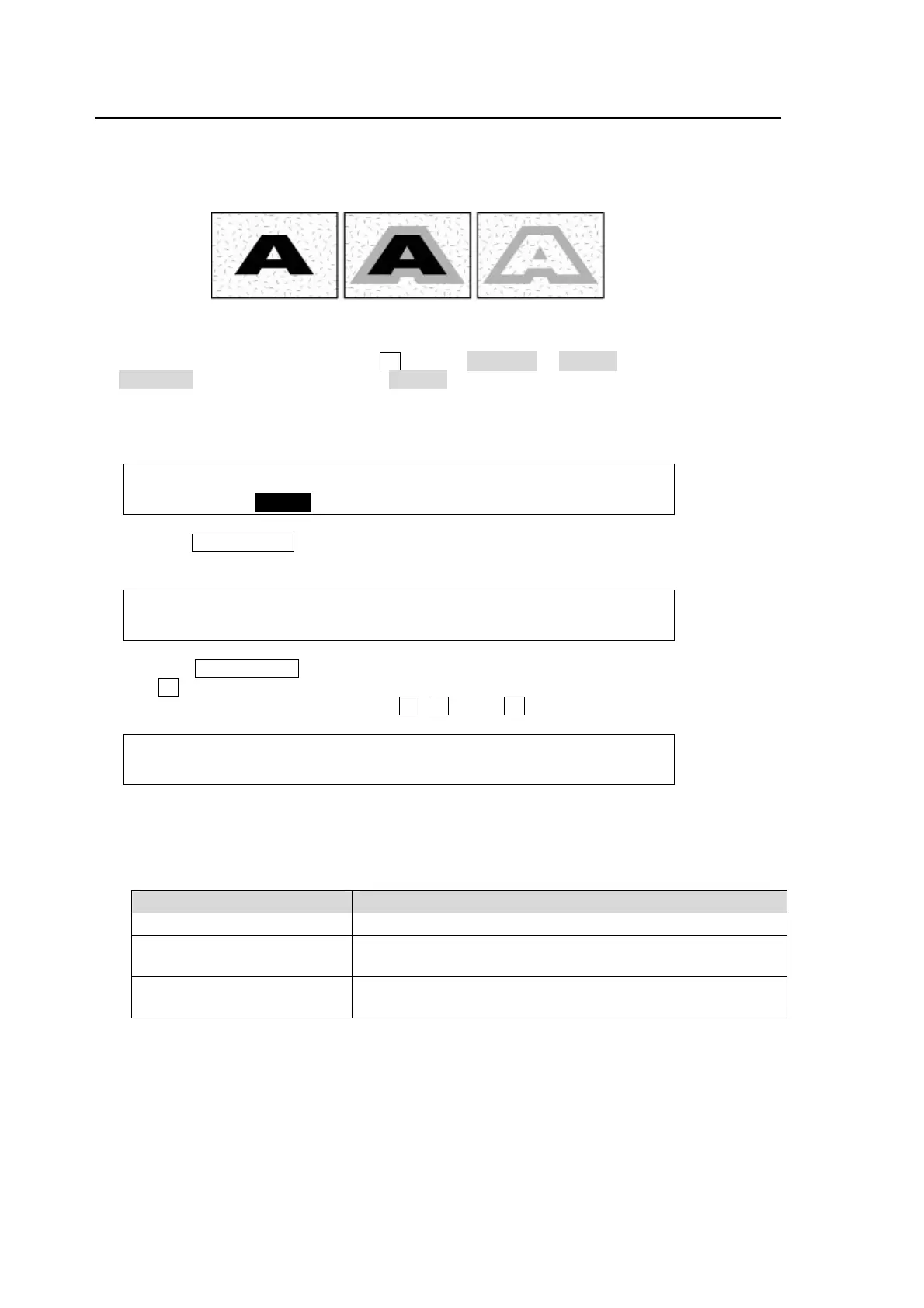
The EDGE function allows users to add border type edges on KEYER and DSK. Two types of
edges are available; Normal and Outline. The width, transparency, and color can be set for the
edges. Shadow effects can also be added by changing the position of the edges. To do this,
please follow the procedures below.
(1) Go to the [DSK - EDGE] menu. Turn F1 to select NORMAL or O_LINE for TYPE. Selecting to
NORMAL allows users to add edges. O_LINE allows users to display outlines without key fill
images.
(2) The item SOFT is for setting softness, TRANSP is for transparency, and WIDTH is for width
of the edges.
DSK : TYPE : SOFT :TRANSP : WIDTH : 1/3
EDGE : =O_LIN: =0 : =0 : =1 :
(3) Press the PAGE DOWN button to go to PAGE2. Change the X and Y values to set the edge
position.
DSK : POSITION : : 2/3
EDGE POS:X=0 Y=0 : :
(4) Press the PAGE DOWN button to go to PAGE3. The edge color can be set on this page.
Turn F4 to select a color from eight standard colors. If you wish to use a color other than
those eight, adjust the color by turning F1, F2 and/or F3.
DSK : EDGE COLOR :RECALL : 3/3
EDGE COL:S=0.0 L=0.0 H=0.0 : >BLACK:
Initial Setting for Keyer Edge
The EDGE ASGN item in the [SETUP - PANEL - KEY CTRL] menu determines the maximum
width of KEYER and DSK edges as shown in the table below.
EDGE ASGN setting Description
K/D (4H) (default setting) Up to 4H of edge width available for both KEYER and DSK.
KEY (8H) Up to 8H of edge width available for KEYER.
DSK edges cannot be set.
DSK(8H) Up to 8H of edge width available for DSK.
KEYER edges cannot be set.
No border, no shadow Normal border Outline



 To Next Page