20
4-2-4. Changing Settings or Values by Using the Joystick
Users can also use the joystick and the SIZE control in the JOYSTICK block for making
position, size and color settings to specific parameters. The parameters controllable from the
JOYSTICK block are shown in the table below.
Controllable Parameters
Menu Submenu
Parameter
Item X-axis Y-axis SIZE
SET UP OUTPUT-MV BORDER COLOR SAT LUM HUE
MATT BUS MATT COLOR SAT LUM HUE
PinP
PinP1 POS POSITION SIZE POS-X POS-Y SIZE
PinP2 POS POSITION SIZE POS-X POS-Y SIZE
PinP1 BDR COL BORDER COLOR SAT LUM HUE
PinP2 BDR COL BORDER COLOR SAT LUM HUE
DSK
INC/SRC MATT COLOR SAT LUM HUE
EDGE EDGE COLOR SAT LUM HUE
KEYER
INC/SRC MATT COLOR SAT LUM HUE
EDGE EDGE COLOR SAT LUM HUE
CK KEYER AUTO CK POS-X POS-Y SELECT
WIPE
BORDER BORDER COLOR SAT LUM HUE
POS/ANGL POSITION ANGLE POS-X POS-Y ANGLE
How to Use the Joystick
The general procedure for making and changing operational menu settings using the joystick
are as follows.
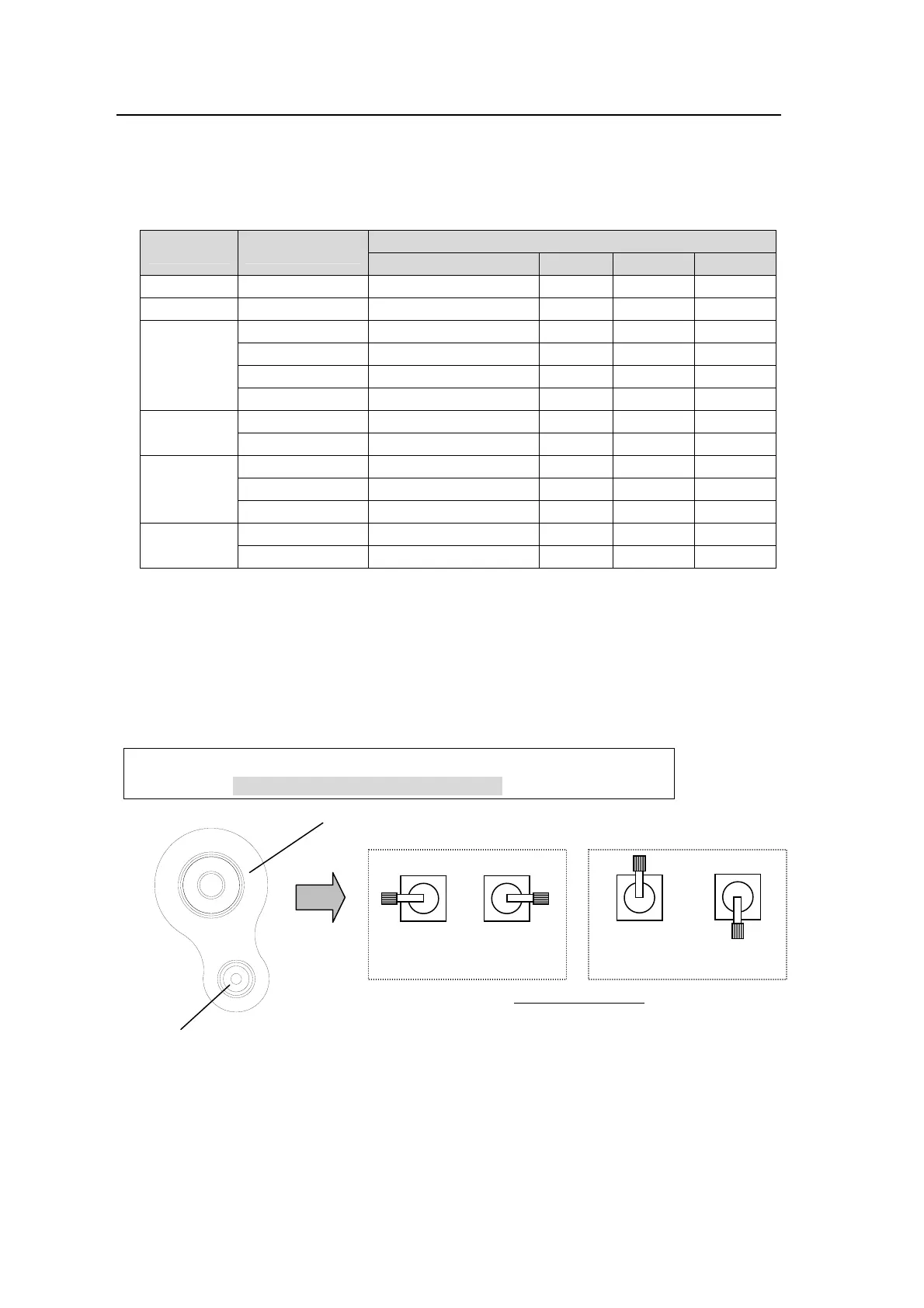
Open a menu page you want to set. In the example below, to change the three parameter
values (BORDER COLOR S, L and H,), use the joystick’s X, Y axes (i.e. move joystick
horizontally and vertically) and the SIZE control respectively.
PinP1 : BORDER COLOR :RECALL : 2/4
BDR COL :S=66.3 L=5.4 H=3.5 : >BLUE :
Resetting Values with Joystick (SIZE control)
See section
4-3. "How to Return Settings to Default."
(PUSH to DEF)
SIZE
POSITION
Down
(-Y)
Up
(+Y)
Left
(-X)
Right
(+X)
Joystick operation
Joystick
SIZE button (turn)



 To Next Page