72
14. Picture-in-Picture
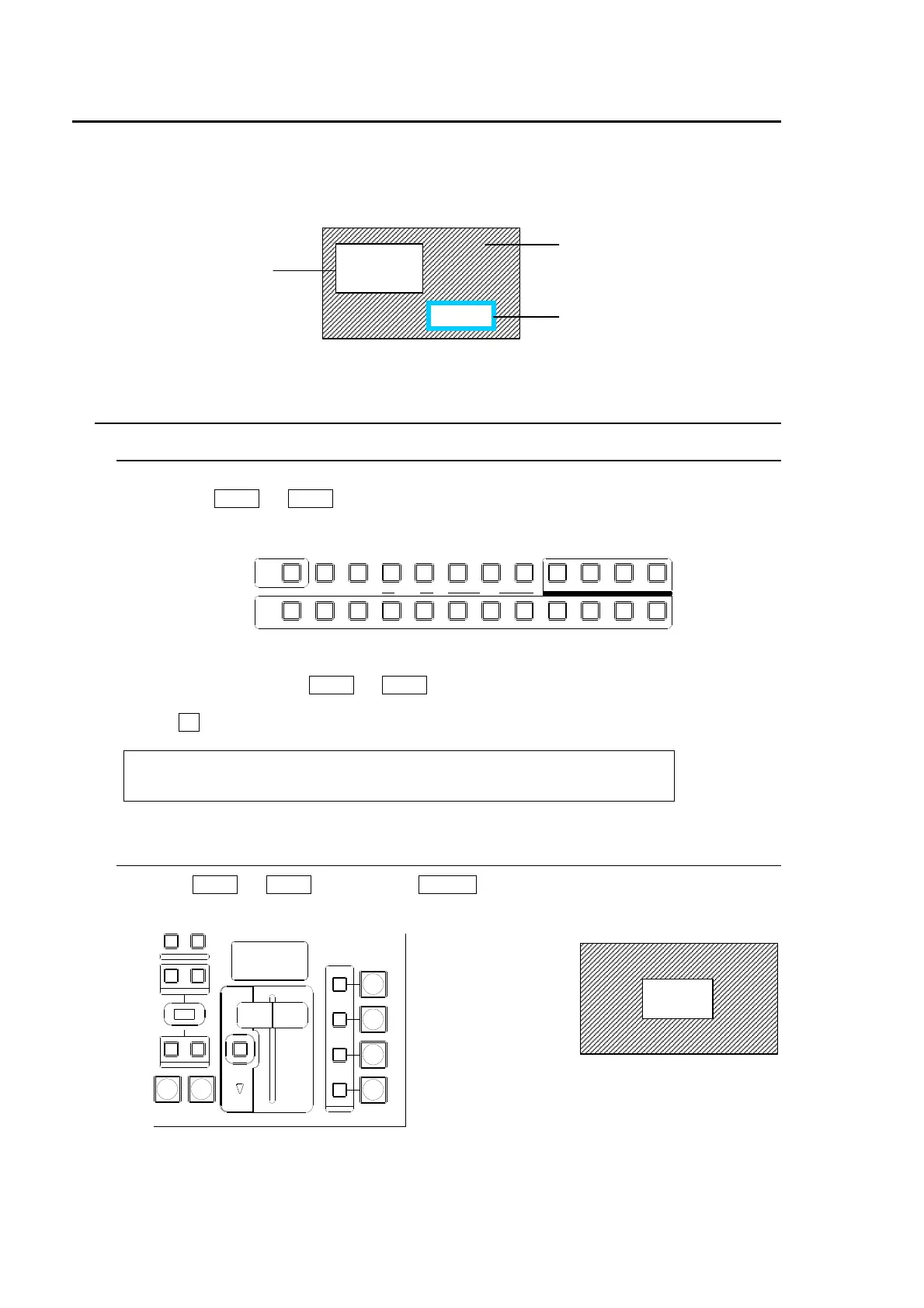
The PIP (picture-in-picture) feature allows any video (sub-screens) to be displayed on full screen
simultaneously. In the switcher, two sub-screens (PinP1 and PinP2) can be inserted on the
background video. The setup for PIP pictures is the same. This section explains how to setup and
display PinP pictures as shown in the figure below (as an example).
14-1. Setting-up PinP
14-1-1. Selecting Video for PinP
To Select Video on the Control Panel:
(1) Press the PinP1 (or PinP2) button in the BUS SELECT block.
(2) Press a desired source bus button in the KEY/AUX bus to select video for the PinP.
To Select Video in the Menu:
(1) Press twice quickly the PinP1 (or PinP2) button in the BUS SELECT to display the PinP1
(PinP2) menu.
(2) Turn F1 to select video under the XPT item.
PinP1 : XPT : BORDER :ASPECT : 1/4
XPT : =IN10 :W=0 S=0 : =16:9 :
14-1-2. Inserting PinP1 (PinP2) Video
Press the PinP1 (or PinP2) button or the ON-AIR button at the right end of in the Transition
block to insert the PinP on the background (the PGM output).
AUXP IN P
KEYER DSK
12123
PGM CLEANPREV MV
234567891011121
KEY/AUX
TRANS PREV
PGM image
PinP2
<PinP2>
Position changed
Size changed
Cropped on the top and bottom
Blue border added
Background
<PinP1>
Position changed.
Size changed.
PinP1
PGM image
PinP1
AUTO CUT
DSK
KEYER
P IN P
1
2
P IN P
NOR/REVREV
BKGD
WIPEMIX
KEYER
FADER LIMIT
ON AIR
DIRECTION
NEXT TRANSITION
PATTERN/RATE
TRANSITION TYPE



 To Next Page