58
11-3. Bus Key
Bus Key uses different signals for Key Insert and Key Source. To create a Bus Key, select a Key
Insert signal and a Key Source signal in the menus. Since selecting a signal in the menu takes
time, the HVS-300 series has got a KEY LINK function, which enables you to select a key source
and insert using a source button only. See section
11-3-1. “Key Link” for details.
The method for setting up KEYER and DSK are almost the same. This section describes how to
set up Bus Key using DSK.
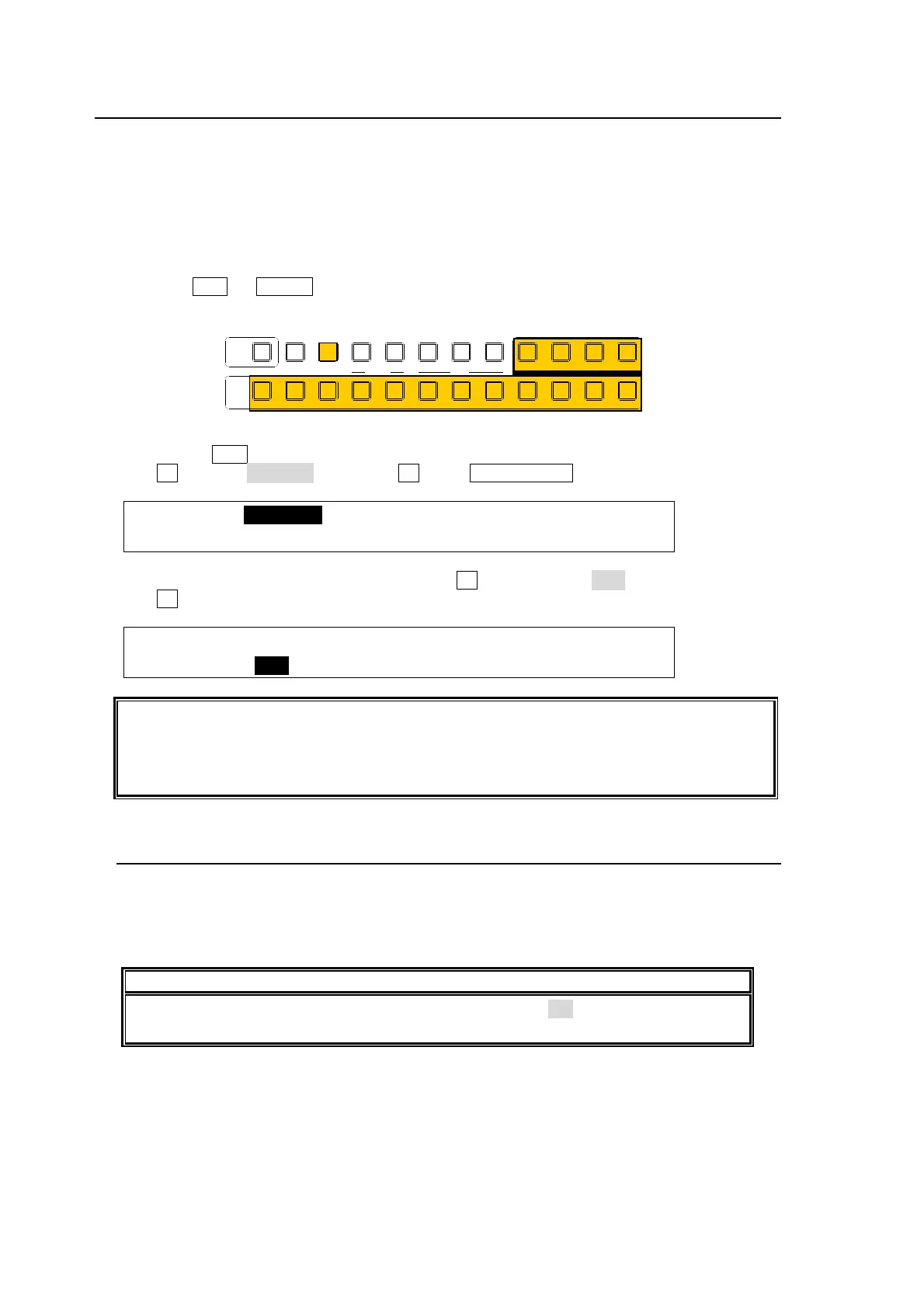
(1) Press the DSK (or KEYER) button in BUS SELECT.
(2) Select a signal for Key Insert in the KEY/AUX bus.
(3) Double-click DSK in BUS SELECT to display the DSK SETUP menu.
(4) Turn F1 to select INS/SRC, and press F1 or the PAGE DOWN button.
DSK :>INS/SRC >EDGE >MASK
SETUP :>POS/SIZ >BORDER >SUB EFF >INIT
(5) The [DSK - INS/SRC] menu is displayed. Turn F1 to set TYPE to BUS.
(6) Turn F3 to select a signal for Key Source in SOURCE.
DSK : TYPE :INSERT :SOURCE :INVERT : 1/3
INS/SRC : =BUS : >IN01 : =IN02 : =OFF :
See sections
9-4. “DSK Transitions”, 9-8-3. “User Transitions”, and 9-8-4."Advanced Auto
Transitions” for details on transitions.
See section
11-4. “Adjusting Key Signal” for details on making fine adjustment.
Edge, Invert, Mask and 2D DVE effects can be applied to the luminance key.
11-3-1. Key Link
A Key Source signal is automatically selected when a Key Insert signal is selected when KEY
LINK is on. The INSERT/SOURCE signal pairs are automatically set once they are selected
for DSK or KEYER. To change signal assignment, select INSERT/SOURCE signal pair again
for DSK or KEYER. The same assignments can be used both DSK and KEYER.
NOTE
If the key links do not work correctly, set the LINK item to ON in the [SETUP-PANEL-
KEY CTRL] menu.
AUXP IN P
KEYER DSK
12123
PGM CLEANPREV MV
234567891011121
KEY/AUX
TRANS PREV



 To Next Page