68
12-6. SUB EFFECT
The SUB EFFECT menu allows users to add MONO COLOR, DEFOCUS, and PAINT COLOR
effects. Access the SUB EFFECT menu as shown below.
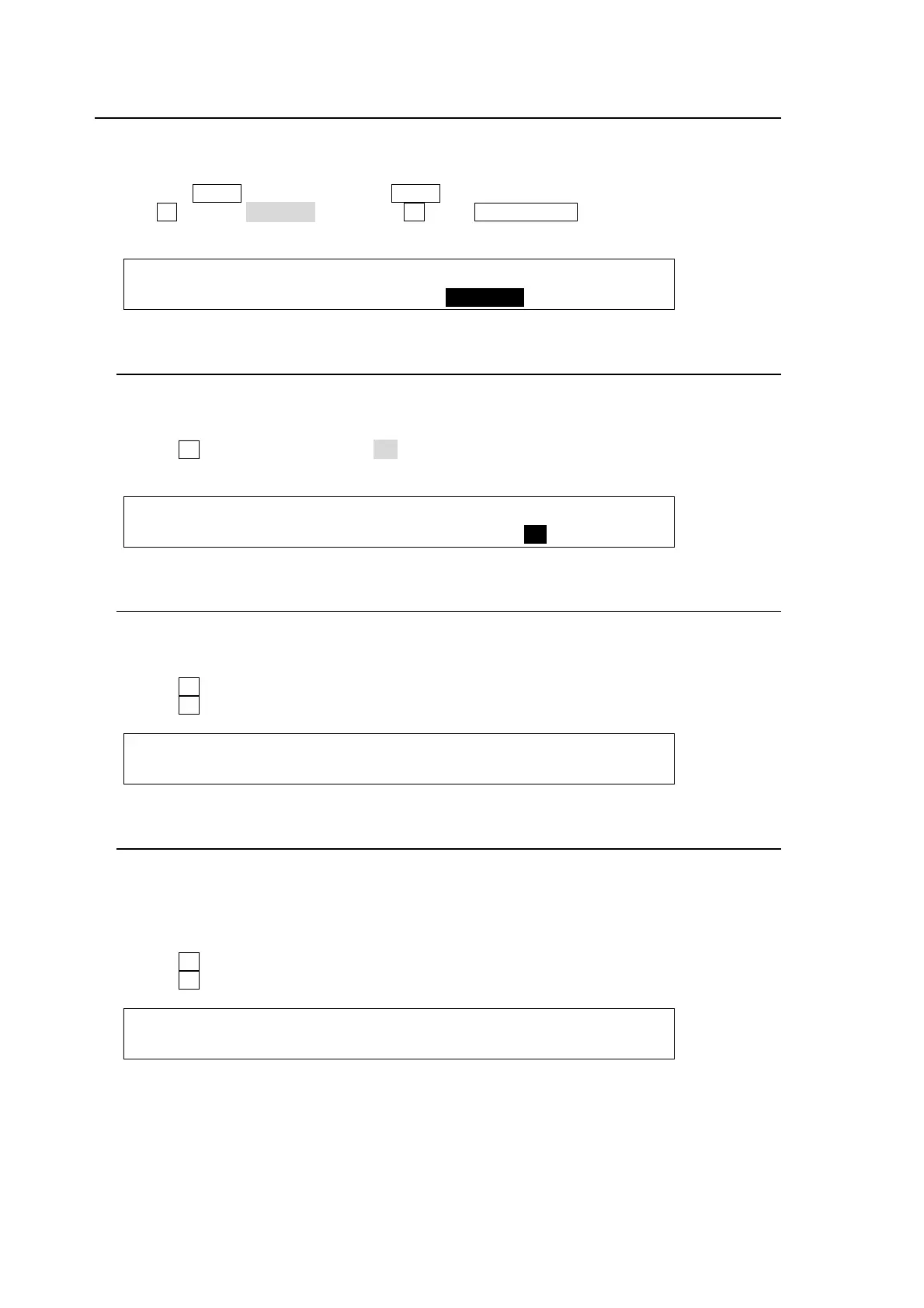
(1) Press the MENU button and then the 3/DSK button to display the [DSK SETUP] menu.
(2) Turn F1 to select SUB EFF, then press F1 or the PAGE DOWN button to display the [DSK -
SUB EFF] menu.
DSK :>INS/SRC >EDGE >MASK
SETUP :>POS/SIZ >BORDER >SUB EFF >INIT
12-6-1. MONO COLOR
Monochrome effects can be configured via this menu.
(1) Go to the [DSK - SUB EFF] menu PAGE1.
(2) Turn F4 to set EN (ENABLE) to ON.
(3) Set the color by adjusting its S (SATURATION) and H (HUE) values.
DSK : : MONO COLOR : 1/3
SUB EFF : :S=0 H=0 En=ON :
12-6-2. DEFOCUS
The DEFOCUS function allows users to add an effect that will blur the output image.
(1) Go to the [DSK - SUB EFF] menu PAGE2.
(2) Turn F1 to set the horizontal defocus level at the item H (HORIZONTAL).
(3) Turn F2 to set the vertical defocus level at the item V (VERTICAL).
DSK : DEFOCUS : PAINT : 2/3
DEFOCUS :H=4.0 V=5.0 :Y=0 C=0 :
12-6-3. PAINT COLOR
The Paint color effect allows users to add an effect which makes the image look like a
painting. Increasing the value decreases the resolution, so the image becomes like a
painting.
(1) Go to the [DSK - SUB EFF] menu PAGE2.
(2) Turn F3 to set the luminance level at the item Y (LUMINANCE).
(3) Turn F4 to set the chroma level at the item C (CHROMA).
DSK : DEFOCUS : PAINT : 2/3
DEFOCUS :H=0.0 V=0.0 :Y=10 C=10 :



 To Next Page