Chapter 4: ProView 2900 Control Interfaces Front Panel Control Interface
© Harmonic Inc. Manual p/n 101543/Ver 1.0 4-5 ProView 2900 Series/SW Version 1.94
• [Left] and [Right] arrow keys are used to mark a digit or a character for
change. The marked digit or a character is displayed with white character over
black background (see example in page 3-5)
• [Up] and [Down] arrow keys are used to scroll up or down the digits (0
through 9) or the characters (a to z, A to Z, 0 to 9 and so on.). The scroll
range can be limited to prevent values being out of range.
C. Third line displays the allowed range of parameter values.
Press [ESC] to abort the setup and return one level up to the Edit Value Screen
without changing the parameters.
Press [Enter] to accept the value. The display returns one level up to the Edit
Value Screen and the new value is displayed as the current parameter value.
NOTE
When entering a wrong or out-of-range value, the display dismisses the last change and
returns one level up in the menu tree.
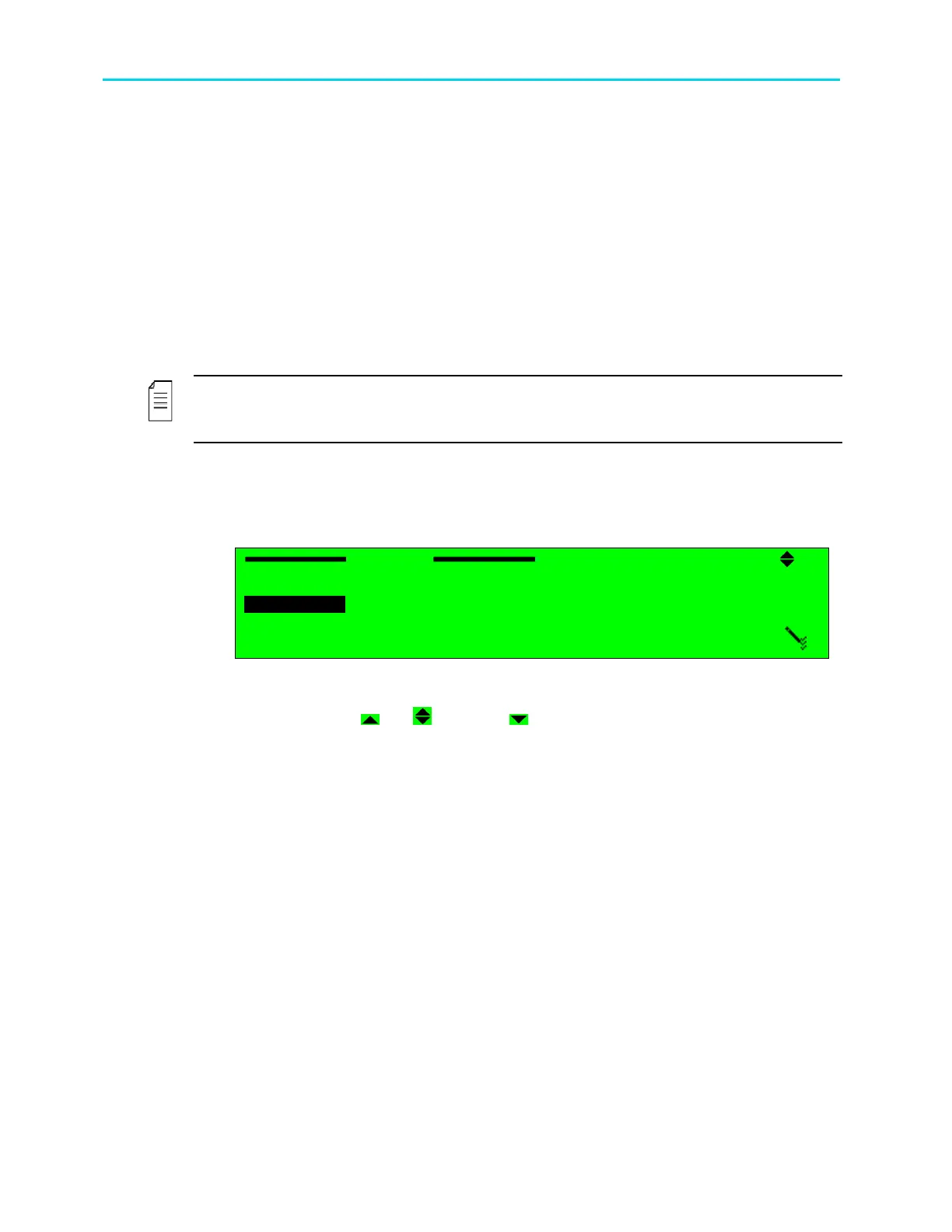
4.1.2.5. Select Value Screen (Multiple Choices)
The Select Value screen displays a list of selectable items.
In this example, the Select Value screen displays the following information:
Format
Format Format
Format
3
33
3
PAL M
PAL M PAL M
PAL M
4
44
4
PAL BG
PAL BG PAL BG
PAL BG
5
55
5
PAL D
PAL D PAL D
PAL D
6
66
6
PAL N
PAL N PAL N
PAL N
A. Top line displays the parameter name (Format
FormatFormat
Format). The pencil icon indicates that
the items are selectable from the list of displayed
options. [ Up]/[ Up/Down]/[ Down] symbols indicate that up or down
scrolling is enabled.
B. Next up to four displayed lines is a numbered list of parameters relevant to the
menu and their current values. A radio button indicates which parameters are
currently activated (
is currently enabled and
is currently disabled)
C. Additional Available Items
The list can include more than four items, but only four items are visible at a time.
When more than four items exist, you can scroll the list using the [Up]/[Down]
arrow keys.
The currently selected option is displayed with white characters over a black
background (see Item #4 in the example above).
Press [ESC] to abort setup and return one level up to the Select Value Screen
without changing the parameters.
Press [Enter] to select the marked option (the selected option is enabled
and
the former enabled option is disabled
). The display returns up one level to the
Select Value screen; the new option is displayed as the current parameter option.



 To Next Page