Chapter 4: ProView 2900 Control Interfaces Front Panel Control Interface
© Harmonic Inc. Manual p/n 101543/Ver 1.0 4-4 ProView 2900 Series/SW Version 1.94
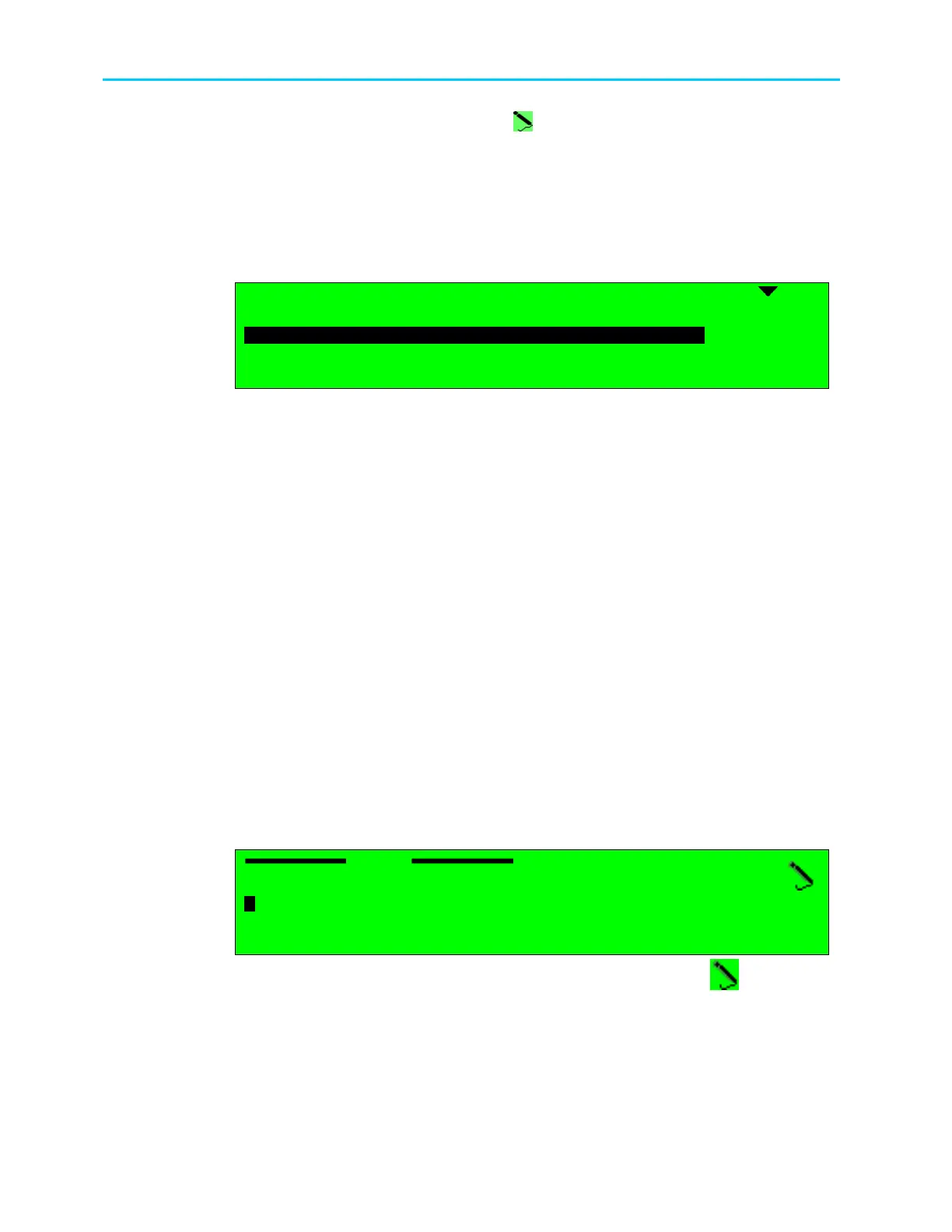
Press [Enter] to select the pointed editable option; a parameter-editing screen
is displayed. This can be a Table Menu screen, an Edit Value screen, or a Select
Value screen.
4.1.2.3. Table Menu Screen
The Table menu screen displays parameter information, using a table format.
In this example, the Table Menu screen displays the following columns:
Name
NameName
Name
ID
IDID
ID
Type
TypeType
Type
Mode
ModeMode
Mode
1
11
1
PROGRAM 1
PROGRAM 1 PROGRAM 1
PROGRAM 1
000A
000A000A
000A
TV
TVTV
TV
FTA
FTAFTA
FTA
2
22
2
PROGRAM 2
PROGRAM 2 PROGRAM 2
PROGRAM 2
0046
00460046
0046
TV
TVTV
TV
FTA
FTAFTA
FTA
3
33
3
PROGRAM 3
PROGRAM 3 PROGRAM 3
PROGRAM 3
0050
0050 0050
0050
TV
TVTV
TV
CAS
CASCAS
CAS
4
44
4
PROGRAM 4
PROGRAM 4PROGRAM 4
PROGRAM 4
01F7
01F7 01F7
01F7
TV
TVTV
TV
CAS
CASCAS
CAS
A. Top line displays the headers for each table column.
B. Next up to four displayed lines is a numbered list of parameters relevant to the
menu and their current values. A radio button indicates which parameter is
currently active (
is currently enabled and
is currently disabled)
C. Additional Available Items
The list can include more than four items, but only four items are visible at a time.
When more than four items are available, you can scroll the list using the
[Up]/[Down] arrow keys.
The currently selected option is displayed with white characters over a black
background (see Item #2 in the example above).
Press [ESC] to abort the selection and return to the Edit Menu screen without
changing the parameters.
Press [Enter] to select the currently enabled button
. The selected option
becomes enabled and the former active option is disabled.
4.1.2.4. Edit Value Screen
The Edit Value screen enables setting a parameter value. The parameter value can be a
number or a string of characters. Each digit or character is set up individually.
In this example, the Edit Value screen displays the following information:
Pcr1
Pcr1 Pcr1
Pcr1
1
11
1062 [Hex]
062 [Hex]062 [Hex]
062 [Hex]
<0000
<0000 <0000
<0000 –
––
– 1FFF>
1FFF> 1FFF>
1FFF>
A. Top line displays the parameter name (Pcr1
Pcr1Pcr1
Pcr1). The pencil icon indicates that
the parameter value is editable.
B. Second line displays the current parameter value. Change the value of the
parameter with the arrow keys:



 To Next Page