Effect Mode Options Descriptions
97 ______________________________________________________DML-1200 w/Axon Embedded Graphic Engine 24/12/2010
5.2.40 Texture Mixing
Effect Mode
parameter DMX value = 51
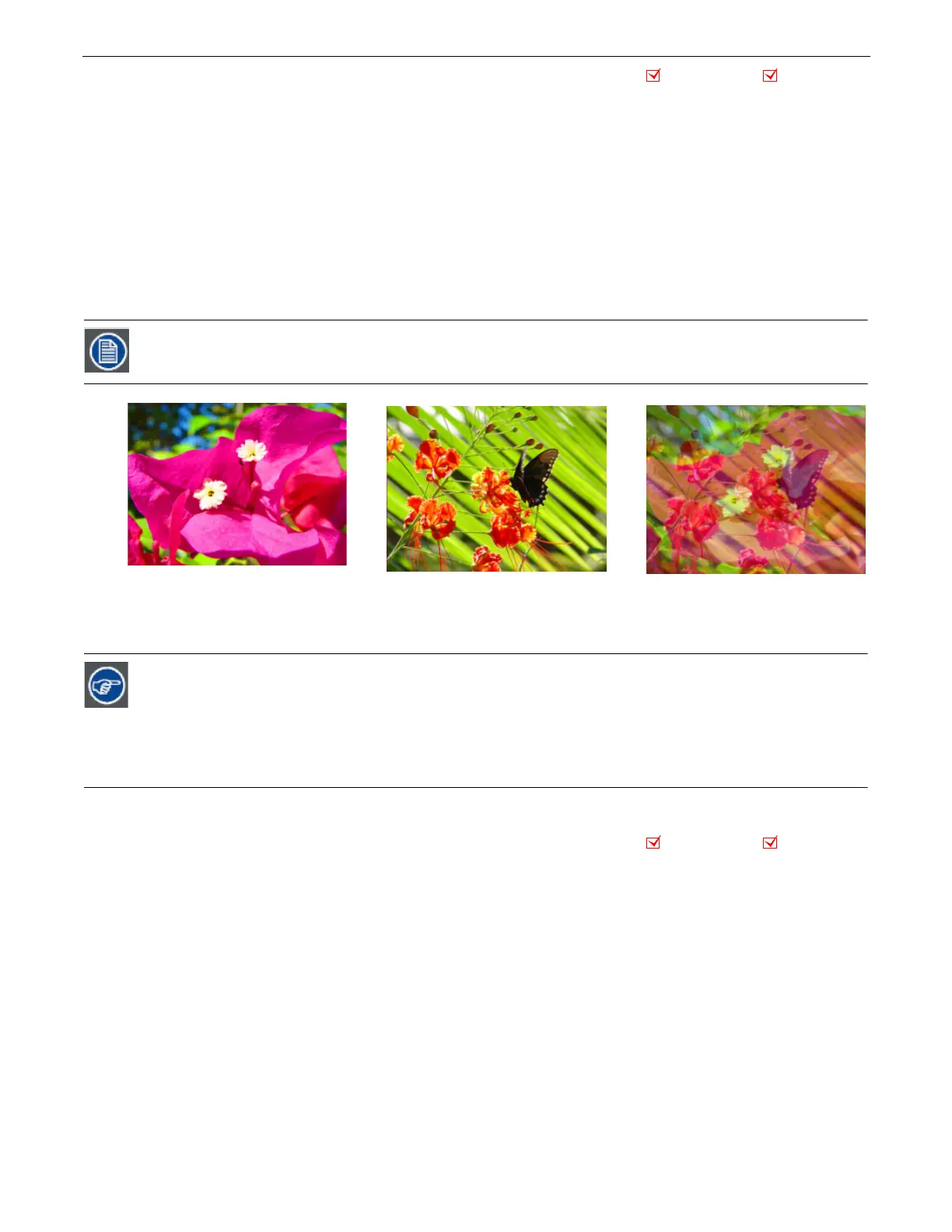
Use Texture Mixing to mix two media file outputs on one object. With this effect, you can crossfade the texture (media file
content) from one active Graphic Object to the texture of another Graphic Object. When the Texture Mixing effect is selected in the
example to the right, the media file output of Graphic Object 1 (minus applied effects) is selected and mixed to Graphic Object 2
with opacity = 50%.
Modifier 1:
Selects the Source file for the texture you want to pull. A DMX value=1 selects the media content from Graphic Object
1, a value= 2 selects from Graphic Object 2, and a value = 3 selects from Graphic Object 3.
Modifier 2:
Selects the effect level you want to use for the source file. A DMX value = 0 selects the original file without effects. If
effects have been applied to the image, A DMX value=1 includes the first applied effect; DMX=2 includes the first two effects and
DMX=3 includes the first three effects.
Modifier 3: :
Adjusts Graphic Object opacity of the source texture from a DMX value of 0 = transparent to 255 (100%) = fully
opaque.
5.2.41 Texture Ripple, Asymmetrical Circular
Effect Mode
parameter DMX value = 25
This effect varies the distance of reference points to the applied media file texture around the Z axis without affecting the
underlying object to create an effect of wavy ripples moving out from the object’s center.
Modifier 1:
Adjusts the size (amplitude) of the ripple from 0 = no adjustment to 255 (100%) = maximum size.
Modifier 2:
Adjusts the rate (frequency) of the ripple from 0 = no adjustment to 255 (100%) = maximum rate.
Modifier 3: :
Adjusts the offset (phase) speed and direction. A DMX value of 128 (50%) = no adjustment. DMX Values above the
midpoint increase speed in a forward direction to 255 (100%) = fastest speed. DMX values below the midpoint increase speed in a
backward direction from no adjustment to 0 = fastest speed.
This effect is also available as a Visual Mode adjusted with two Modifier parameters, (see Texture Mixing on page
25).
Use the following steps create a modified trails effect with the Texture Mixing effect:
1. Select two Graphic Objects. The second object can be a solid black screen (Media Folder 1, Media File 1)
2. Use Modifier 1 to select the Graphic Object you want to display with a trail effect.
3. Set Modifier 2 to a DMX Value = 2
4. Set Modifier 3 in a range between a DMX value of 240-254. The closer to 254, the more exaggerated the trail
effect appears. If Modifier 3 is set to 255, the output will appear to stall or freeze on an image
Object Effect Global Effect
Effect Mode parameter DMX = 51
Modifier 1 parameter DMX =1
Modifier 2 parameter DMX = 0
Modifier 3 parameter DMX = 128
Graphic Object 1 Content
Graphic Object 2 Content
Object Effect Global Effect



 To Next Page