Content Management Application (CMA)
119 _____________________________________________________DML-1200 w/Axon Embedded Graphic Engine 24/12/2010
6.10.5 Viewing Current Configuration of All Servers
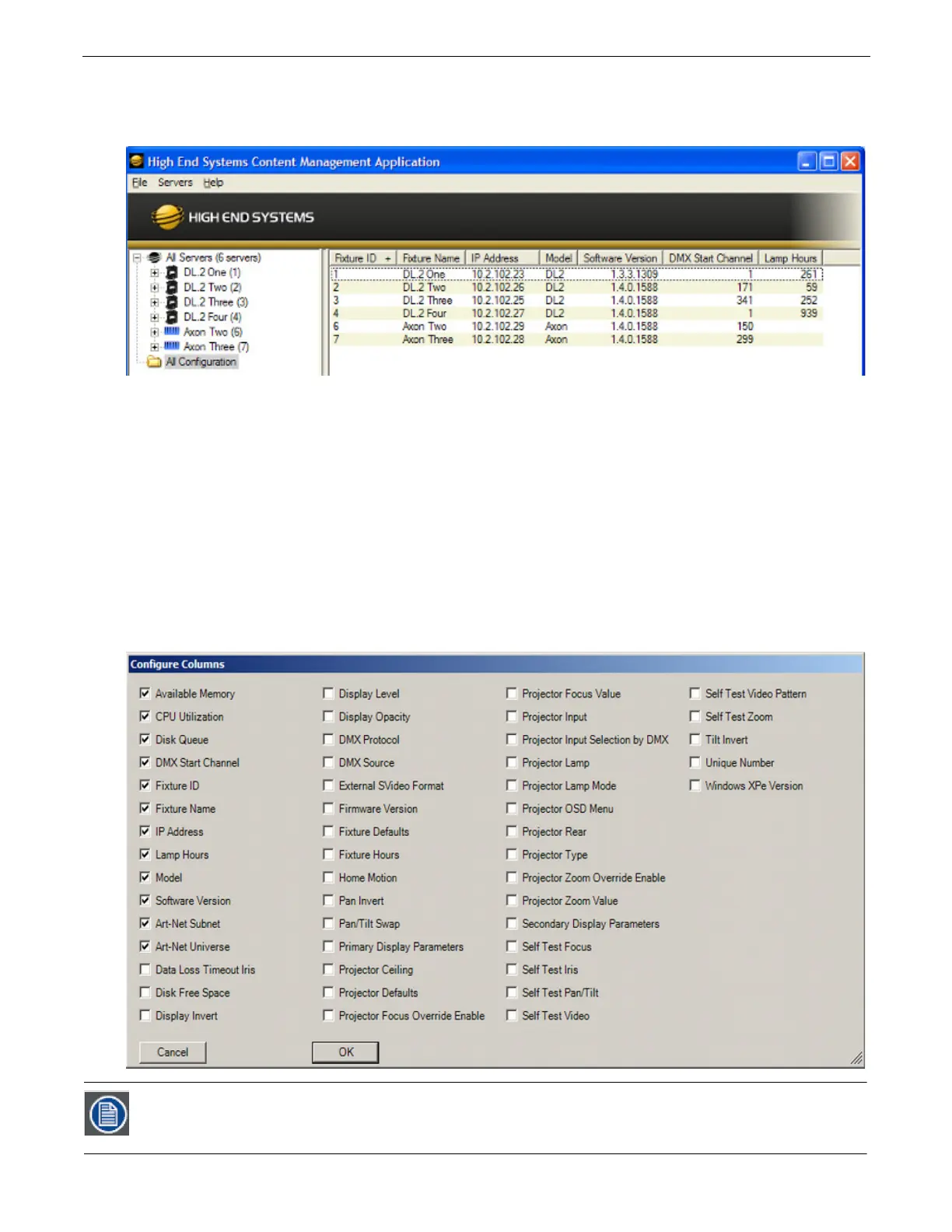
To view configuration information for all Servers on the network, select All Configurations in the left pane. The right pane now
displays configuration values for all the media servers on the fixture link in a sortable table. Click in the column heading to sort by
that column’s values. A + symbol appears in the “sort by” column heading.
The example above contains the following information for one or all servers:
•The
Fixture ID
from 1-255
•The
Fixture Name
you have assigned
•The
IP Address
•
Mode
l type [DML w/Axon, DL.2, DL.3, Axon]
•The
DMX Start Channel
currently assigned to each server
• The current
Lamp Hours
for each server (not shown with DML-1200 fixtures)
6.10.5.1 Configuring Columns
Select which columns are present by selecting
Configure Columns
from the
Servers
menu in the menu bar or by right clicking
anywhere in the main pane of the CMA.
Once you select
Configure Columns
, you can view a list of all possible columns. Choose which columns to view by either checking
or un-checking each selection. Once you have selected the columns you want to display, click on OK.
In DML-1200 fixtures/wAxon, hardware configuration items like projector options, pan/tilt, lamp hours,are set
using the projector toolset. Only configuration items related to the Axon media server will be displayed.



 To Next Page