Graphic Functions
DML-1200 w/Axon Embedded Graphic Engine 24/12/2010 _____________________________________________________________________________ 10
2. GRAPHIC FUNCTIONS
2.1 Defining Content
2.1.1 Content Overview
In addition to a royalty-free stock digital art collection featuring more than 1,500 lighting-optimized files available as stock
content, you can develop your own custom media files and 3D object files for playback. The Digital Lighting Product and Support
pages at highend.com/digital_lighting
offer additional assistance and the latest software and techniques for creating and encoding
custom content.
Every DML-1200 w/Axon media server has a file system that holds the movies, images, and 3-D
objects that make up the content that the server uses. These files, folders, and their associated
DMX values are collectively known as the “Content” on the media server.
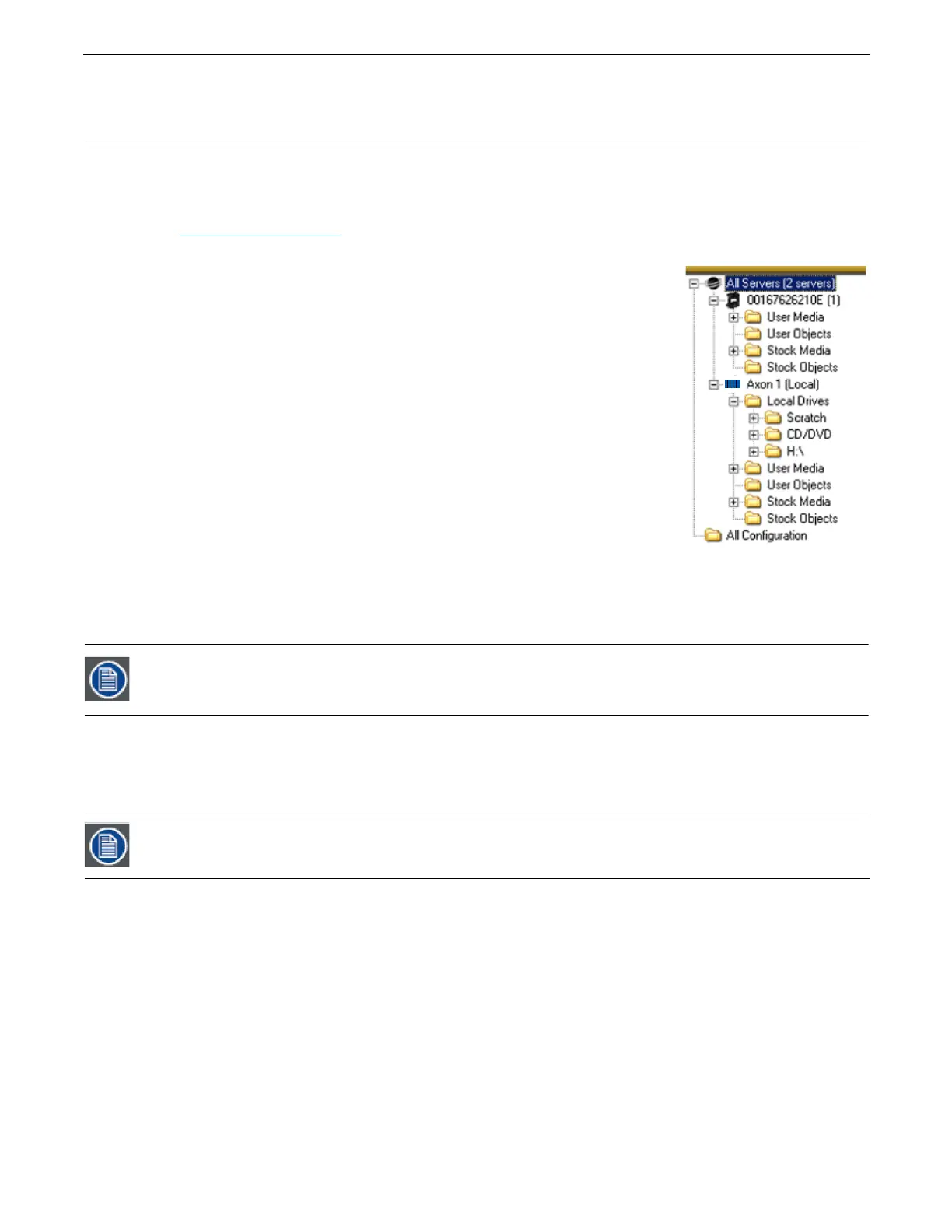
The Content Management Application (CMA) organizes and identifies content by source
(preloaded Stock content or custom User content) and type (Media files or 3-D Object files).
For
more information on using the CMA to view and manage content, (see
Content Management
Application (CMA)
on page 96).
2.1.2 Selecting Content
Three Parameters control content selection. To define an image you have to set DMX values
greater than 0 for the 3-D Object, Media Folder, and Media File parameters. The selected media
file will be mapped onto the selected 3-D object.
To output an image from the media server:
1. Open the mechanical iris on the projector by setting its Dimmer parameter to full (100%).
2. Set the dimmer parameter to full (100%).
3. Set the Object opacity to full (100%)
4. Adjust the Object, Media Folder, and Media File parameters to greater than zero
When programming with Wholehog software, the Media Folder and Object parameters default to 1 so choosing any Media File DMX
value from 1-35 will display a media loop from the HES Core folder (Media Folder 1) wrapped on a Flat Plane (Object 1).
2.1.3 Content Selection Parameters
The following sections outline parameters you will use to create an image from content and define its playback. You will set the
parameters described in this chapter for
each
individual Graphic Object you define.
The Dimmer, Opacity and Global Intensity Parameters all have to be greater than zero before the image you
create becomes visible.
The suggested default DMX values given for each parameter are recommended to build libraries that provide the
easiest and most reliable content selection, rendering and output. They are the same default values built into the
Wholehog libraries for High End Systems consoles.



 To Next Page