Content Management Application (CMA)
DML-1200 w/Axon Embedded Graphic Engine 24/12/2010 _____________________________________________________________________________ 118
4. Right click anywhere in the CMA Window or use the Server’s pull down menu to select
Upgrade Software
. The Upgrade Wizard
will prompt you to browse to the location where you saved a copy of latest version.
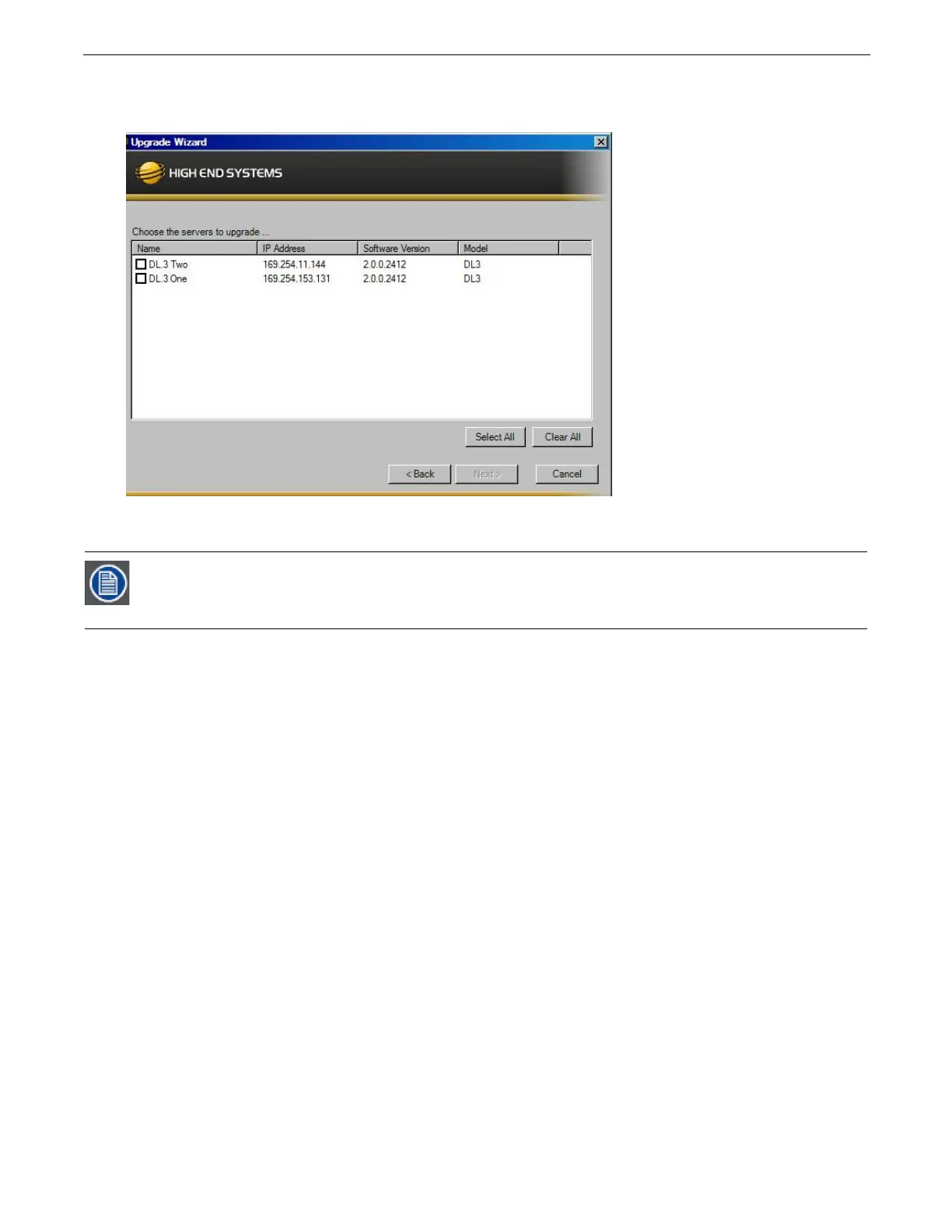
5. After locating the upgrade file, press Next. The Upgrade Wizard displays a list of all servers connected to the fixture network.
6. Click in the box to the left of the server name to select a server(s) for upgrading.
7. Click
Next
to continue upgrade. The server will reboot after upgrading the software.
6.10.4 Viewing Server Configuration
The CMA lets you remotely view and modify fixture settings.Some settings such as Software Versions are view only. Other settings
such as Fixture ID, DMX Start Channel, etc. can be modified (configured).
The CMA also has some additional configuration features that let you:
• Assign a name to servers connected over the network for easier identification of servers on your network.
• Compare all the Configuration Items of a certain type for a group of fixtures. For example, viewing the DMX Start Channels of all
the fixtures on a network.
Mac OS X: Upgrading Software
To upgrade multiple servers, select multiple fixtures from the All Servers list.



 To Next Page