GAPS - User Guide
6.3.3 CONFIGURING THE LOGGING
Once the equipment has been created (see section 6.3.1) and the connection configured (see
section 6.3.2), the next step is to configure the logging of the data being received and
displayed in DELPH RoadMap 3D interface.
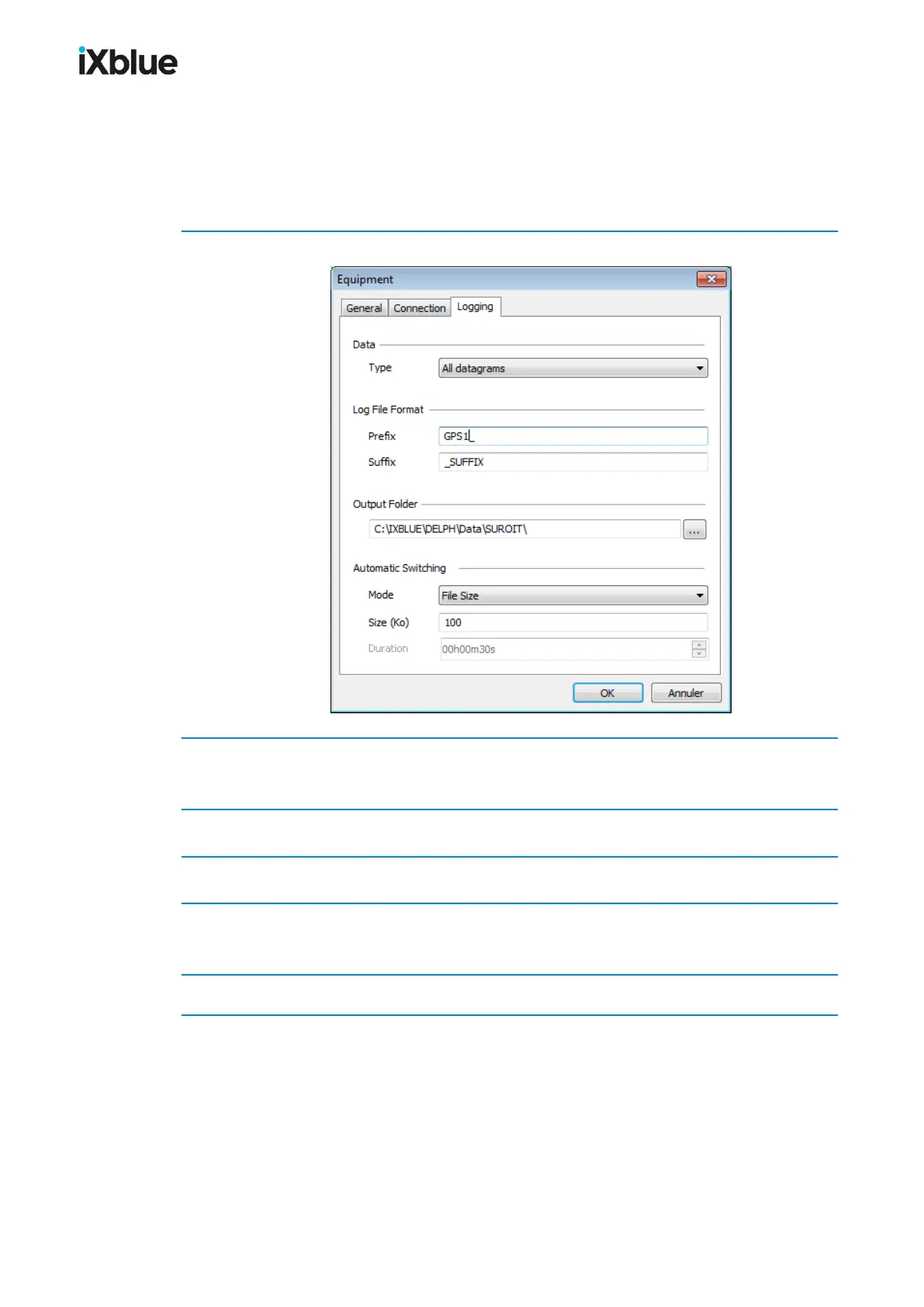
1. Open the Logging tab.
2. Select the Type of data to be stored. The choice has to be made between All datagrams (all
received data is stored) and Interpreted datagrams only (all decoded data is stored).
3. Type in a file Prefix and a Suffix.
4. Select the path of the Output Folder where to store the logged files.
5. Select an Automatic Switching Mode between None, File Size or Duration and the
corresponding limit of file Size (ko) or limit of Duration.
6. Click OK to validate the logging configuration.
100 MU-GAPS-AN-005-H - November 2019


 To Next Page