GAPS - User Guide
6.3.4 CONNECTING EQUIPMENT AND LOGGING DATA
Once the configuration steps are achieved, the data output by the equipment that has been
defined may be received, displayed and logged. Several data flows coming from different
devices may be input and logged together.
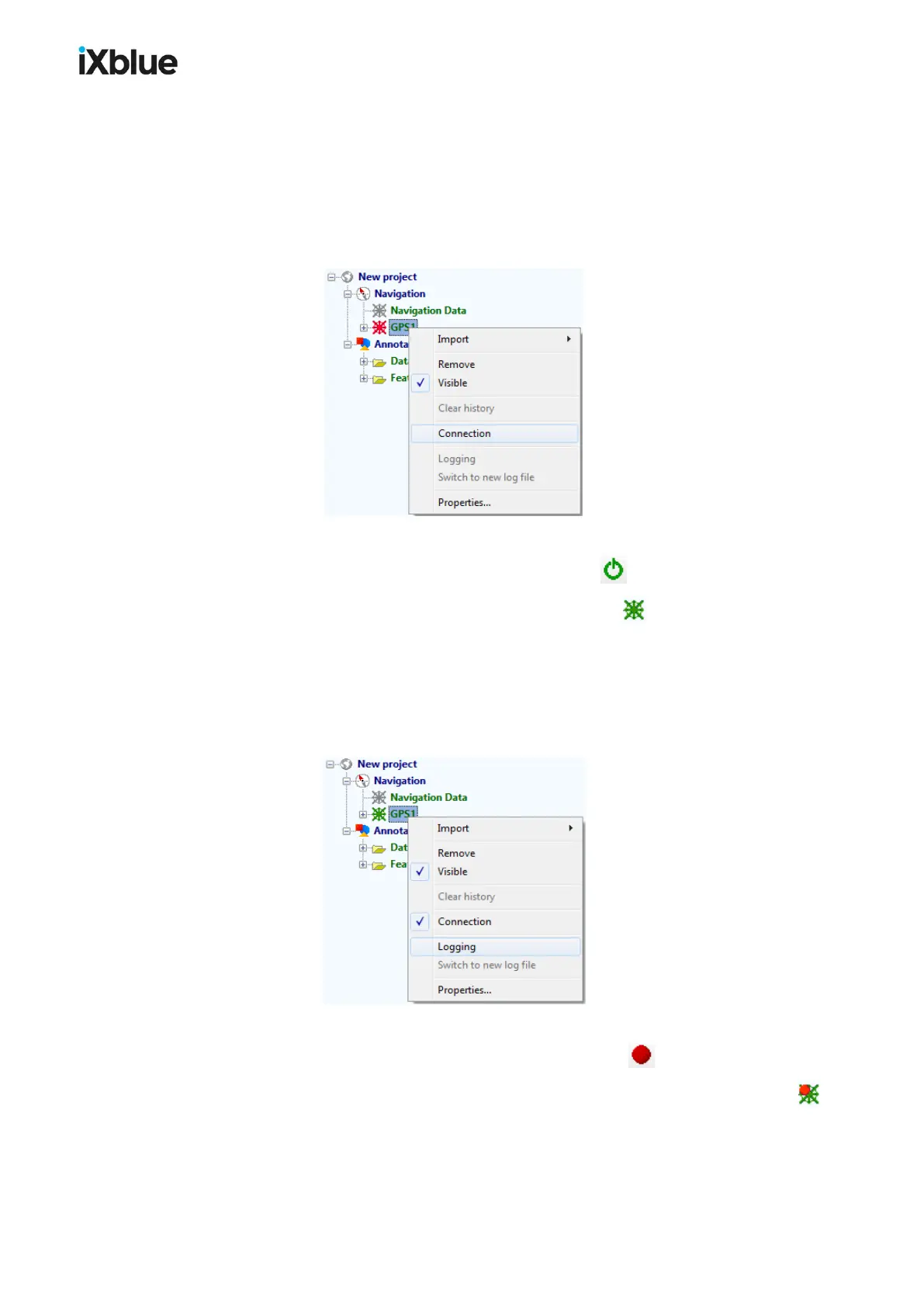
Connection
There are two ways to initiate the connection:
● Under Navigation, right click on the equipment and select Connection in the menu:
● In the equipment toolbar, select the piece of equipment or All equipment (if you wish to
connect all equipment at once) and click on the button .
Once connected, the symbols of all the equipment turn green: .
All the mobiles whose protocols are present in the data flow are displayed in the project view
below the corresponding equipment. These mobiles are also all present in the graphic display
and in below the equipment in the project view tree.
Logging
There are two ways to initiate the data logging:
● Under Navigation, right click on the equipment and select Logging in the menu:
● In the equipment toolbar, select the equipment or All equipment (if you wish to log data
from all equipment at once) and click on the logging button .
The symbols of all the pieces of equipment that are logging are displayed as follow: .
Open the Logging panel to display the size and recording duration of the logging files as well as
the logging status or remaining disk space available when critical.
MU-GAPS-AN-005-H - November 2019 101


 To Next Page