GAPS - User Guide
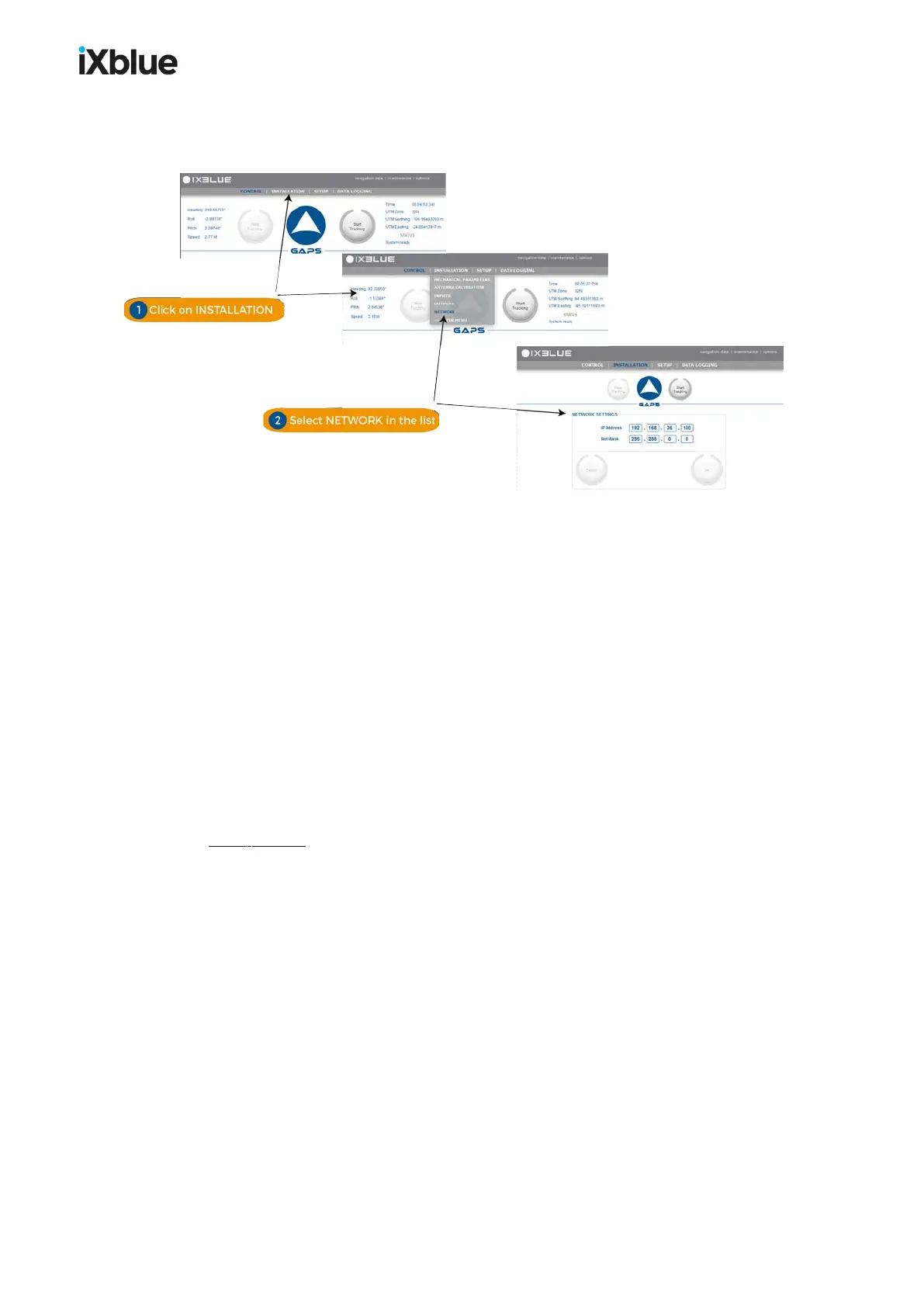
4.1.2 WINDOWS AND MENUS HANDLING
Use the menu to navigate in the interface windows as shown below.
Figure 31 - Navigation through the interface pages
4.1.3 LOGO HANDLING
A click on the logo opens the status pop-up. Figure below sums up the status of:
● Antenna: concerns the status of the equipment of GAPS itself
● INS: concerns all status messages coming from the GAPS INS
● External Sensors: concerns all errors of the data input from external sensors
● Electronic: concerns all errors of the data input from external sensors
The color code applies for the indicators and text labels displayed in these pop-up windows.
When a problem occurs, the color of the logo changes and these pop-up automatically appear
showing immediately which equipment has raised the problem. Close the pop-up windows by
clicking on the logo.
While tracking, repetitive clicks on the main logo or on the STATUS label on the left of the
main logo display alternatively the SYSTEM DETAILED STATUS and the list of the active
transponders and their associated parameters. A click on the frame of a transponder of the list
allows the display of another set of parameters of the transponder.
MU-GAPS-AN-005-H - November 2019 49


 To Next Page